
A restart loop in one PC is annoying. A restart pattern across a floor, a comms room, or a newly fitted office is an infrastructure problem until proven otherwise.
That distinction matters. Most advice for a computer keeps restarting issue starts and ends with drivers, Windows updates, malware scans, and hope. In business environments, especially after relocations, fit-outs, server room changes, CCTV additions, or electrical works, that approach often burns time while the fault sits in power quality, thermal conditions, cabling, or building systems that were never designed as one joined-up stack.
In-house IT managers usually spot the pattern before anyone else does. The first ticket says one machine rebooted during Teams. The second says a workstation near the same bank of desks did the same thing. Then a switch uplink flaps, a UPS starts behaving oddly, or a legacy server in a warm cupboard drops out under load. At that point, the right question isn’t “what’s wrong with this PC?” It’s “what changed in the environment around it?”
Why Random Restarts Are More Than Just a Nuisance
The worst restart faults aren’t random at all. They only look random when each ticket gets handled as a separate desktop incident.
A familiar example is the office move that seemed clean on go-live day. New desks. New Wi-Fi. Freshly patched machines. Everyone logs in, works for a few hours, then one department starts reporting reboots. Another team sees brief freezes followed by restarts. Someone swaps a dock. Someone reinstalls a driver. The issue fades for a day, then comes back.
That’s where standard consumer guidance breaks down. Guidance aimed at home users usually focuses on the machine in isolation. It rarely deals with what happens when multiple devices restart after a relocation, or when instability appears only after cabling, switching, UPS changes, or electrical alterations.
According to Dell’s guidance gap described in its restart troubleshooting content, current advice tends to neglect how network configuration, DHCP conflicts, or poorly designed infrastructure can cause persistent restarts across multiple devices in office environments, and when 5 to 50 machines restart simultaneously post-relocation, it’s rarely a single driver issue but rather infrastructure-level failures. The same source also notes that UK Building Regulations and BS 6701 compliance for structured cabling directly affect system stability, and non-compliant cabling can introduce electrical noise that contributes to restart loops (Dell restart troubleshooting context).
Practical rule: If one machine restarts, investigate the device. If several machines restart in the same area, investigate the building.
That’s also why restart faults show up in places that aren’t obviously “IT”. A comms cupboard with poor ventilation. A shared circuit feeding desktop power and CCTV equipment. A floorbox where power and data were installed without much thought for interference. A server room expansion that added load but not airflow.
The nuisance is the symptom. Cost comes from wasted engineer time, user disruption, repeat callouts, and the false confidence that comes from replacing parts before you’ve found the root cause.
First Response When Your Computer Keeps Restarting
When a computer keeps restarting, the first job is to stop the loop long enough to gather evidence. Don’t start by changing five things at once. Gain control first.

Stop automatic rebooting
Windows often hides the useful part of a crash by restarting too quickly. Disable that behaviour so the machine shows the error instead of immediately rebooting.
Use this path on the affected machine:
Open Control Panel
Select System
Open Advanced system settings
Under Startup and Recovery, click Settings
Untick Automatically restart
Apply the change and reboot if needed
If the machine blue-screens after that, you’ve got something to work with. Capture the stop code, note the time, and keep a record of what the user was doing when it happened.
Check the basics that people skip
A surprising amount of time gets lost because teams jump straight into OS repair while the physical environment is unstable.
Run this short triage list:
Power lead and PSU connection: Reseat the kettle lead, check the wall socket, and confirm the PSU switch hasn’t been knocked.
Docking stations and monitors: Disconnect non-essential peripherals. Faulty docks and display adapters can muddy the picture.
Network cable: If the restart issue began after desk moves, reseat the data cable and inspect patching at both ends.
Recent changes: Ask what changed in the last few days. Windows patch, desk relocation, added CCTV recorder nearby, cabinet move, new switch, or electrical work all matter.
User pattern: Find out whether it restarts under load, at login, during video calls, or only at a specific desk.
Split device fault from environment fault
Move the machine, if practical. Put it on a known-good desk, known-good power, and known-good data point. If the fault follows the machine, keep investigating the device. If the fault stays with the location, stop blaming Windows.
A quick comparison helps:
Test | What it tells you |
|---|---|
Same PC at another desk | Whether the original location is part of the problem |
Known-good PC at the problem desk | Whether the desk, circuit, or port is implicated |
Boot with minimal peripherals | Whether a dock, USB device, or display chain is involved |
Capture enough detail for proper escalation
Don’t just write “random reboot”. Log what matters:
Exact time of restart
Whether there was a BSOD or instant power loss
Any recent fit-out, power, cabling, or comms room change
Whether nearby users saw the same behaviour
Whether the issue appears only on mains, only on dock, or only at one location
If the machine is business-critical and the office is in a go-live window, don’t waste half a day chasing desktop symptoms in isolation. Bring in structured support early so someone can test the endpoint, the circuit, and the network edge together. That’s usually where an on-site go-live support service earns its keep.
Those first checks don’t solve everything. They stop guesswork from taking over.
Systematic Software and Operating System Diagnostics
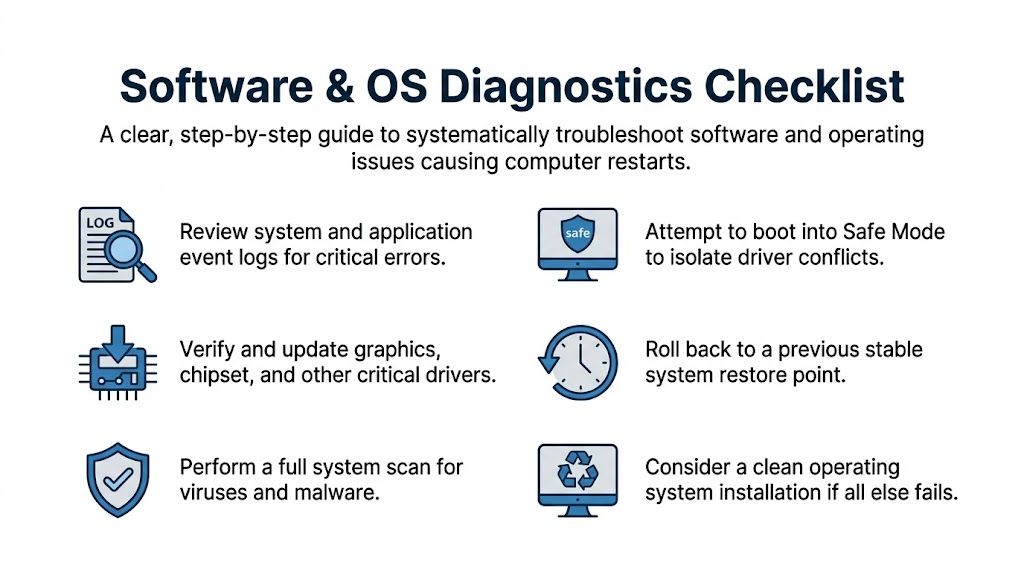
Once you’ve stabilised the machine enough to work on it, software diagnosis should be methodical. Random clicking around Event Viewer doesn’t count.
A CompTIA-aligned troubleshooting methodology resolves computer restart loops in 78% of cases within the first two phases, and those phases are identification and theory building. The same data states that filtering Event Viewer for Kernel-Power Event ID 41 is useful because it appears in 62% of BSOD restarts, while reproducing the issue in Safe Mode narrows the cause to hardware in 85% of cases (CompTIA troubleshooting methodology).
Read Event Viewer properly
Open Event Viewer and go straight to Windows Logs > System. Filter for critical and error events around the restart time.
You’re looking for patterns, not just one dramatic entry. Kernel-Power Event ID 41 tells you the system didn’t shut down cleanly. It does not tell you why. Treat it as a timestamp marker, then work backwards and forwards around it.
Look for entries tied to:
Driver failures
Disk warnings
Power loss indicators
Service crashes just before reboot
Repeated device initialisation failures
If the system log is noisy, cross-check Application logs and reliability history. A clean pattern of application crashes before restart can point to software. A sudden hard loss with little logging often points elsewhere.
Use Safe Mode as a divider
Booting into Safe Mode strips back third-party drivers and startup items. That makes it one of the fastest ways to separate OS-level instability from hardware or environmental faults.
If the machine stays stable in Safe Mode, consider:
Recently updated display drivers
Chipset or storage drivers
Endpoint security agents
VPN clients
Dock firmware utilities
If it still restarts in Safe Mode, your suspicion should move toward hardware, power, or thermal conditions.
Don’t over-interpret one successful Safe Mode boot. Leave the machine there long enough to mimic the failure window.
Repair Windows before you reinstall it
A rushed rebuild often hides the original cause and wastes time if the issue sits below the OS.
Run these checks in a Command Prompt with administrator privileges:
sfc /scannow
DISM /Online /Cleanup-Image /RestoreHealth
Reboot and test again
If SFC reports corruption and repairs it, check whether the restart pattern changes. If DISM repairs the image, repeat SFC and then validate system behaviour under normal user load.
A short comparison helps keep teams disciplined:
Tool | Good use | Poor use |
|---|---|---|
SFC | Checking protected system files | Assuming it can fix hardware faults |
DISM | Repairing the Windows image | Using it as a substitute for log analysis |
System Restore | Rolling back after a known bad change | Applying it when the fault predates restore points |
Review updates, drivers, and security layers
The timing matters. If the issue began after a patch cycle, check Windows Update history, installed driver dates, and any endpoint management changes.
Graphics and chipset drivers are common suspects in apparent restart loops. So are storage controller updates on business laptops and workstations. If a recent driver aligns neatly with the first fault, rollback is a reasonable test.
Malware is another branch, but it should be investigated with context rather than used as a generic explanation. If the machine shows unusual services, scheduled tasks, security alerts, or browser and process anomalies, a practical overview of malware and viruses is a useful refresher before you decide whether this is a compromise issue or just a badly timed coincidence.
Know when software isn’t convincing anymore
Software root causes usually leave traces. They often have a timeline, a change window, and behaviour that shifts when you remove a driver, boot minimally, or repair the OS.
When none of that changes the outcome, stop trying to force a software answer. A computer keeps restarting fault that survives Safe Mode, survives system repair, and ignores rollback usually isn’t asking for another round of Windows triage.
Investigating Hardware The Usual Suspects
Once software looks less convincing, go hands-on. Teams either find the fault quickly or lose hours because they test components in the wrong order.
The usual suspects are thermal issues, RAM, and above all the power supply unit.

Start with heat because it’s visible
Fans clogged with dust, blocked intakes, dried thermal paste, and poor airflow around a chassis all produce the same complaint from users. “It just restarts.”
Check the obvious first. Is the machine under a desk against a wall? Is the workstation packed into joinery with no breathing room? Did the issue begin after the office layout changed and the PC now sits beside a heater or inside a cabinet?
Use monitoring tools already in your stack if you have them. If not, use a reputable hardware monitor and observe temperatures under light load and then under sustained load. Don’t just glance at idle values.
Look for behaviour such as:
Temperature spikes followed by immediate restart
Fans at full speed before failure
GPU-heavy tasks triggering instability
A machine that is stable cold, then fails later in the day
Test RAM with patience
Memory faults don’t always produce tidy symptoms. They can look like application crashes, blue screens, or hard restarts.
Use MemTest86 from a bootable USB and let it run properly. Overnight is often the sensible choice for an intermittent issue. One quick pass during working hours doesn’t prove much.
If errors appear, isolate modules:
Test one DIMM at a time
Test the same DIMM in a different slot
Confirm the system is running expected memory settings
Check for recent physical disturbance if the machine was moved
Poorly seated RAM after transport is common. So is memory that only fails when warm.
Put the PSU near the top of the list
In UK business environments, PSU diagnostics account for 42% of business PC restart resolutions, rising to 51% during server expansions like NHS hospital relocations. A swap test with a known-good unit succeeds in 94% of cases if voltage sags are the underlying issue, yet 35% of cases are initially misattributed to software, delaying resolution by 4 to 6 hours (TeamViewer restart troubleshooting insight).
That matches what infrastructure teams see on the ground. A weak PSU can mimic almost anything. Under light use, the machine may look healthy. Under load, rails sag, protection trips, and the system restarts with no useful warning.
What to check before swapping
A proper PSU check starts with the unglamorous details:
Fan operation: If the PSU fan isn’t behaving normally, take it seriously.
Connector seating: Reseat the 24-pin ATX and CPU power connectors.
Recent additions: Extra drives, GPUs, USB-powered accessories, and capture devices can push a marginal unit over the edge.
Dust and airflow: Heat worsens PSU weakness.
If you have bench tools and the skills to use them, test rails under load. If you don’t, don’t pretend software logs will replace electrical testing.
A known-good swap is often faster and more reliable than debating theoretical causes for another half day.
The swap unit must be properly matched. Don’t use an underpowered spare just because it boots the machine on the bench. Match form factor, connectors, and realistic load.
Here’s a simple decision view:
Symptom | More likely PSU | Less likely PSU |
|---|---|---|
Instant restart under load | Yes | |
BSOD with clear driver pattern | Yes | |
Random shutdown after transport | Yes | |
Crashes only inside one application after update | Yes |
A broader facilities issue can sit behind repeated PSU failures too. If several machines in one area start eating power supplies or showing unstable behaviour after electrical changes, the endpoint may be reacting to the supply it’s being fed. At that point, desktop diagnostics need support from a team that can assess the wider installation, not just the PC. That’s where experienced electrical contractors become relevant to IT stability, not just building compliance.
Use stress tests carefully
After a suspected fix, validate it. Don’t just let the user log back in and declare success.
Run controlled load tests and monitor behaviour. CPU and graphics stress together can expose weak power or thermal headroom quickly. Watch temperatures, fan response, and whether the restart appears at a repeatable threshold.
This is also a good point to use a visual refresher if you’re training junior staff on physical checks and component isolation.
Don’t turn one bad part into a false conclusion
Replacing RAM and seeing the issue disappear for a few hours doesn’t prove the RAM was the cause. Moving the machine, opening the chassis, reducing load, and changing power draw all alter the test conditions.
Treat hardware diagnosis like controlled elimination. One change at a time. One result recorded properly. Otherwise the same computer keeps restarting ticket comes back next week with a new guess attached.
Beyond the Box Infrastructure and Environmental Causes
A single unstable endpoint can be a device problem. A cluster of unstable endpoints is usually telling you something about the room, the rack, the floor, or the building services around them.
That’s the gap many desktop-first guides miss. They don’t connect restarts to electrical integrity, building heat, structured cabling quality, CCTV load, or how autonomous building systems are assembled in practice.

Heat is often a room problem, not a PC problem
In the UK, computer restarts due to overheating represent approximately 45% of hardware-related IT support calls for SMEs. The verified cause is often dust accumulation in server rooms and inadequate ventilation during office fit-outs, where CPU temperatures can exceed 90°C and trigger automatic shutdowns. Those failures lead to an average of 2.3 hours of unplanned downtime per affected device annually (UK overheating and downtime data).
If a computer keeps restarting because it’s overheating, the question isn’t only whether its fan works. Ask where the machine lives.
A workstation tucked into enclosed furniture can overheat even when the internal cooling is fine. A small server room with added switches, UPS gear, and patching can become unstable after a fit-out because someone increased heat load without revisiting airflow. Dust in comms spaces worsens all of it.
Power, data, and access have to be designed together
Building design starts affecting endpoint stability.
An unmanned building management setup, in practice, means the unit can operate daily without a permanent on-site staff presence. Access control, power, connectivity, CCTV, remote monitoring, alarms, and recovery procedures all have to work without someone in the building to intervene every time a door fails, a circuit trips, or a network cabinet needs a hard reboot.
Projects fail when those parts are procured separately and only meet each other at handover.
Common failure patterns look like this:
Access chosen in isolation: A lock vendor installs access hardware without thinking about network resilience, credential handling, or what happens during power events.
Power treated as an afterthought: Small autonomous units get a basic electrical fit-out, but no proper thought goes into conditioned supply, segregation, UPS behaviour, or recovery after outages.
Data paths improvised: CCTV, access control, WAN equipment, user devices, and building systems all compete on poorly planned switching and cabling.
Maintenance ignored: No one defines who replaces batteries, checks door hardware, tests failover, cleans cabinets, or verifies alerts.
A short design view makes the point:
Building function | What must be considered together |
|---|---|
Access | Credential method, emergency override, reader resilience, door hardware maintenance |
Power | Circuit design, certified installation, UPS behaviour, recovery after outage |
Data | Structured cabling, switch design, segregation of building systems, remote visibility |
Battery-less, NFC proximity locks are often chosen for very practical reasons in unmanned units. They reduce battery maintenance at the door, remove one common service burden, and fit sites where access needs to be simple and consistent. That matters in dispersed estates where someone otherwise ends up travelling just to deal with failing lock batteries.
That doesn’t make them magic. They still need proper door hardware, clean commissioning, and a sensible recovery plan when upstream power or network services are disrupted.
Buildings don’t become autonomous because they have smart locks. They become autonomous when access, electrical installation, connectivity, CCTV, and support procedures are engineered as one operating model.
CCTV and electrical work can affect IT stability
CCTV is often treated as separate from desktop reliability. It isn’t, especially in refurbishments and mixed-use spaces.
Poorly planned CCTV additions can change cabinet load, add PoE demand, alter switching behaviour, and introduce more equipment onto already marginal power. The same goes for commercial electrical installation done with compliance in mind but not operational IT behaviour. Certification matters, but so does the practical relationship between circuits, earthing, cabinet load, and the devices users depend on.
That’s one reason fully autonomous unmanned building units need joined-up thinking from day one. If access, surveillance, edge networking, and workstation power all share poorly planned infrastructure, “ghost restarts” are just one symptom.
For cloud-connected estates, remote event visibility also matters. If your building systems and edge services report into cloud platforms, it helps to understand the difference between observability of activity and observability of events. This guide to monitoring cloud infrastructure with AWS CloudWatch and CloudTrail is useful context when you’re mapping office or unit-level incidents back to central operations.
The broader design discipline is the same whether you’re fitting out serviced space, a healthcare admin block, a satellite office, or secure unmanned units. Access, electrical certification, CCTV, and network design can’t be handed over as separate boxes and expected to behave like one system later. If unmanned operations are part of the brief, the requirements need to be explicit from the start. That’s the difference between a site that can run remotely and one that constantly generates “random” faults. For a fuller view of how those environments are planned, this overview of unmanned building management is a useful reference point.
Escalation Path When to Call for Infrastructure Support
There’s a point where more desktop troubleshooting becomes expensive theatre.
If you’ve checked the OS, isolated obvious hardware, and the computer keeps restarting anyway, the next move should be based on pattern, not persistence. The fact that one more reinstall is possible doesn’t mean it’s the right use of time.
Escalate when the fault has building characteristics
Some signals point away from the endpoint and towards infrastructure support.
Use escalation when you see any of these:
Multiple devices in one area fail: Same bank of desks, same room, same cabinet, same floor.
Timing lines up with site changes: Relocation, fit-out, server room alterations, CCTV additions, electrical works, or UPS replacement.
Weather or mains events seem relevant: Faults appear after outages, brownout-like conditions, or building power disturbances.
The issue moves with location, not user: Known-good devices become unstable at the same desk or on the same circuit.
Desktop tests are exhausted: Safe Mode, system repair, driver rollback, RAM checks, and known-good component swaps haven’t produced a stable outcome.
A useful internal question is simple. “Do we have a PC problem, or do we have evidence the environment is causing PC problems?”
Package evidence before you hand it over
Infrastructure teams work faster when they receive facts, not summaries.
Give them a clean incident pack:
Include this | Why it matters |
|---|---|
Event timestamps | Lets engineers correlate with power, switch, UPS, and building events |
Desk or room location | Exposes physical clustering |
What changed recently | Highlights likely environmental triggers |
Temperature notes | Helps link failures to thermal load |
Failed and passed tests | Prevents repeating desktop-level work |
Photos of setup if relevant | Shows cable routing, desk location, airflow, and local devices |
Treat escalation as a design decision
Calling for infrastructure support isn’t admitting defeat. It’s choosing the right layer of expertise.
A desktop engineer can replace parts all week and still miss the comms cupboard running too hot, the non-compliant cabling introducing noise, the overloaded circuit, or the badly behaved UPS. An infrastructure engineer starts by asking how power, data, access control, CCTV, and environmental conditions interact. That’s often where the answer sits.
The fastest fix is usually the one that tests the correct system boundary first.
This matters most during office relocations, new fit-outs, server room changes, and autonomous site deployments. Those are the moments when hidden assumptions get baked into the environment. If they aren’t corrected early, restart faults become recurring operational drag.
A stable estate doesn’t come from better luck with desktops. It comes from designing and supporting the building, the network, and the endpoint as one operational system.
If your team is dealing with restart loops that don’t behave like normal desktop faults, Constructive-IT can help assess the wider picture across power, structured cabling, server room conditions, electrical works, CCTV integration, and relocation risk. That kind of support is most useful when the issue affects more than one machine, follows a site change, or keeps returning after the usual fixes.