
The best WiFi router for a UK office is rarely the fastest one in a single-room benchmark. In practice, Wi‑Fi 7 matters because it can push 1,256 Mbps in the same room on 6 GHz in Wirecutter testing and 652.7 Mbps in Tom's Guide testing of the ASUS ZenWiFi BT6, but those figures don't solve brick walls, stairs, or dense meeting-room traffic on their own.
| Office scenario | What usually works | What usually fails | Procurement priority |
|---|---|---|---|
| Small office, open plan | Strong standalone Wi‑Fi 7 router | Overspending on raw headline speed | Coverage, port mix, ease of management |
| Multi-floor office | Mesh or wired access points | Single router in a cupboard or corner | Wired backhaul, node placement |
| Dense teams, hot-desking | Controller-based APs | Consumer router with high spec but weak concurrency | Client density, multi-gig switching |
| Unmanned or low-occupancy site | Integrated network and building systems | Wi‑Fi added after access control and power | Reliability, fallback access, monitoring |
If you're buying for a UK office, the question isn't which router looks fastest on paper. It's which topology keeps throughput usable once you add partitions, floors, client density, and the rest of the building systems that have to stay online.
Why Peak Router Speed Fails in UK Offices
A fast router spec does little for a building with thick internal walls, lift cores, and mixed occupancy. In UK offices, the first failure point is usually coverage shape, not raw throughput. That matters even more in spaces where Wi‑Fi has to coexist with access control, cameras, printers, and building management systems that cannot keep dropping offline whenever someone closes a fire door or moves a meeting room around.
The office is not a living room
Lab figures can still be useful, but only if you read them against the building. Consumer reports note that Wi‑Fi 7 can coordinate traffic across 2.4 GHz, 5 GHz, and 6 GHz at the same time, which helps with airtime efficiency. It does not change the way radio signals behave once they hit brick, steel, or a second floor.
CDW's comparison of legacy router classes makes the older baseline easy to see, N routers top out around 300 Mbps and AC routers average 1 Gbps CDW. Those figures matter less as marketing markers and more as a reminder that office buying decisions should focus on sustained service across the floorplate, not a headline speed figure in one room. The same is true when you review the coverage plan before a fit-out or relocation, because office Wi‑Fi only performs as well as the layout allows. For a practical planning reference, use coverage mapping guidance for office Wi‑Fi.
A unit that looks excellent on a sales page can still become the weak point in a corridor, a meeting room, or the floor above the main install. That is why coverage mapping matters more than the biggest speed badge. A proper survey beats guesswork, especially before a move or a refurb.
Practical rule: buy for the worst room in the building, not the best room.
Why unmanned sites make this harder
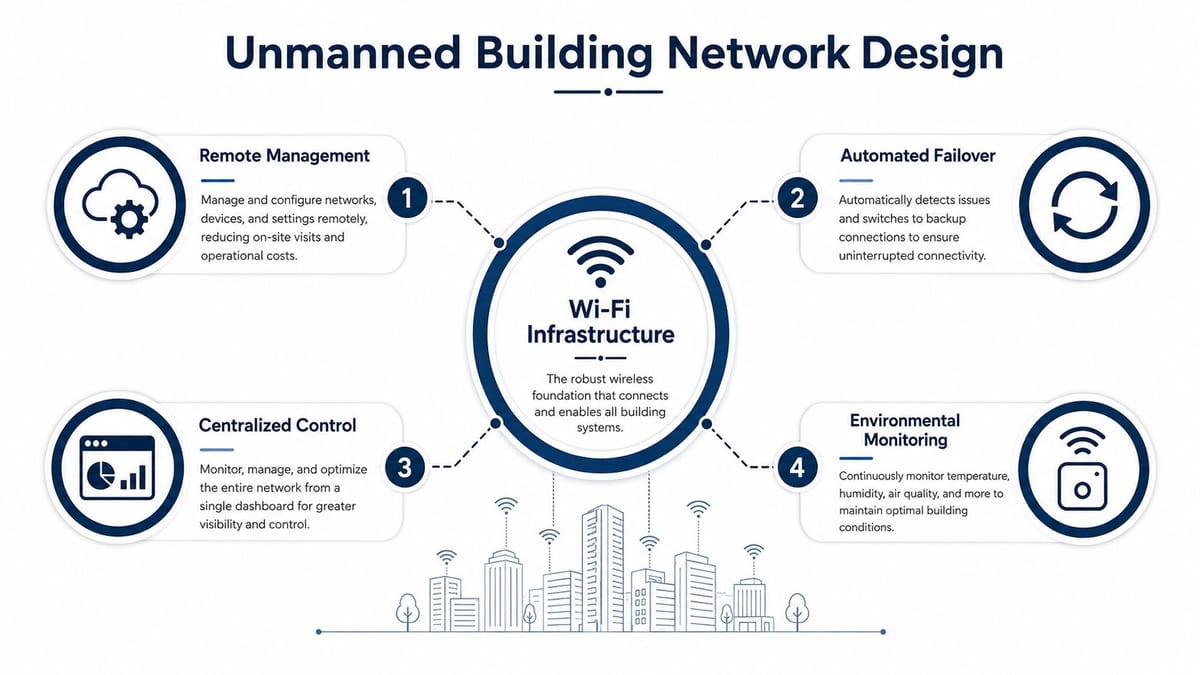
The problem gets sharper in low-occupancy or remotely managed buildings. Unmanned does not mean unmanaged, it means access, alarms, CCTV, and environmental controls still need stable network behaviour when nobody is on-site. If the Wi‑Fi layer is fragile, fault finding becomes slower and operations become less predictable.
That is why the router question quickly turns into a site-design question. A standalone unit might be fine for a compact office, but once access control, video, maintenance alerts, and user traffic share the same environment, the network has to be planned as part of the building, not added after the rest of the systems are already in place.
Understanding Wi-Fi Generations and Hardware Specs
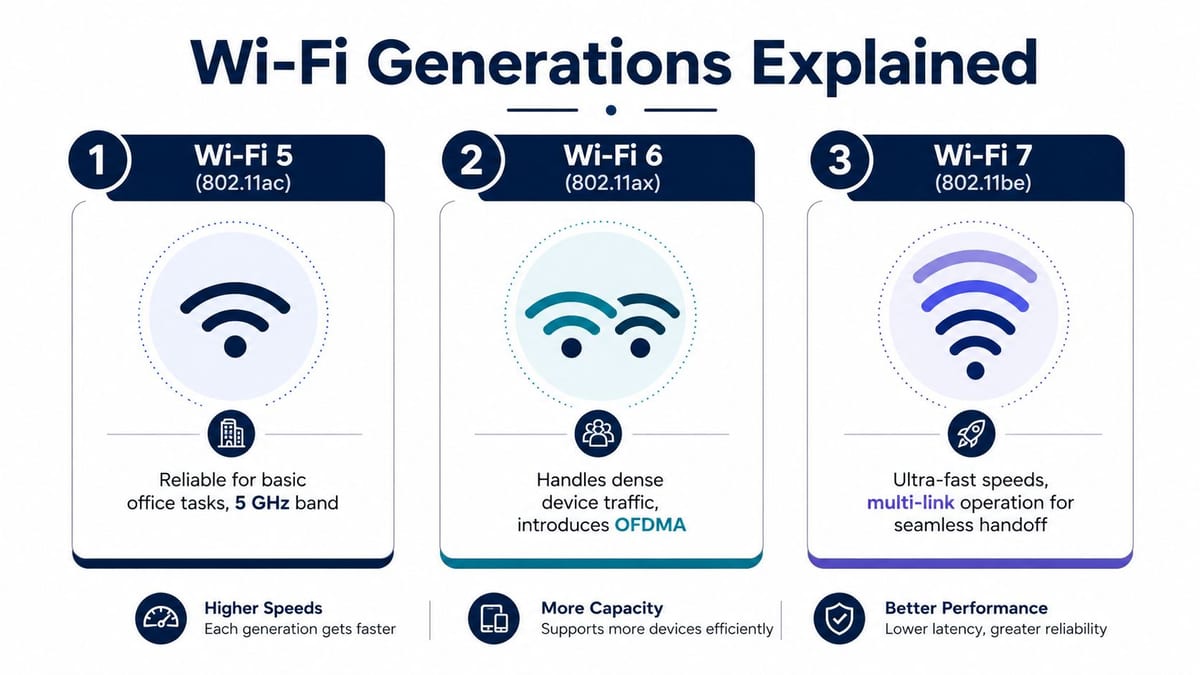
The jump from Wi‑Fi 5 to Wi‑Fi 6 to Wi‑Fi 7 only matters when you map it to office behaviour. Wi‑Fi 5, or 802.11ac, is still serviceable for basic office work and sits mainly on 5 GHz. Wi‑Fi 6, or 802.11ax, handles dense device traffic better because it introduces OFDMA. Wi‑Fi 7, or 802.11be, adds multi-link operation, which lets devices coordinate across multiple bands at the same time Consumer Reports, Netgear frequency band overview.
What the specs mean in practice
A router spec sheet only helps if you read it like an engineer. Streams, band support, and Ethernet ports shape what happens after installation, not just what appears in a brochure. HighSpeedInternet's testing lists top models at 18,000 Mbps with 12 streams and 30,000 Mbps with 16 streams, while RTINGS notes that top-tier units can include four bands and up to eight networking ports, including 10Gbps and 2.5Gbps interfaces. That mix tells you these routers are built for wider deployments, not just faster browsing.
Tom's Hardware's benchmarked TP-Link Archer BE9700 shows how those figures translate into procurement. It lists 1x 10 Gb WAN, 4x 2.5 GbE LAN, and tri-band Wi‑Fi 7 radios rated at 1,032 Mbps on 2.4 GHz, 2,882 Mbps on 5 GHz, and 5,765 Mbps on 6 GHz, with a claimed 2,600 sq ft coverage envelope Tom's Hardware. That is the sort of specification set that starts to make sense when wired desktops, VoIP handsets, APs, and backhaul links all share the same network design.
| Wi‑Fi Generation Comparison for Office Use | |||
|---|---|---|---|
| Standard | Max Theoretical Speed | Typical Office Throughput | Best Use Case |
| Wi‑Fi 5 | High, but legacy compared with newer standards | Adequate for light office traffic | Small teams and basic connectivity |
| Wi‑Fi 6 | Higher than Wi‑Fi 5 and better under load | Better for mixed users and denser rooms | Mainstream office refreshes |
| Wi‑Fi 7 | Highest mainstream consumer class | Strong in well-designed short-range setups | Dense offices, multi-band coordination, multi-gig networks |
Reading vendor claims for office deployments
Consumer Reports says Wi‑Fi 7 improves speed and latency by allowing devices to use the 2.4 GHz, 5 GHz, and 6 GHz bands simultaneously Consumer Reports. That helps, but only if the rest of the network can keep pace. If the WAN, LAN, cabling, or switching layer still has older bottlenecks, the router cannot fix the design.
For offices, the reading is straightforward. Use Wi‑Fi generation as a capacity signal, then check the port mix, the stream count, and whether the unit supports the wired layout you plan to build. For a practical reminder of why WAN interface selection matters, the WAN port on a router guide is a useful companion read.
Evaluating Throughput, Density, and Multi-Gigabit Ports
Peak throughput figures only matter if they hold up under real office traffic. A router that advertises strong wireless rates but has limited Ethernet capability can still become the choke point once it has to feed a switch, a server rack link, or a wired backhaul path. Procurement decisions should therefore assess aggregate throughput, stream count, and 2.5GbE or 10GbE support together, because those parts of the design interact in practice.
Density matters more than raw speed
Client density changes the picture faster than headline speed does. In a busy office, the problem is rarely one device getting the highest possible rate, it is many devices contending for airtime, while the uplink from the router to the rest of the network still has to carry everything that reaches it. A unit with strong radios but a weak wired handoff can look impressive in a spec sheet and still disappoint on a live floor.
That is why office buyers should read lab results in context. In vendor testing, top-tier Wi‑Fi 7 models held up far better at range than lower-end units, which is useful because office walls, thick partitions, and multi-floor layouts punish weak radios quickly. The practical takeaway is straightforward. You are buying sustained utility across a building, not a short burst in a clean room.
Port count matters for the same reason. High-speed wireless does not help if the router only exposes limited wired capacity for the core switch, local servers, and any backhaul links that need to stay off the busy user segment. A dense office often needs multi-gig handoff points so the wired side does not become the bottleneck the moment more clients connect, or a few heavy users start pushing large transfers at the same time.
A router with strong radio specs but weak switching support is still a bottleneck, just a more expensive one.
Wired infrastructure still decides the outcome
Many “best router” articles miss the office reality. They optimise for home convenience, then ignore structured cabling, uplink capacity, and switch design. If internal traffic, file access, VoIP, and AP backhaul all share a weak path, the fastest wireless standard will not fix the user experience.
For teams running voice-heavy environments, pairing router research with the VoIP performance optimization guide from Hosted Telecommunications is useful because it keeps the focus on end-to-end latency, jitter, and contention rather than radio marketing alone.
UK buyers comparing premium units should also look at the physical ports, not just the branding on the box. More multi-gig ports give network teams more room to keep wireless from becoming the bottleneck in floor-by-floor deployments, especially where wired backhaul and higher-capacity switches are part of the design. A practical guide to WAN ports on routers is a useful reminder that the uplink deserves as much scrutiny as the wireless spec sheet.
Designing Network Infrastructure for Unmanned Buildings
In practice, unmanned building management means a building with low occupancy or remote oversight, where people may not be present all day, but the site still needs security, power, monitoring, and system control. The objective isn't to make the building “human-free”. It's to make it operable, auditable, and resilient when access is limited and response times are slower.
Why these projects fail
Many unmanned-building projects fail for the same reason many smart-building projects fail, they treat Wi‑Fi as the whole solution. Access systems, CCTV, alarms, power distribution, and network management need to be designed as one package, because each layer depends on the others for continuous operation and verification. If a door lock, a camera, or a controller depends on a fragile wireless link with no fallback, the whole site becomes harder to manage.
The practical problem is often not the access device itself. It's the assumption that a late-stage wireless upgrade can compensate for missing cabling, poor power design, or no local contingency. That is why building out a fully autonomous unmanned building units model means planning access, power, and data together from the start, not after the fit-out is finished.
Why battery-less NFC proximity locks make sense
Battery-less NFC proximity locks are attractive because they reduce dependence on passwords, app pairing, and local battery maintenance at the door. Staff and contractors can use proximity access without waiting for a phone app to sync, and maintenance teams don't have to chase dead lock batteries in every access point. In low-occupancy buildings, that simplicity matters more than flashy features.
The maintenance case is just as strong. A battery-less lock cuts one failure mode out of the system, which helps facilities teams standardise inspections and reduce ad hoc call-outs. That doesn't remove the need for governance, but it does reduce the number of moving parts that can break in a remotely managed site.
Where the model is used
These designs are common in office annexes, self-storage facilities, plant rooms, clinics, remote depots, and other sites where the building has to remain secure with minimal staff on-site. They also show up in mixed-use properties where CCTV, access control, and environmental monitoring need to be visible to a central team. In that context, Ethernet and wireless integration guidance is more relevant than any single router recommendation.
The other point that gets missed is compliance. A remotely managed building still needs commercial electrical installation and certification, because power quality and documented verification are part of the operating model. If you don't plan for that, the network becomes the most visible system in the building, and usually the easiest one to blame.
Matching Router Architecture to UK Office Scenarios
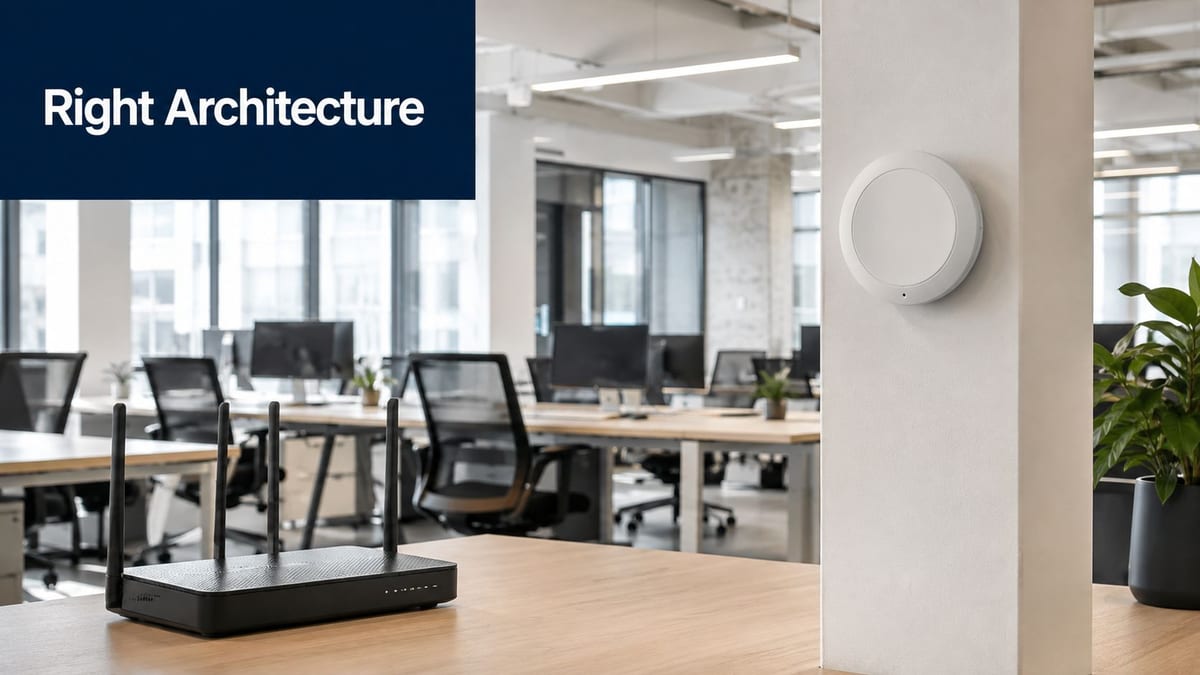
A standalone router can still be the right answer, but only in the right building. If the office is compact, open plan, and lightly occupied, a strong Wi‑Fi 7 router with sensible placement can do the job. Once you add thicker walls, multiple floors, or a high number of simultaneous users, mesh or controller-based APs start to make more sense.
Placement helps, but it doesn't cure bad topology
Independent guidance on router placement keeps repeating the same practical advice, centre the device, raise it, and keep it away from walls or metal. That advice is correct, but limited. In larger or more obstructed spaces, thick walls and floor slabs still leave areas underserved, so mesh or multi-node designs are often the better fit than a lone router Astound guidance.
For smaller business environments, it helps to compare architectural options rather than just product names. If you're assessing compact deployments, compare small business routers with the office layout in mind, not just the brochure specifications. The answer often depends on how many walls the signal needs to cross before it reaches the users.
Scenario by scenario
Small offices usually need simplicity more than sheer scale. A well-placed router can handle that if cabling is tidy and the user count is modest. Multi-floor offices are different, because stairs, floor slabs, and long corridors break up radio coverage, so mesh or wired APs become much more dependable.
Clinical and hospital environments push the problem further. Rooms, wards, and service areas create a dense pattern of obstructions and interference sources, so consistent coverage matters more than peak radio numbers. Large headquarters often need controller-based AP deployments, because that gives IT teams a cleaner way to manage roaming, channel planning, and segmentation across the site.
If users complain that “the Wi‑Fi is slow” on one floor, the problem is often architecture, not the speed tier.
Video perspective for buyers
A short visual overview can help procurement teams align router choice with layout decisions.
The common pattern is clear. The more clients, partitions, and floors you add, the less useful a single-box answer becomes. That is why the best router in a UK office is often part of a wider wireless design, not the whole design itself.
Procurement Checklist and Testing Methodology
Buying the right unit starts with asking the right questions before purchase. If the router or AP is going into a UK office, the checklist should cover more than wireless standard names. It needs to cover the wired path, the security model, the recovery plan, and the way the building behaves during the workday.
What to check before you buy
- Throughput and density fit: Match the device class to the number of concurrent users and the number of rooms it needs to serve.
- Port mix: Look for 10GbE where internal transfers or uplinks justify it, and 2.5GbE where you need to avoid immediate bottlenecks.
- Power strategy: Confirm whether the design needs PoE, local power, or both.
- Security controls: Check VLAN support, guest segmentation, and firmware update policy.
- Vendor support: Warranty terms and replacement speed matter when the office can't wait for a retail return cycle.
Structured cabling still matters here, because devices and access technologies should be designed around the building's operational model rather than added later as isolated upgrades. If the wireless layer is the only part of the design that gets attention, you end up with a fragile single point of failure.
How to test it properly
Start with a site survey, then measure throughput in the rooms that matter, not just in the comms area. Test at distance, test through walls, and test during a realistic user load. A lab result is useful, but it doesn't tell you what happens when multiple teams are on video calls and guests are on the network at the same time.
Operational rule: if a router only performs well in an empty office, it's not ready for procurement.
For unmanned or low-occupancy buildings, include failure handling in the test plan. Check what happens to access control, CCTV visibility, and remote management if the primary path degrades. A good deployment is one the facilities team can monitor, not one they have to guess about.
A final point on procurement. Don't treat the router as a one-off purchase. It's a node in a wider system that includes switching, cabling, power, and in some cases building services. If the equipment can't support the site's growth or maintenance model, it will need replacing long before the office does.
Choosing the Right Solution with Constructive-IT
The right best WiFi router choice depends on layout, density, and how tightly the wireless layer has to integrate with the rest of the building. In practice, that means balancing peak Wi‑Fi 7 performance with cabling, switching, CCTV, electrical certification, and the operating needs of low-occupancy or remotely managed sites. Constructive-IT provides Wi‑Fi surveying, structured cabling, network design, and compliant electrical and CCTV installation for UK offices and fit-outs.
If you're planning an office move, a new fit-out, or a Wi‑Fi refresh that has to work beyond the marketing spec sheet, speak with Constructive-IT. They can assess the site, design the network around the building, and help you avoid the common mistake of buying a router before you've designed the topology.