
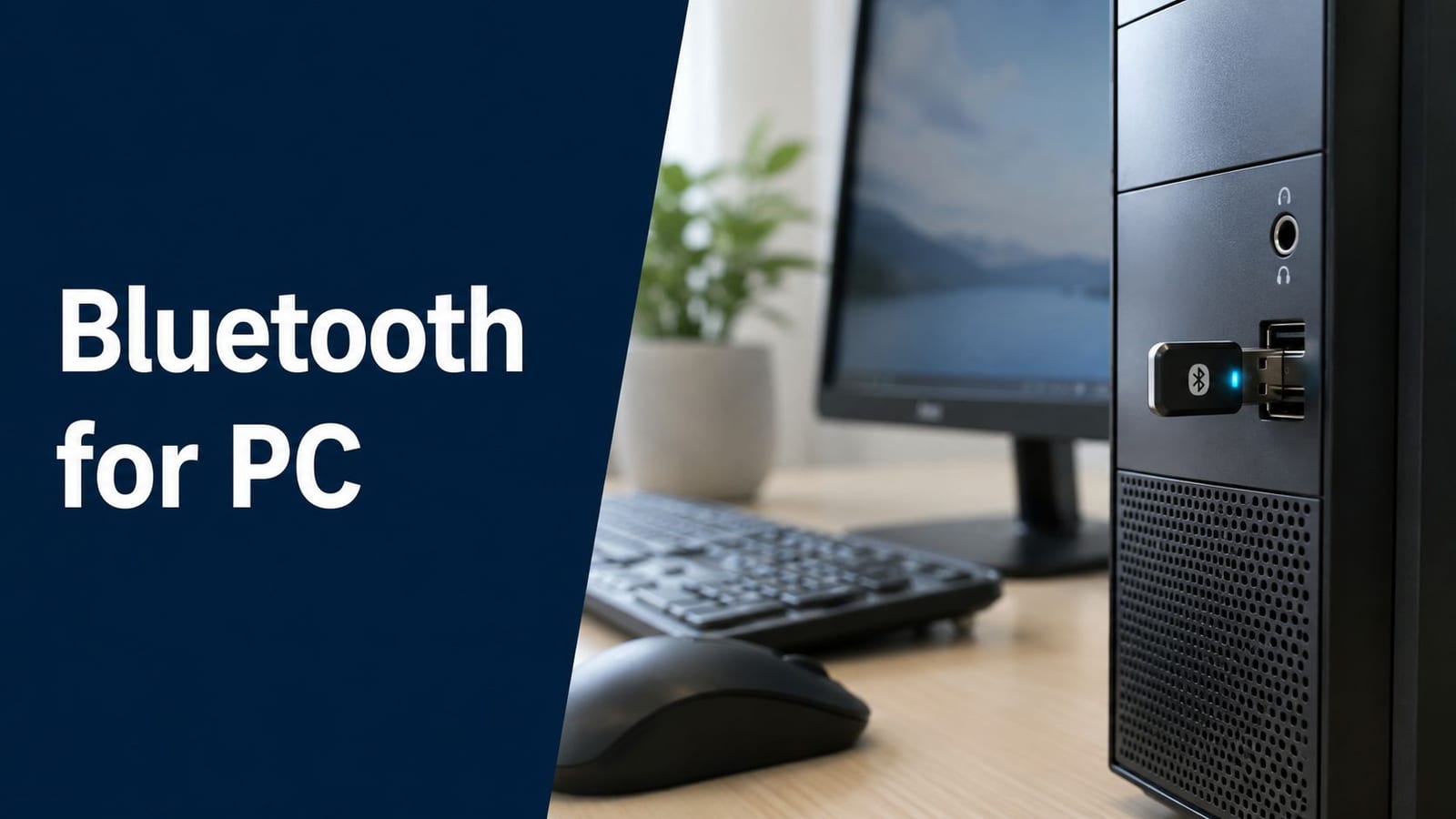
Your Bluetooth mouse drops out every time the meeting room fills up, your headset stutters when the Wi‑Fi is busy, and the new dongle you bought still behaves like it's living in a different part of the office. That's usually not a “Bluetooth problem” in the narrow sense. It's a physical layer problem, a profile support problem, or a bad assumption about what the PC can do once it's sitting inside a real UK office.
Bluetooth for PC works well when the radio, the driver stack, the antenna placement, and the workspace layout all line up. It fails in messy environments because desktop cases, metal desks, cable bundles, shared 2.4 GHz traffic, and rushed assembly all get a vote. In office relocations and fit-outs, the difference between a clean rollout and a support nightmare is usually decided before anyone clicks Pair.
Why Your Bluetooth Setup Fails Before You Start
The classic mistake is to blame Windows first. A user reports mouse lag or audio stutter, the helpdesk checks drivers, and everyone spends an hour in menus while the issue sits under the desk, half-hidden by a steel chassis and a tangled cable run. In mixed office spaces, that's how Bluetooth turns into a repeat call.
Start with the radio, not the software
I've seen desktop builds where the motherboard's Bluetooth antenna was never properly connected, which explains the strange pattern of “works at one angle, dies at another.” Intel's support material on external antennas for some desktop boards lines up with that kind of failure, and field reports of angle-sensitive dropouts fit the same pattern (Intel community discussion on limited Bluetooth range). If the antenna is shadowed by the case or buried behind a metal tower, no driver update will fix physics.
USB dongles can be just as deceptive. Plug one straight into the back of a PC, wedge it beside a monitor stand, then route it through a cable basket full of power leads, and you've built a tiny interference chamber. The practical fix is simple, a short extension cable, a clearer line of sight, and a desk-level test before the rollout goes live.
Practical rule: if Bluetooth behaves differently when the chair turns or the dongle moves two feet, treat it as an antenna placement issue first.
Why “software-only” troubleshooting wastes time
The 2.4 GHz band is crowded in offices, so Bluetooth often loses not because it's broken, but because it's competing. If you want a useful frame for this, compare the Wi‑Fi environment first and then decide whether the Bluetooth issue is really wireless congestion or just poor placement. A useful reference point for that wider radio planning is compare WiFi generations, because the surrounding WLAN design often shapes how stable Bluetooth feels on the desk.
A lot of teams also overlook the state of nearby access points, especially when office Wi‑Fi has been upgraded in one area but not another. Even the most basic site layout matters, which is why I'd rather see Bluetooth tested in relation to the wider office wireless design, not as an isolated add-on. In some deployments, a quick check against the existing access point plan, like the approach discussed in this business Wi‑Fi access point guide, saves far more time than another round of pairing retries.
Verifying Your PC's Bluetooth Capabilities
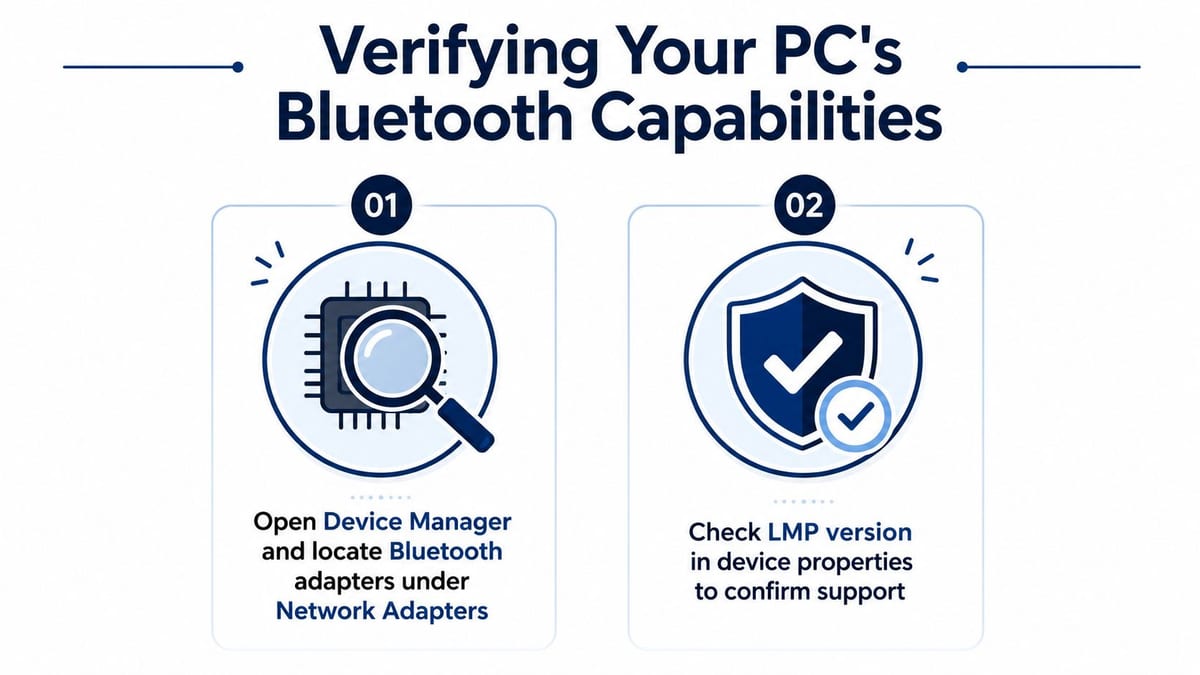
Before you buy a dongle or blame the driver, check what the PC exposes. Open Device Manager, find the Bluetooth adapter, and confirm that Windows sees it without warning icons. The marketing label on the box tells you very little. On Windows, Microsoft ties host Bluetooth support to the adapter's LMP values, so that mapping is the first thing I trust in a real deployment. Microsoft's Windows hardware guidance also documents the supported profiles for office use and how the OS reports Bluetooth capability (Microsoft Bluetooth support in Windows).
Check the core version, then check the profile stack
That version check only tells part of the story. I've seen machines that report a modern Bluetooth revision and still fail in the field because the profile stack is thin, the driver is incomplete, or the peripheral depends on a capability the host never exposes. A keyboard can pair and still feel flaky, a headset can connect and route audio badly, and a tethering setup can look supported until the network profile path is missing. The OS and the driver decide whether the hardware claim is real.
The practical test is to match the profile to the job. HID matters for keyboards and mice, A2DP and HFP matter for audio, PAN matters for tethering, and RFCOMM shows up in serial-style tools. If the host advertises Bluetooth 5.x but the profile support does not line up, the user still gets failure at the desk. That is the part many office rollouts miss.
Use the right check sequence
- Open Device Manager. Confirm the Bluetooth adapter is present and not sitting behind a warning icon.
- Inspect the device properties. Check the reported LMP mapping and compare it with Microsoft's supported range.
- Match the use case to the profile. Keyboards and mice need HID, audio needs A2DP or HFP, tethering depends on PAN, and serial-style tools often rely on RFCOMM.
- Test the exact peripheral. Don't assume one headset or one keyboard proves the whole stack.
A quick look at the physical setup helps too. If the adapter is buried behind a steel chassis, a docking station, or a monitor arm, the radio path can suffer even when the software looks clean. In office relocations I usually check the antenna position before I spend time on pairing logs, because poor placement and cabling can make a good adapter behave like a bad one. A wider wireless layout review also helps, especially if the building's access point design is uneven. A simple reference point is compare WiFi generations, and for nearby access point planning I would use a practical business Wi‑Fi access point guide as a sanity check.
If the host spec looks fine but a peripheral still fails, the problem is usually in the profile support, the driver path, or the way the antenna is sitting in the room. That is the point of this check. Verify capability before you start chasing symptoms, and you avoid replacing hardware for a machine that was never set up for the job.
Solving the 2.4 GHz Interference Problem
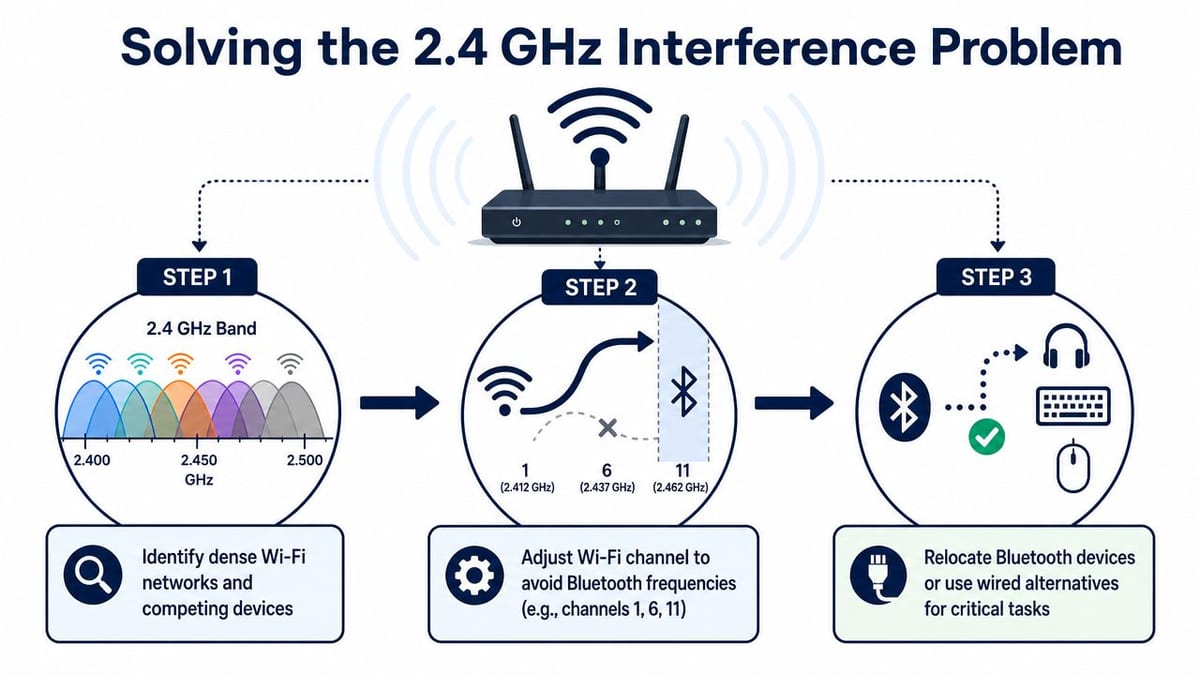
Bluetooth lives in the 2.402 to 2.480 GHz band, which is the same crowded neighbourhood as office Wi‑Fi and plenty of consumer kit. That doesn't make Bluetooth bad, it makes it sensitive to placement, congestion, and the shape of the room. In a dense office, interference is the reason mice feel sticky, headphones crackle, and devices keep dropping away from the host.
Desk-level testing beats guesswork
The most reliable fix is to test RSSI and packet stability where the user sits, not in an empty bench area. A Bluetooth adapter can look fine in the IT cupboard and fail miserably when it's pushed behind a tower case, a docking station, and a monitor arm. The antenna gets shadowed, the noise floor rises, and the connection starts to wobble.
USB dongles need breathing room. Put them on a short extension cable, lift them away from metal chassis and cable bundles, and keep them clear of the back of monitors and docking hardware. That small change often matters more than a higher model number or a newer box.
Range is a design issue, not a promise
Older classic Bluetooth links are usually discussed at around 10 m of short-range use, while newer specifications can extend range depending on implementation and power trade-offs (Bluetooth overview). The office lesson is simple, don't design around brochure range. Design around the actual room, the actual furniture, and the actual interference map.
Useful habit: if a Bluetooth accessory only works when the user is very close to the PC, assume congestion or shadowing before you assume failure.
For environments where wireless stacking is already messy, wireless planning matters as a whole system. That's why the surrounding WLAN design should be considered alongside Bluetooth, especially in fit-outs where every desk already has Wi‑Fi, telephony, and docking hardware sharing the same airspace. When the office needs a wired fallback for a critical task, use it. Bluetooth should serve convenience, not hold the process together.
Built-in Bluetooth Versus USB Adapters
Built-in Bluetooth is often the cleaner choice on paper. It avoids an extra device on the desk and usually benefits from the system vendor's own integration. But in offices, the deciding factor isn't convenience, it's whether the radio path, the driver support, and the physical placement hold up under real use.
What integrated Bluetooth does well
Motherboard-integrated Bluetooth tends to be the better long-term fit when the PC was designed for it, the antenna is correctly connected, and the driver stack is maintained. It keeps the desk tidier and avoids one more thing hanging out of a front or rear port. Microsoft's guidance still puts weight on device-specific drivers and ongoing troubleshooting for weak connections, which tells you the experience can change with hardware and firmware, not just the operating system (Microsoft Bluetooth troubleshooting guidance).
Where USB adapters help, and where they don't
A USB dongle is the obvious rescue path when the machine has no Bluetooth at all or the internal radio is unusable. It's quick, cheap, and easy to swap. The problem is that office teams often stop at “plug and play” and never test whether the dongle performs well beside real workloads, real desks, and real interference.
Retail coverage tends to focus on convenience, while office environments care about consistency. That's where business network hardware tips are useful context, because Bluetooth reliability sits inside the broader hardware design, not outside it. For edge cases, the right answer may be a better adapter, but just as often it's moving the dongle to a cleaner location or changing how the workspace is wired.
The same caution applies when you're reading about generic USB errors or device start failures, because the symptom can point to the adapter, the driver, or the platform layer. If the PC is already showing hardware instability, compare the Bluetooth issue with the wider device behaviour, including references like this USB descriptor troubleshooting guide, before replacing the wrong component.
A good adapter on a bad antenna path still gives you a bad result.
Systematic Troubleshooting for Common Failures
When Bluetooth fails after the setup looks correct, start with the physical path first. In office deployments, the cause is often plain to see once you check the antenna location, the dongle position, cable clutter, and the amount of 2.4 GHz noise around the desk.
Match the symptom to the likely cause
- Pairing works, but range is awful. Check whether the motherboard antenna is fitted properly, and whether the adapter is buried behind a metal case, a monitor arm, or a bundle of cables. If the signal changes when you rotate the device or move it a short distance, the physical layout is wrong.
- Audio stutters in meetings. Check 2.4 GHz congestion first, then confirm whether the OS is using the right headset profile. A headset can pair cleanly and still sound poor when nearby Wi-Fi, wireless peripherals, and other radios are crowding the band.
- Mouse lag feels random. Move the dongle away from the rear panel with a short extension lead. If the lag improves, the fault is placement, not the mouse.
- Devices appear but won't stay connected. Recheck driver support and the active profile stack, then compare the behaviour with Microsoft Bluetooth troubleshooting guidance for weak or unstable links.
- Nothing pairs after a rebuild or move. Treat it as a commissioning problem. The issue may be configuration, cabling, or missing antenna hardware rather than the Bluetooth stack itself.
When to replace hardware
Replace the adapter when the fault follows the device across multiple PCs. Adjust the environment when the problem disappears after moving the dongle, changing the antenna angle, or clearing cable clutter around the workstation. If the behaviour still looks inconsistent, compare it with the machine's wider USB symptoms and the code 10 device-start failure reference, because a Bluetooth fault can sit inside a broader controller issue.
Unattended or shared spaces make this harder. Bluetooth has to stay supportable after the room changes, the desks move, and the support team is no longer standing there with a keyboard in hand. For the broader network context, the network fixes from Networking2000 are a useful reminder that the same methodical discipline applies across the stack, not just to Bluetooth.
Enterprise Deployment and Infrastructure Integration
Bluetooth gets treated like a desktop convenience feature, but in real projects it becomes part of the building's operational fabric. Unmanned building management means a site is designed to run with very limited on-site staff, using remote monitoring, access control, CCTV, and automated building systems to keep the place usable and secure. In practice, that means Bluetooth-enabled endpoints are only one layer in a larger system that has to stay live without someone wandering round to reset it.
Why unmanned projects fail
Many projects fail because access control, power, and data were designed separately. A lock, controller, or endpoint might be specified on paper, but if the power route is fragile, the management link is inconsistent, or the security settings are loose, the system stops being operationally trustworthy. That's why the same rule keeps showing up in security guidance, secure connections, authentication, encryption, and disabling Bluetooth when it's not needed (CISA Bluetooth guidance).
The issue isn't just installation, it's lifecycle support. Devices need configuration, maintenance, and a secure way to be managed after handover. If no one planned for that, the building becomes technically impressive and operationally awkward.
What good integration looks like
For UK building projects, commercial electrical installation and certification matter because power and comms can't be treated as afterthoughts. Structured cabling, CCTV, network design, and secure controls need to be coordinated so the site remains supportable, auditable, and easy to maintain after the contractors leave. Bluetooth-enabled endpoints follow the same pattern, hardware in place, drivers and configuration verified, pairing tested, and the support path documented.
Battery-less, NFC proximity locks make sense in these environments because they reduce maintenance overhead and avoid the recurring pain of battery replacement on unattended doors or controlled rooms. They're also a better fit where continuous operation matters more than convenience, especially in shared workspaces, server rooms, data rooms, plant areas, and other access-controlled spaces. That choice usually aligns with the broader goal of building out fully autonomous unmanned building units, where the aim is predictable operation with minimal on-site intervention.
The best autonomous building is the one that's boring to maintain, because every layer was designed together.
Constructive-IT helps UK organisations do exactly that, from office relocations to new fit-outs and performance upgrades, with structured cabling, CCTV integration, electrical works, testing, and go-live support that keep the site stable after handover. If you're planning a Bluetooth-heavy office refresh, a controlled-access area, or a wider infrastructure change, visit Constructive-IT to see how their team can help design, certify, and support the build properly.