
You're staring at Device Manager, there's a yellow triangle on a Wi‑Fi card, USB adapter, or NIC, and the ticket keeps bouncing because “the device won't start”. In most managed Windows estates, This Device Cannot Start Code 10 is the point where people start swapping hardware too early. The better move is to treat it as a configuration-control problem first, then prove whether it's driver, firmware, BIOS, power management, or actual hardware before anyone opens a toolbox.
What This Device Cannot Start Code 10 Actually Means
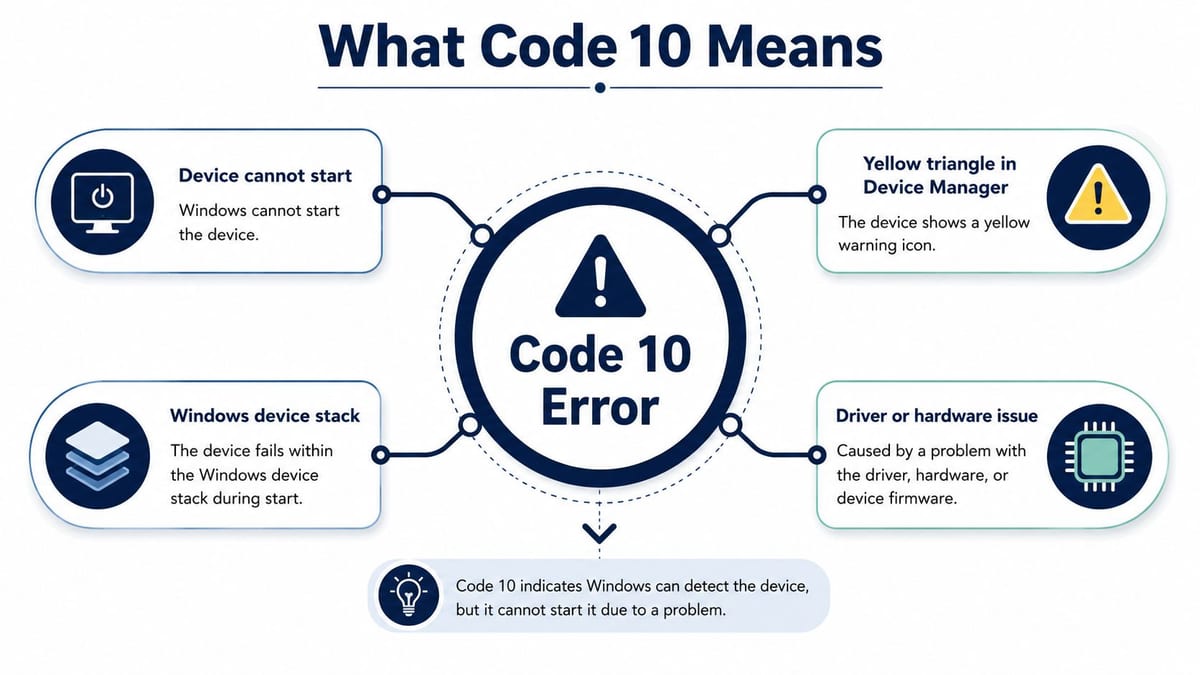
Code 10 sits inside the Windows device stack, which is why the error shows up in Device Manager rather than as a clean hardware failure. Intel's support guidance places Code 10 alongside other Windows Device Manager errors and walks through steps like rebooting, restoring the system, resetting the PC, and checking BIOS Bluetooth settings before escalating to the OEM, which is a strong clue that the fault often lives in driver, firmware, or BIOS alignment rather than a dead component. Intel support guidance
Why the yellow triangle matters
The yellow triangle is easy to misread as “broken device”. In practice, it usually means Windows can see the device, but the stack above it cannot bring it into service cleanly. That matters because a Wi‑Fi adapter, a USB headset, a PCIe NIC, and even an NVMe controller can all surface the same symptom while the root cause stays in software or platform settings.
For UK IT teams, that changes the first question from “what's failed?” to “what changed?”. A standard image, an OEM driver refresh, a BIOS update, or a power-state policy can all push a device from working to non-starting without any physical fault on the desk.
Practical rule: if the device is visible in Device Manager, treat it as an enumeration-and-start problem first, not a replacement ticket.
The same mindset saves time in managed estates. It also prevents the common mistake of treating every Code 10 as a unique incident when the fix ladder is often the same across multiple endpoints.
Quick Triage in Device Manager and the Hardware Troubleshooter
Start with the facts the machine already gives you. Open Device Manager, confirm the device is present, and capture the device instance path, the current driver version, and the exact error text from Properties before touching anything. If you don't record that baseline, rollback gets messy fast, especially when a later driver install makes the machine worse.
Then run the built-in troubleshooter through Run with msdt.exe -id DeviceDiagnostic. That's the documented Windows Hardware and Devices path used in many recovery guides, and it gives you a low-risk first pass before any driver changes. A sensible escalation sequence is to repair, observe, and only then replace the driver, not the other way round. boot into safe mode guide
What to do in order
- Confirm the device and the error code in Device Manager.
- Note the instance ID and driver version from the device properties.
- Run the Hardware and Devices troubleshooter with
msdt.exe -id DeviceDiagnostic. - Apply any suggested fix, then reboot and retest.
- Only then change the driver, either by update, rollback, or manual selection.
That order matters because the most common bounce-back happens when someone jumps straight to a generic driver package and overwrites a version that was working. On network and USB hardware, it's also worth checking the power setting that lets Windows switch the device off to save power, because that setting can reintroduce the fault after an apparently successful fix.
If the troubleshooter clears the issue, great. If it doesn't, you've still gained a clean baseline and a useful record for the next step.
Driver Rollback, OEM Drivers and the Power-Saving Trap
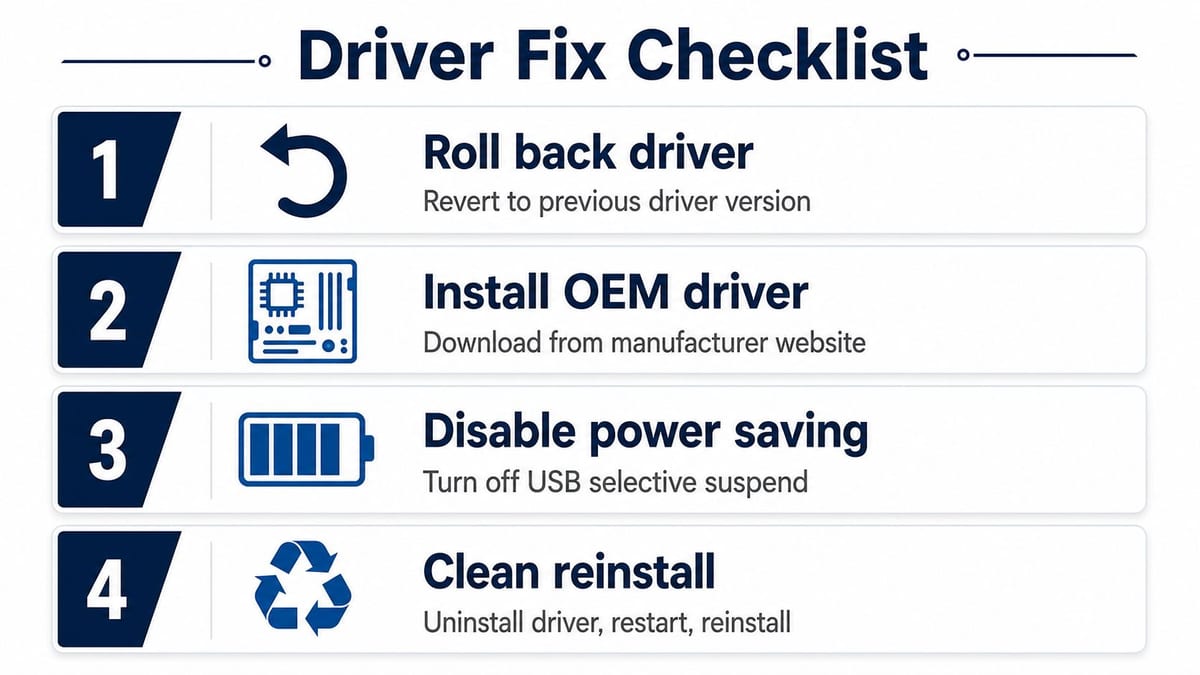
A Code 10 that survives the first round of checks often comes down to driver control, not a dead device. Start by deciding whether Windows Update or the OEM driver package is the better source, because generic matching can miss device-specific INF files, vendor power settings, and chipset dependencies that matter on managed Windows estates. If the fault started after a patch or driver refresh, rollback is usually the first move.
A clean reinstall is usually more reliable than repeated installs of the same package. Remove the current device, delete the driver if Device Manager offers that option, reboot, and then install the vendor build that matches the hardware rather than the nearest Windows-provided match. For a broader maintenance reference, browse the PC driver update guide and compare that process with the manufacturer package you trust in your estate.
The checkbox that keeps causing repeat tickets
One setting keeps catching teams out. On USB and network hardware, if “Allow the computer to turn off this device to save power” stays enabled, the device can appear fixed and then fail again after sleep, docking, or any power-state change. Clear it, reboot, and test under the same conditions that triggered the original fault.
That problem shows up often in UK offices with standard images. A laptop can return from reimage or docking with a clean driver package, then pick up the wrong default driver path or power policy the moment it reconnects to a dock, hub, or managed network. If you support a mixed estate, baseline control matters more than one-off repairs that only work on a single machine.
If the rollback and power setting do not hold, the next question is whether the device is being held back by the platform rather than the driver alone. Use the machine's recorded identity and firmware state from the BIOS serial number guidance to check that the endpoint is on the expected build and that your OEM image matches the hardware it is running on.
Some faults also trace back to the physical path. A USB peripheral may look like a driver issue in Device Manager, but the core fault sits in the hub, the dock, the port, or the slot feeding it. For a practical example of that kind of failure, see unknown USB device descriptor request failed, where the starting point is still configuration and connection order before anyone swaps hardware.
When the Real Fix Is SFC, DISM, BIOS or Chipset Firmware
Some Code 10 faults survive every sensible driver action because the problem is higher up the stack. That's where SFC and DISM come in. sfc /scannow checks protected Windows system files and repairs corruption from the local cache, while DISM /Online /Cleanup-Image /RestoreHealth repairs the Windows image itself when the component store is damaged. If either tool reports fixes, reboot and test before doing anything else.
The important bit is not to run them as ritual. Run them because the device enumerates but won't start, especially after an update or a failed rollback, and you need to rule out OS corruption before blaming the peripheral. WMIC BIOS serial number guidance is a useful reminder that platform inventory and firmware state matter just as much as the driver version when you're dealing with managed endpoints.
When to move below Windows
If SFC and DISM don't change the behaviour, move to BIOS and chipset firmware. Intel's guidance already points technicians towards BIOS checks for wireless and Bluetooth issues, which fits the pattern we see in office estates where the device shows up but can't start because the platform and driver disagree about power management or initialisation order. That's common with integrated radios and modern laptop hardware.
A device can enumerate perfectly and still fail to start if the firmware stack is out of step with the driver stack.
That's also where post-update regressions become obvious. A laptop may have worked last month, then start throwing Code 10 after a Windows patch, a BIOS flash, or a chipset driver change. In those cases, the fix is less about the endpoint itself and more about restoring compatibility across the whole platform stack.
USB Hubs, PCIe Slots and the Physical Layer Behind Code 10
When Code 10 shows up only on one front-panel USB port, only behind a particular hub, or only on one docking arrangement, the problem usually sits in configuration control, power delivery, or the intermediate device chain. I stop treating it as a pure driver issue and start checking the physical path, because that pattern is often caused by a weak port, a marginal cable, or a hub that is not presenting the device cleanly to Windows.
The same logic applies to PCIe cards and network hardware. If a NIC fails in one slot but works in another, or if a device behaves after a switch or dock change and then fails again elsewhere, the fault can be in the physical layer rather than in Windows. In office estates, that takes you into structured cabling, patch-panel discipline, and proper commercial electrical installation and certification, because repeated start failures across several endpoints can point to a wider power or connectivity issue instead of an isolated laptop fault.
CCTV and access control hardware show the same pattern. IP CCTV, badge readers, and other PoE-fed endpoints can all throw up a Code 10-style failure when the power chain is unstable, the port budget is wrong, or the switch configuration changed during a refresh. A ticket like that sometimes belongs with cabling or electrical specialists, not desktop support.
If you are seeing a USB device descriptor request failed error alongside Code 10, the pattern is even more likely to sit below the driver layer. That usually means the device is not being described cleanly by the hub, dock, or port path, so reinstalling the same package again will not change the outcome. See the related note on USB device descriptor errors for the kind of failure that points away from the OS and towards the physical connection.
If the fault follows the port, the hub, the dock, or the room, don't keep reinstalling drivers.
Validate the path from wall outlet to switch to endpoint. If several machines fail in the same space, the issue is wider than one laptop, and the next step is to check the cabling, the dock, the switch port, and the power source before touching Windows again.
Reading Event Viewer and Minidumps to Confirm the Cause
Event logs turn suspicion into evidence. In Event Viewer, check the System log first, then filter for Kernel-PnP events and driver framework events around the time the device failed to start. That usually gives you the sequence you need, whether the device was enumerated but refused to start, whether a driver binding failed, or whether Windows logged a restart path that never completed cleanly.
If the failure looks deeper, enable a small minidump and capture the crash data before you send the ticket elsewhere. You're not looking for a full memory analysis on the first pass, just enough stack detail to show whether the issue lands in the driver, the bus layer, or a platform component. That keeps escalation clean and stops OEMs from sending you back to square one with “please reinstall the latest driver”.
What good evidence looks like
- Kernel-PnP warnings or errors at the device start time.
- Driver Framework events when the driver loads but doesn't complete initialisation.
- A minidump stack that names the relevant device or vendor module.
- The exact device instance path from the original Device Manager check.
This is the point where screenshots stop being enough. A clean event chain lets a third-party infrastructure engineer, OEM, or onsite specialist see whether they're dealing with a bad package, a firmware mismatch, or a broader platform issue.
When to Escalate and How to Keep Code 10 From Coming Back
Escalate when the same Code 10 returns across multiple endpoints, when it starts after a switch rollout or BIOS change, or when the failure follows a port, dock, hub, or power change rather than the user. That's the sign the issue has crossed from a desktop ticket into a broader infrastructure problem.
The long-term fix is boring, but it works. Keep driver baselines tight, manage update rings carefully, standardise OEM firmware, and make sure your structured cabling and power are certified and documented. In a UK office estate, that approach does more to prevent repeat Code 10 tickets than chasing the next ad hoc driver build.
For teams building out a fully autonomous unmanned building units model, the bar is even higher. Access, power and data have to be designed together, because a lock, camera, reader, or endpoint that cannot start cleanly is a reliability failure, not just a support issue. Real unmanned building management means the site can operate with no daily on-site presence, while still keeping access control, CCTV, lighting, networking, and power stable enough for remote oversight and exception handling. Battery-less, NFC proximity locks make sense in that world because they reduce battery replacement work, simplify maintenance, and fit a building where routine visits are expensive or impractical.
Unmanned buildings fail when access control, power, and data are designed as separate trades instead of one system.
If Code 10 has become a pattern rather than a one-off, get the infrastructure checked properly before it spreads to more users and more rooms.
If you're seeing Code 10 across a managed Windows estate, Constructive-IT can help you treat it as the infrastructure issue it often is, not just a broken laptop. Visit Constructive-IT to discuss structured cabling, electrical support, and end-to-end office network delivery that keeps devices, access systems, and CCTV working the way they should.