It’s usually a small failure that exposes the bigger one.
A remote server in a newly fitted office stops responding late on a Sunday. The desks are in, the Wi-Fi has been signed off, the CCTV is live, and Monday’s go-live still looks achievable. You connect over Remote Desktop, reach the Windows security prompt, and then hit the familiar wall. Your local machine catches Ctrl+Alt+Del, the remote one doesn’t, and the one action you need is suddenly out of reach.
That’s why ctrl alt del on remote desktop matters far more than most guides admit. It isn’t just a keyboard shortcut problem. It’s a remote operations problem, a security problem, and in many commercial fit-outs, a building management problem. If a site is partly occupied, waiting for staff, or intentionally designed to run with minimal on-site presence, the ability to recover systems remotely stops being a convenience and becomes part of business continuity.
The Remote Access Dilemma in Modern UK Offices
At the sharp end, this tends to happen during the exact phases where nobody wants surprises. Office relocations. Weekend change windows. New branch activations. Server room expansions where facilities, electrical contractors, AV installers and IT are all working to the same deadline.
The technical issue looks simple. Windows uses Ctrl+Alt+Del as a secure attention sequence, and a standard keyboard connected to your local machine sends it locally first. In a remote session, that means the shortcut often never reaches the system you’re trying to manage. If the remote server is waiting at login, locked, or sitting at the security options screen, you can be connected and still unable to do the one thing you connected to do.
In modern fit-outs, that single point of friction exposes broader design weaknesses. If the office is effectively unmanned over evenings or weekends, every recovery task depends on stable remote access, sensible client configuration, and network performance that doesn’t collapse when you need it most. If your session lags or drops at the worst moment, it’s worth tightening the connection first. This guide on reducing lag in remote sessions is a practical place to start.
A building isn’t truly manageable from a distance if routine recovery still depends on someone driving to site.
That’s the dilemma. The shortcut is mundane. The consequences aren’t.
Mastering Remote Commands Your Ctrl+Alt+Del Toolkit
The fastest fix is usually the one Windows has supported for years. The problem is that many teams only learn it when they’re already locked out.
The standard RDP method
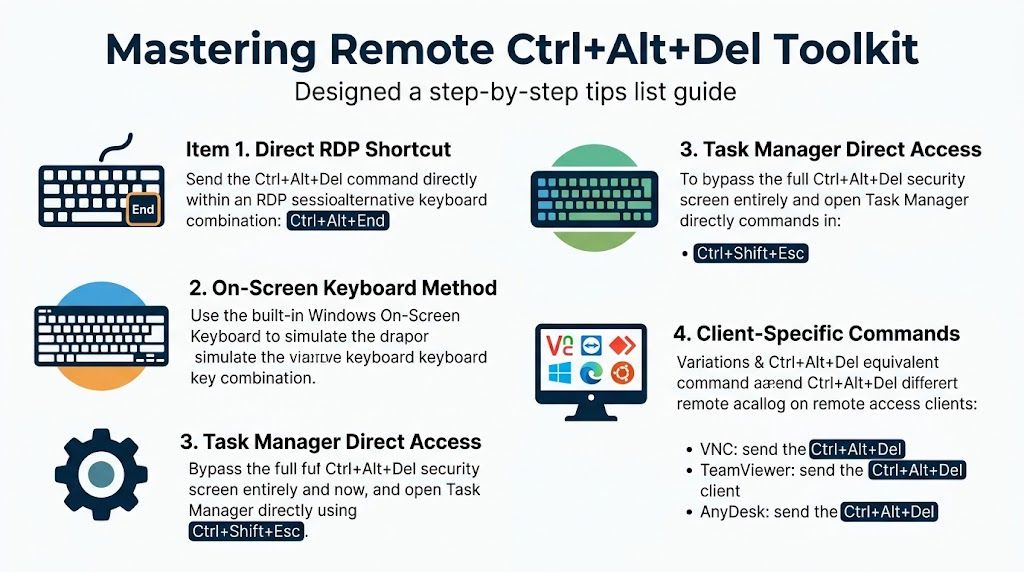
In Microsoft Remote Desktop Connection, the usual working substitute is Ctrl+Alt+End. Before you rely on it, configure the client properly:
Open mstsc from the Run box.
Select Show Options.
Go to Local Resources.
In Keyboard, set Apply Windows key combinations to On the remote computer.
Connect to the remote machine.
Use Ctrl+Alt+End inside the session.
That setting matters. In UK enterprise environments, configuring RDP to send Windows key combinations to On the remote computer and then using Ctrl+Alt+End has a 95%+ success rate, while 40% of initial failures come from the default Only when using full screen option, as noted in this RDP shortcut walkthrough video.
A lot of people assume the shortcut itself is broken when the client is the issue.
Here’s the video version if you want to see the sequence in context:
When Ctrl+Alt+End doesn’t work cleanly
Full-screen settings, local key interception, display quirks and awkward client behaviour can still get in the way. That’s where the On-Screen Keyboard becomes the reliable fallback.
Use it like this:
Open the Start menu remotely: If the remote session feels trapped, try Alt+Home.
Launch OSK: Search for osk or open it through accessibility tools on the remote machine.
Click the keys inside the session: Hold Ctrl, hold Alt, then press Del on the on-screen keyboard.
This method works because the input is generated inside the remote session rather than being intercepted by the local machine first.
Practical rule: If a physical keyboard shortcut behaves inconsistently, switch to an on-screen input method inside the session before you start changing server-side settings.
Direct access options that can save time
Sometimes you don’t need the full security screen. You just need Task Manager or a way to recover a hung application.
A few options are worth keeping in your pocket:
Need | Working approach | Best use |
|---|---|---|
Open security options | Ctrl+Alt+End | Standard Windows RDP session |
Open Task Manager directly | Ctrl+Shift+Esc | Hung app or service troubleshooting |
Open Start in a remote session | Alt+Home | Keyboard focus problems |
Toggle full-screen behaviour | Ctrl+Alt+Break | Display or capture issues |
If you’re tunnelling access or building a more controlled support path into remote systems, this guide to secure remote access with SSH port forwarding is useful alongside RDP best practice.
Client differences matter
Not every engineer is connecting from a Windows laptop in a standard office setup.
For mixed-device teams, keep these realities in mind:
macOS clients: The exact behaviour depends on the remote desktop client in use. Menu-based send-key options are often more dependable than guessing key combinations.
Chrome Remote Desktop: Use the in-session Send keys menu when available.
Mobile clients: Tablet and phone apps often bury secure key sequences behind menus rather than keyboard shortcuts.
Non-Windows endpoints: Don’t assume a Windows shortcut has a direct equivalent. Linux and macOS handle these actions differently.
What works in day-to-day operations is consistency. Pick a supported client, standardise the settings, document the fallback method, and test it before the cutover weekend. That’s far better than discovering at midnight that every engineer has a different remote access tool and none of them sends the same keys the same way.
What Unmanned Building Management Means in Practice
An unmanned building isn’t necessarily a dark warehouse with no staff and no screens. In commercial IT, it’s often a perfectly normal office that isn’t occupied all the time. It may be a new floor handed over before teams move in, a satellite branch run from a central IT function, a communications room inside a wider estate, or a building that only has intermittent facilities cover.
What it actually looks like day to day
In practice, unmanned management means core services must be recoverable without somebody being physically present. That includes:
Server access: Staff need to reach domain controllers, file servers, line-of-business systems and hosted applications remotely.
Physical verification: CCTV needs to confirm what’s happening on site when alarms, outages or access events occur.
Environmental continuity: Network cabinets, comms rooms and power circuits must stay stable when no one is there to intervene.
Access control: Engineers, contractors and approved staff need a controlled way in without relying on a receptionist or a keyholder turning up.
The demand for that model is increasing. The need for reliable remote management is accelerating, with a 35% rise in UK hybrid work setups, according to the Q1 2026 ONS Digital Economy Update, cited in Heimdal’s overview of sending Ctrl+Alt+Delete in remote desktop sessions. That shift makes reliable remote access to systems in partially occupied offices a business-critical function.
Why many unmanned projects fail
Most failures don’t happen because the concept is wrong. They happen because the building is treated as a set of separate packages.
The electrical contractor delivers power. The security supplier installs door access. The IT team sorts Wi-Fi and switching. Someone else adds CCTV. Each workstream may be competent on its own, but no one designs the operating model across all of them.
That creates very familiar failure modes:
Remote access exists, but recovery doesn’t. You can connect, but can’t reboot, resume a locked desktop, authenticate or verify.
Systems are live, but unsupported. The office technically works, yet routine faults still trigger on-site callouts.
Security tools block operations. Access controls, local policies or segmented networks prevent support teams doing urgent work remotely.
Facilities and IT have different assumptions. One side thinks the site is autonomous. The other side knows it still depends on manual intervention.
An unmanned site fails the moment a common incident needs three suppliers and a van journey to resolve.
Common locations for these setups
This model turns up more often than people think:
Environment | Why remote control matters |
|---|---|
New office fit-outs awaiting occupancy | Systems must stay stable between handover and move-in |
Satellite branches | Central teams support local operations without permanent IT presence |
Comms rooms and server spaces | Critical infrastructure needs out-of-hours recoverability |
Mixed-use commercial buildings | Security, networking and power events affect multiple occupants |
Healthcare and regulated environments | Auditability and controlled intervention matter as much as uptime |
The practical lesson is simple. If a building is meant to operate with limited on-site presence, remote management can’t be an afterthought. It has to be part of the design brief from the beginning.
Designing the Digital Backbone for Autonomous Buildings
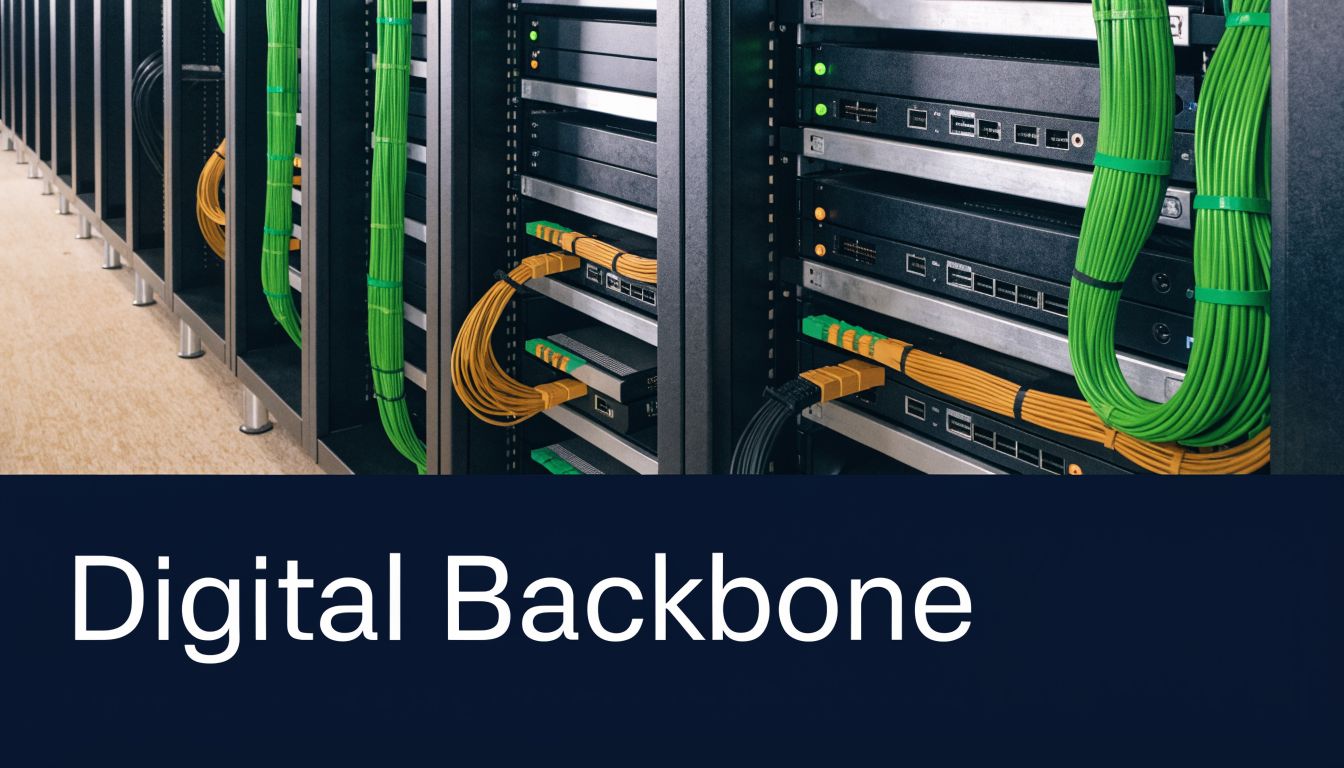
A reliable remote session depends on much more than the keyboard shortcut. If access, power and data are designed separately, the building may look finished while still being fragile.
Access power and data are one system
On real projects, these three disciplines affect each other constantly.
A door controller that loses power creates an access problem. An access problem becomes an IT problem when engineers can’t reach cabinet space. A data fault becomes a security problem when CCTV recordings can’t be reviewed remotely. That’s why autonomous or low-touch buildings work best when the design team treats infrastructure as one operating environment, not several disconnected installations.
A sound approach usually includes:
Access designed for remote administration
Power designed for continuity
Data designed for management, not just connectivity
Security systems integrated into the same support model
Why battery-less NFC proximity locks make sense
Traditional key systems are simple until they aren’t. Keys get lost, copied, signed out badly, or left with contractors who no longer need them. Battery-powered locks solve some of that but create another maintenance burden, especially across dispersed sites.
Battery-less, NFC proximity locks are often the better fit for unmanned or lightly staffed spaces for practical reasons:
Less routine maintenance: There are no lock batteries to track, replace or discover flat at the wrong time.
Controlled issuance: Credentials can be managed more cleanly than physical keys.
Audit value: Access events are easier to align with support activity and security reviews.
Better fit for temporary access: Contractors, project managers and support engineers can be granted access in a more controlled way during fit-out and go-live periods.
That matters most in shared risers, comms rooms, secure stores, server spaces and back-of-house areas where access should be deliberate and attributable.
Commercial electrical installation isn’t a separate conversation
The network only stays reachable if the electrical design supports it. That means proper circuit planning, clean cabinet power, appropriate backup arrangements where required, and commercial electrical installation backed by the right certification and testing.
When teams skip that joined-up design, the symptoms show up later:
Switches rebooting after minor power events
Remote access devices on the wrong circuits
Cabinet cooling and power not aligned
UPS coverage applied to the wrong loads
Recovery paths that fail because the support tools lose power first
A lot of remote support pain is really power design pain in disguise.
If the remote management path isn’t protected, the building isn’t remotely manageable. It’s only remotely visible when conditions are ideal.
CCTV and autonomous building units
CCTV used to sit in its own lane. In modern commercial environments, it’s part of the operational data fabric. During remote troubleshooting, visual confirmation can answer questions faster than logs alone. Is anyone on site. Did a contractor enter the comms room. Did a cleaner knock power to a cabinet. Did a door fail to latch.
That’s particularly useful when building out fully autonomous unmanned building units. In those projects, CCTV, access control, networking, Wi-Fi and cabinet design need to support the same goal. Operate safely with minimal physical attendance, and recover quickly when something goes wrong.
Where maintenance gets won or lost
Good autonomous infrastructure is boring in the best sense. It’s labelled properly, documented properly, and tested in the way people will use it.
A sensible maintenance model includes:
Remote recovery testing before handover, not after the first failure.
Credential reviews for access control and support tools.
Routine checks on CCTV visibility, cabinet alerts and power status.
Structured records so facilities, electrical teams and IT all work from the same baseline.
When those elements are built together, the humble Ctrl+Alt+Del problem becomes much less likely to escalate into a costly operational incident.
Advanced Administration Security Compliance and Best Practices
There’s a reason Windows treats Ctrl+Alt+Del differently. It’s a Secure Attention Sequence, designed so the operating system can present a trusted security path rather than letting an ordinary application imitate the login screen. In enterprise environments, that distinction matters.
Why the security model still matters
When support teams work across office moves, healthcare sites, shared commercial premises and distributed estates, remote access needs to be both usable and defensible. If an engineer can reach a system but the access path isn’t logged clearly, operations may continue while compliance degrades unnoticed.
That’s especially important under frameworks such as ISO 27001, where secure access records support audit activity. Teams that need a broader governance reference alongside technical controls may find this modern playbook for corporate compliance helpful as a practical companion to internal standards and project documentation.
The hybrid endpoint gap
A lot of guidance on ctrl alt del on remote desktop assumes Windows on both ends. That’s rarely how estates look now. Support staff may connect from Macs, remote users may rely on tablets, and some building systems or support appliances may sit on Linux-based platforms.
In hybrid UK office fit-outs, a significant gap exists in handling CAD-equivalents on non-Windows endpoints, and NHS relocation projects see 22% higher support tickets for such issues. Logging remote access correctly is also vital for UK compliance frameworks like ISO 27001, where secure access records support audits. That point is reflected in the earlier source context, so the operational takeaway is straightforward. Don’t standardise only the Windows method. Standardise the cross-platform support process as well.
Best practices that hold up under pressure
The strongest remote administration setups usually share the same habits:
Standardise the client build: Pick approved RDP or remote support clients and lock in settings that send key combinations correctly.
Document the fallback path: Every engineer should know the OSK method, the direct Task Manager route, and the approved out-of-band option.
Protect the entry point: RDP gateways, VPN devices and edge routers should be configured with security in mind. This guide to choosing a VPN router for business use is a useful reference when you’re reviewing the access layer.
Log support actions properly: Authentication, session starts, privileged changes and remote interventions should all leave a clear trail.
Test before the move: Recovery procedures need proving in pre-handover and pre-go-live windows, not during the first production incident.
What works and what usually doesn’t
A quick comparison helps.
Approach | Result in practice |
|---|---|
Ad hoc remote access tools chosen by individual engineers | Inconsistent behaviour, weak documentation, harder audits |
One approved remote access method with tested fallback options | Faster recovery and fewer support surprises |
Physical keys and local-only cabinet access | Delays, dependency on keyholders, poor traceability |
Managed proximity access with event records | Cleaner operations and better accountability |
Separate handover packs for IT, electrical and security | Gaps between systems |
One joined operational record for all building systems | Better fault isolation and smoother support |
Good compliance doesn’t slow remote support down. It removes ambiguity when the pressure is on.
From Keystrokes to Fully Managed Infrastructure
If sending Ctrl+Alt+Del to a remote desktop is awkward, the keyboard usually isn't the underlying problem. It's a sign that the remote operating model hasn't been thought through far enough.
The practical fix for the shortcut is straightforward. Configure the RDP client properly. Use Ctrl+Alt+End. Fall back to the On-Screen Keyboard when local interception gets in the way. Standardise the client estate so every engineer gets the same result. That solves the immediate issue.
The larger lesson sits behind it. Modern offices, new fit-outs, server room upgrades, CCTV-enabled sites, and low-touch commercial premises only work well when access, power, data and remote administration are designed together. That includes commercial electrical installation and certification, structured cabling, cabinet power, Wi-Fi coverage, remote support paths, and physical access methods that don’t create new maintenance problems.
When that design is right, remote recovery is routine. When it isn’t, even a simple secure key sequence can turn into downtime, delay and emergency attendance.
If you’re planning an office move, new fit-out, server room expansion or a more autonomous building environment, Constructive-IT can help you design the access, power, data and remote management layers as one coherent system, so routine issues stay routine and your site stays supportable when nobody’s there.