
An important call goes missing, nobody notices for hours, and the trail usually leads somewhere unglamorous. A forgotten divert to a personal mobile. A former employee's extension still pointing at voicemail. A handset toggle that says forwarding is off while the network still has a rule stored against the number.
That's why disable call forwarding isn't a trivial clean-up task. It sits right at the intersection of user settings, carrier behaviour, and business telephony policy. If you only check one layer, you can still leave calls going to the wrong place.
For individual users, that means missed calls and confusion. For IT managers, it can mean customer complaints, failed handovers, and a genuine security problem if calls continue to reach someone who should no longer receive them. If your users are also dealing with patchy reception, that can muddy the picture further, because poor coverage can look like a forwarding issue when it isn't. In that case, it's worth checking practical fixes for boosting mobile signal at home.
Reclaiming Control of Your Incoming Calls
Call forwarding is simple in principle. A phone number receives a call, then redirects it somewhere else based on a rule. The problem is that those rules often outlive the reason they were created.
A sales manager forwards calls to a personal handset while travelling. A director diverts unanswered calls to an assistant. An engineer enables conditional forwarding during an outage and forgets to remove it. Months later, the business thinks calls are ringing normally, but they're still being routed elsewhere.
That's where most bad advice falls short. It treats forwarding as if it lives in one place. In practice, you may need to disable it on the phone, on the mobile network, and inside a business phone system. If you stop at the first visible setting, you can leave the underlying route intact.
Missed calls caused by stale forwarding rules are rarely random. Someone set a rule for a sensible reason, then nobody verified that it was removed.
In enterprise environments, this gets more complex. A user might have:
- A handset-level setting on an iPhone or Android phone
- A carrier-level rule stored on the network
- A PBX or VoIP policy tied to an extension
- A cloud calling profile in a platform such as Microsoft Teams Phone
Those layers can overlap. They can also conflict.
The safest approach is to treat incoming call routing like any other production service. Check where the rule lives, remove it at the right level, and test from an independent line. That's what works. Blindly toggling a menu and assuming the issue is gone doesn't.
Disabling Forwarding Directly on iOS and Android
For most users, the first place to start is the handset. That's sensible because it's quick, visible, and often enough to remove a simple redirect. It's also where people tend to notice the problem first.
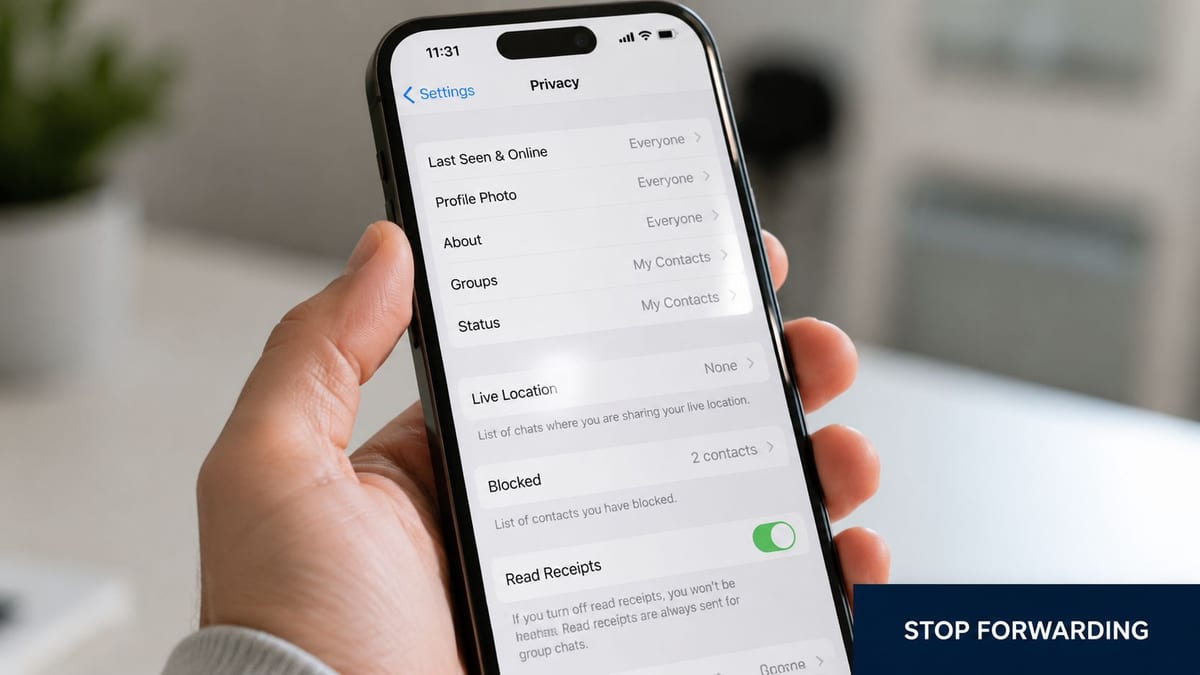
In the UK, call forwarding is a standard telephony feature rather than a standalone consumer service, and it is commonly managed through GSM supplementary-service codes; the most widely used reset code is ##002#, while condition-specific codes such as ##21#, ##62#, and ##61# are also used on compatible networks and devices. UK guidance also confirms that forwarding can be turned off through device settings on iPhone and Android, or by carrier codes when the handset menu isn't available, as outlined in this UK-focused call forwarding guide for iPhone and Android.
iPhone paths that usually work
On iPhone, the menu is usually straightforward if the carrier exposes it properly.
iPhone path: Settings > Phone > Call Forwarding
If you use Dual SIM, check the active line first. Forwarding can be configured per line, which means one number can still divert calls even when the other looks clean. That catches people out regularly.
If the toggle is present, switch it off and wait for the handset to finish updating. Don't rush away the second the screen changes. The phone still has to communicate the change.
A few practical points matter here:
- Missing menu option: Some carriers don't expose the forwarding control in the expected place.
- Greyed-out setting: The phone may not have enough network access to query or change the rule.
- Dual-SIM confusion: Users often disable forwarding on the wrong line and assume the issue remains unresolved.
Android menus vary more than most guides admit
Android is less tidy because Samsung, Google Pixel, and other vendors arrange these controls differently. The menu name also changes. You may see Call forwarding, Calling accounts, or Supplementary services.
Typical Android path: Phone app > Settings > Calls or Calling accounts > Call forwarding
Common Samsung path: Phone app > Settings > Supplementary services > Call forwarding
The right move on Android is to inspect every forwarding type, not just the top-level switch. Users often disable Always forward and miss the conditional rules.
Check for these categories individually:
- Always forward
- Forward when busy
- Forward when unanswered
- Forward when unreachable
Those last three are where hidden problems tend to live. The phone appears to ring sometimes, so staff assume forwarding is off, but missed calls still get pushed to another number under specific conditions.
A short visual walkthrough can help if you're guiding staff remotely:
What handset settings fix and what they don't
Handset menus are good for user-managed forwards. They are less reliable when the forwarding rule sits at the network or business system level.
That's the trade-off. The phone UI is convenient, but it only tells you what the handset can see and control. If the network is still holding a divert rule, or the PBX is redirecting before the mobile ever rings, the handset menu won't give you the full story.
If disabling call forwarding on the phone works immediately, great. If it doesn't, stop guessing and move to the network layer.
Using UK Network Codes for a Hard Reset
This is the step many people skip, and it's often the one that resolves the issue.
A common gap in disable-call-forwarding advice is that it explains the menu path but not the UK-specific question of which code works on which network and forwarding type. Existing content is often US-centric, while the more universal GSM code ##002# is the practical option many UK users need, especially on dual-SIM phones and on devices where the setting is buried in model-specific menus, as noted in this overview of common forwarding deactivation approaches.
Why codes succeed when menus fail
MMI and GSM supplementary-service codes talk to the network more directly than a handset menu does. That matters because forwarding may be active on the carrier side even when the device interface looks normal.
The most useful code for a broad reset is ##002#. In practice, that's the one I'd try first when a user says, “I turned forwarding off, but calls still disappear.”
Here's the code map most UK users need.
| Code | Forwarding Type to Disable | Description |
|---|---|---|
##002# |
All forwarding | Clears unconditional and conditional forwarding states on compatible networks |
##21# |
All calls | Cancels unconditional forwarding for every incoming call |
##62# |
When unreachable | Cancels forwarding used when the handset can't be reached |
##61# |
When unanswered | Cancels forwarding used when the call isn't answered |
How to use them safely
Dial the code from the line affected, then press call. Wait for the network response. Don't assume silence means success. Read the result on screen.
Use the codes in this order when you're troubleshooting a stubborn case:
- Start with
##002#because it aims to clear everything. - Use a condition-specific code only if you know the exact forwarding mode that needs removing.
- Repeat the process on the correct SIM line if the handset carries more than one mobile number.
- Test immediately after from a separate phone.
There's also a practical reason to understand the setup side. If you need to compare what's active today against what was originally intended, this walkthrough on how to set up mobile call forwarding is useful context for reading old user notes or service desk tickets.
Practical rule: If the phone menu and the network code disagree, trust the network result more than the handset display.
What these codes won't fix
Network codes won't remove forwarding inside a cloud PBX, SIP platform, or Teams calling policy. They also won't fix a hunt group, auto attendant, or call queue that's routing calls somewhere else by design.
That distinction matters. A mobile number can be clean at the carrier level while the corporate extension still forwards inside the phone system. If the user has both, you need to inspect both.
Managing Forwarding in Corporate Phone Systems
Corporate telephony adds another layer of complexity because the user often isn't the person with authority to disable the rule. The divert might sit in a self-service portal, a PBX admin console, or a cloud platform controlled by IT.
That's why support teams need to think in terms of call path ownership. Who owns the mobile number, who owns the extension, and where does the first routing decision happen?
VoIP and PBX platforms
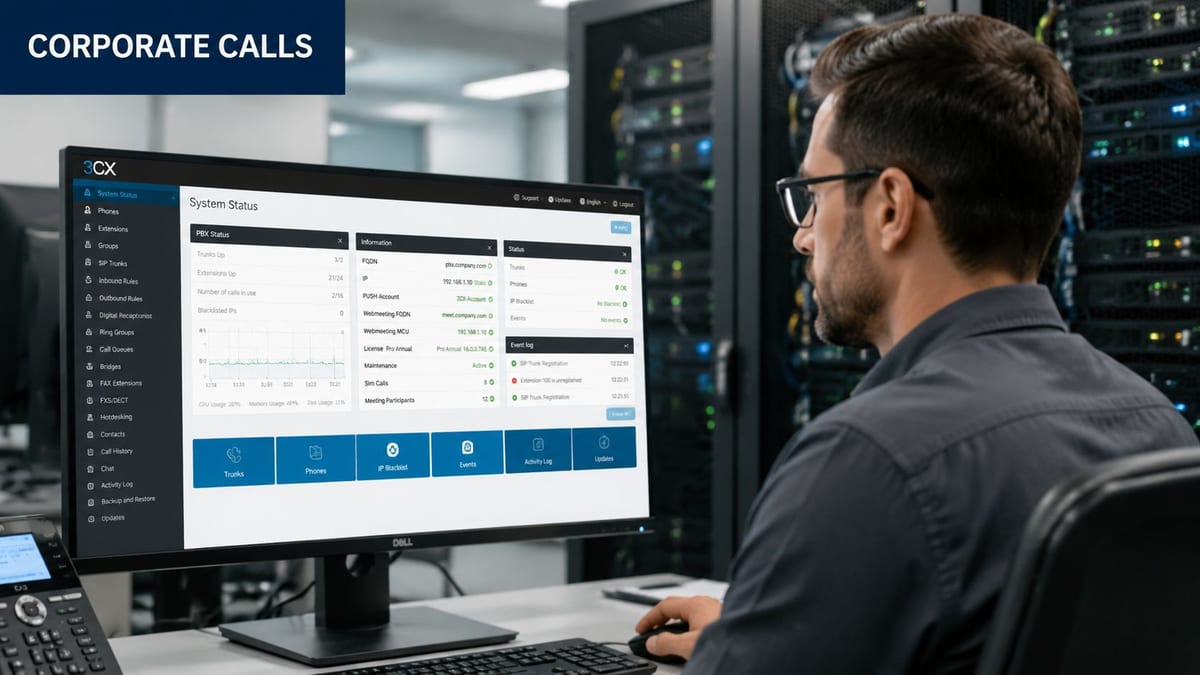
On systems such as Cisco, Avaya, and 3CX, call forwarding is usually tied to the user account, extension, ring strategy, or destination rule. The labels differ, but the pattern is familiar.
You'll typically look in one of these places:
- User or extension profile: Often where immediate or unconditional forwarding is stored
- Follow-me or mobility settings: Common for users who ring desk and mobile together
- Ring group or hunt group membership: Calls may appear “forwarded” when they're being presented to another destination as part of group logic
- Voicemail fallback rules: If unanswered calls route unexpectedly, voicemail settings can look like forwarding even when they aren't
The mistake I see most often is removing the user's personal divert while leaving a group or failover rule unchanged. The user reports “it's still forwarding,” but technically the PBX is now doing exactly what it's configured to do.
Microsoft Teams Phone administration
Teams Phone deserves separate treatment because there are two perspectives. A user can manage some call handling options themselves, but IT may need to override or audit those settings centrally.
For admins, the working route is often through the Teams Admin Centre, under the user's calling and voice settings.
When you're dealing with Teams-enabled mobiles or hybrid users, it also helps to understand the wider interaction between mobile service and internet-based calling. This primer on Wi-Fi calling phones is a useful reference when users describe symptoms that could be call handling, coverage, or both.
A clean admin workflow usually looks like this:
Identify the affected number and identity
Confirm whether the complaint relates to a direct inward dial, a Teams user account, a resource account, or a queue.Review user-level call answering rules
Check if calls are set to forward, ring delegates, or route to voicemail under conditions the user no longer needs.Inspect delegates and simultaneous ring
Some staff think forwarding is active when delegates or parallel ringing are causing the behaviour.Check queues and auto attendants
If the published business number lands in Teams first, the issue may not sit with the end user account at all.
A Teams user can look “normal” at account level while a queue, delegate, or answering rule still sends calls elsewhere.
Admin decisions that reduce repeat incidents
Removing forwarding is one task. Preventing the next incident is the bigger one.
Strong teams usually standardise around a few controls:
- Leaver process discipline: Remove personal forwarding and delegate access as part of offboarding, not as an afterthought.
- Temporary change windows: If someone needs a divert for travel or leave, set an expiry reminder when the change is made.
- Shared number design: Don't use ad hoc forwarding where a queue or hunt group would be more appropriate.
- User permissions: Limit who can create persistent forwarding rules on critical roles such as reception, service desk, or emergency contact numbers.
This is also where telephony meets broader infrastructure. If your business is redesigning voice, Wi-Fi, switching, or cabling during an office move, forwarding rules should be reviewed as part of the migration plan, not discovered after go-live.
Verification Troubleshooting and Change Control
Disabling the setting is only half the job. Verification is the key control.
For UK mobile and landline users, the most reliable way to disable all forwarding is to cancel the network rule rather than relying only on handset settings. MNO and GSM-style dial codes such as ##002# are used to clear unconditional and conditional forwarding states, while handset interfaces may only toggle what the device knows locally. In practice, teams should verify both the device menu and the network setting, then place a test call from a second line to confirm the call rings directly, as explained in this guidance on fully clearing forwarding and testing the result.
A verification workflow that catches most failures
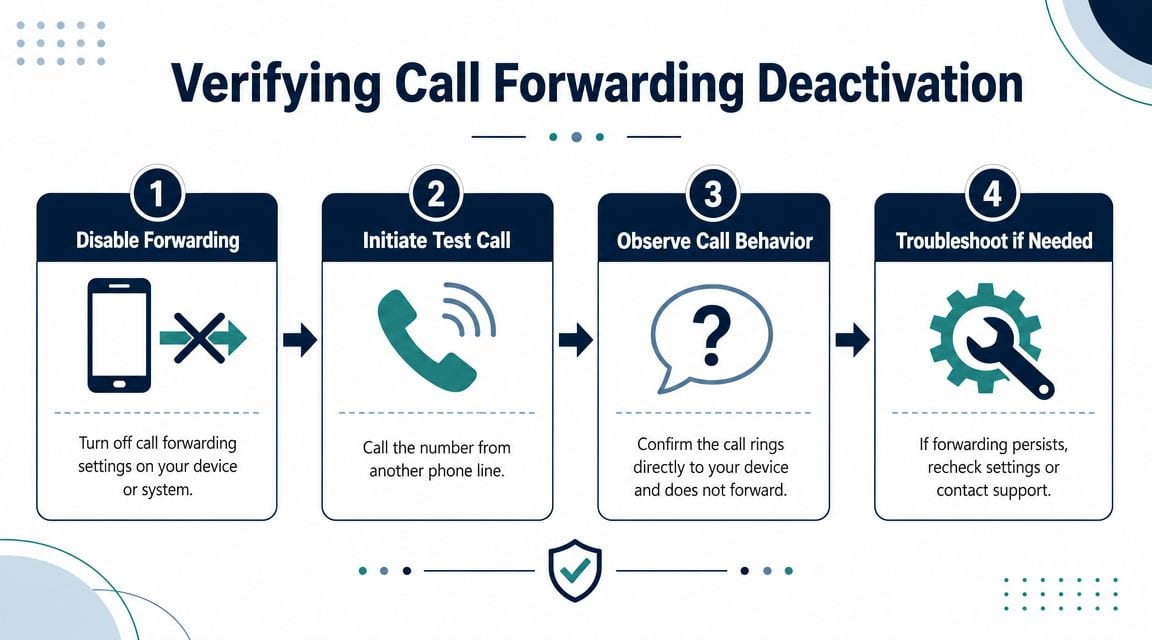
Use a second line. Don't test by calling from the same device or from a tightly integrated softphone setup that may hide the actual route.
A practical sequence is:
Disable forwarding at the known source
Remove it from the phone, network, or PBX where you identified the rule.Call from an independent number
A colleague's handset is often enough.Watch what happens
The destination should ring directly. It shouldn't jump to voicemail, another mobile, or a hunt group unless that's expected.Document the result
In a business setting, note who changed what, when, and why.
If you're diagnosing wider communication issues while testing, stable local connectivity matters too. In offices where call apps and wireless calling sit alongside mobile service, getting the network right is part of the answer, which is why this guide to setting up Wi-Fi correctly is often relevant during telephony troubleshooting.
Common failure patterns
Some symptoms point to very specific problems.
The setting is greyed out
The handset may not be talking to the network correctly, or the carrier controls the option elsewhere.The code returns an error
You may be using the wrong SIM, the network may not support that command in the expected way, or the number's routing is being handled inside a business platform instead.Forwarding keeps coming back
A policy, queue, or user profile sync may be reapplying the rule after you remove it.Calls still don't ring the user
This isn't always forwarding. DND, voicemail policy, Teams delegates, queue overflow, or poor signal can create similar symptoms.
Security note: If a user has left the business, don't stop at “the forwarding appears off.” Test the live number and record the outcome.
Why change control matters
Forwarding changes can affect sales, support, compliance, and customer trust. That makes them operational changes, not personal preferences, when they touch business numbers.
A lightweight process helps:
- Record the reason for every divert on company-owned services
- Assign an owner who is responsible for removing it
- Set a review date for temporary changes
- Test after removal and capture the result in the ticket
Without that discipline, forwarding becomes tribal knowledge. Someone remembers that “calls go to Karen when nobody answers,” but nobody can tell you where that rule is configured.
A Clear Call Path for Better Business Operations
The safest way to disable call forwarding is to treat it as a routing problem, not a phone setting. Start with the user device if that's where the change was made. Use UK network codes when you need to clear the carrier-level rule. Check the PBX, VoIP portal, or Teams configuration when the business platform owns the call path.
What works is methodical. Identify the number involved, remove the rule at the correct layer, and verify with a real test call. What doesn't work is assuming the first visible toggle tells the whole story.
That matters more in business environments because forwarding mistakes rarely stay small. They affect customer contact, handovers between teams, leaver security, and the accuracy of your support process. A clean telephony estate depends on more than voice settings alone. It sits alongside structured cabling, wireless coverage, switching, power resilience, and properly managed endpoints.
The same principle applies across infrastructure projects. If you're moving office, fitting out a new space, or redesigning communications, telephony should be engineered as part of the wider environment. Calls, data, Wi-Fi, CCTV, electrical installation, certification, and autonomous or lightly managed building units all depend on joined-up planning. When those pieces are treated separately, small routing errors become persistent operational faults.
A good standard is simple. Know where your call rules live. Keep them documented. Remove temporary changes on time. Test every change that affects a live business number.
If managing telephony, network, cabling, Wi-Fi, CCTV, electrical works, and wider infrastructure is pulling your team away from core delivery, Constructive-IT can help plan and deliver a joined-up solution that works in practice, not just on paper.