
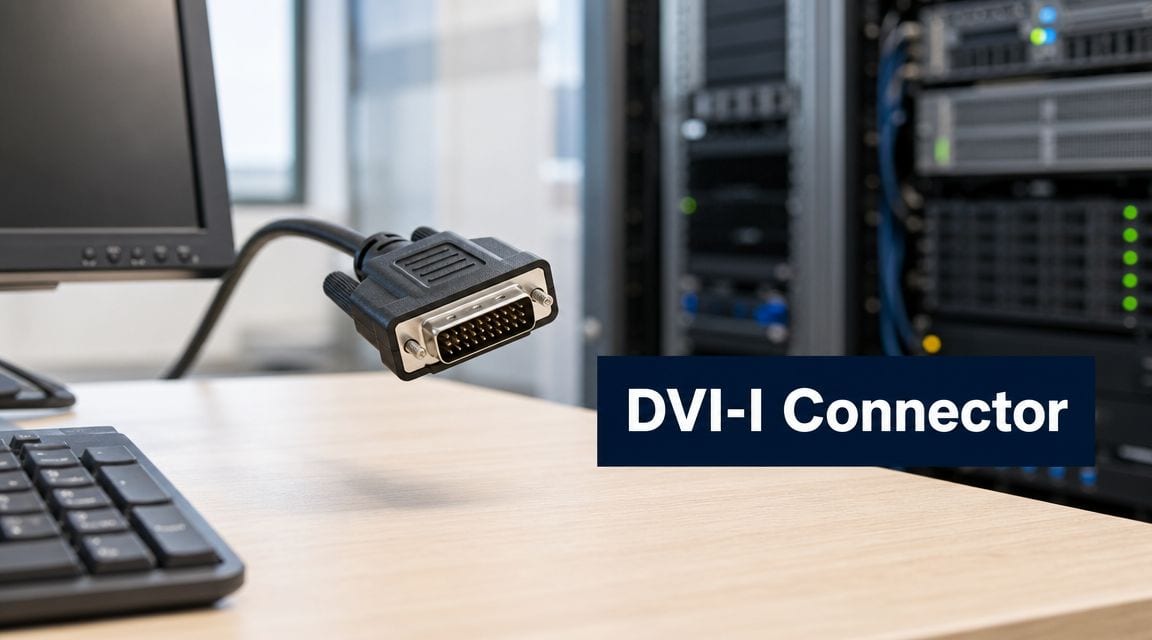
If you're planning an office move, replacing desktop estates in phases, or cleaning up a server room that has grown over the years, you've probably found at least one monitor, KVM, or specialist display that still depends on DVI. That's usually the moment DVI-I stops looking like old trivia and starts looking like a budget, downtime, and compatibility decision.
For most UK IT managers, the question isn't whether DVI-I feels dated. It does. The key question is whether keeping a DVI-I connector in part of the estate buys you a smooth transition, or whether it just leaves you with another layer of adapters, another support headache, and another bit of technical debt to carry into the next refresh.
Why Talk About the DVI-I Connector in 2026
A common scenario goes like this. The business is relocating. New desks, new meeting rooms, new structured cabling, refreshed switches, better Wi-Fi, tidier comms cabinets. Then the edge cases appear. Finance still has an older screen that users like and won't let go. A warehouse workstation runs a piece of software tied to an older display setup. A server room still uses an existing KVM chain that nobody wants to disturb during a live move.
That's where DVI-I still has a place.

The practical value of DVI-I is simple. It's a hybrid connector that carries both digital and analogue video, which is why it can still act as a compatibility bridge in mixed estates, as outlined in Leads Direct's DVI wiring information and pinout table. In a phased refresh, that matters more than people think. It can let one endpoint talk to old VGA-era equipment while still supporting digital displays on the same interface.
Where it still earns its keep
DVI-I still makes sense when you're trying to avoid replacing working hardware purely because the connector standard changed. That often happens during:
- Office relocations: Existing monitors and room displays need to stay live through a staged move.
- Server room tidy-ups: Legacy KVMs and crash-cart displays remain in service longer than the servers they support.
- Specialist environments: Medical, industrial, or niche commercial displays often outlast the PCs attached to them.
Practical rule: Keep DVI-I only when it solves a real interoperability problem you already have. Don't specify it for a greenfield build unless you know exactly what legacy dependency it is protecting.
Why the conversation matters now
Modern endpoints have moved on. HDMI, DisplayPort, USB-C, and KVM-over-IP are the preferred standards for new deployments. That's the right direction. But if you're responsible for continuity during a move or upgrade, you can't plan around ideals alone. You have to plan around what's currently bolted under desks, mounted in racks, and wired into meeting spaces today.
That's why the DVI-I connector still matters in 2026. Not as a preferred standard. As a controlled compromise.
Understanding the DVI Connector Family
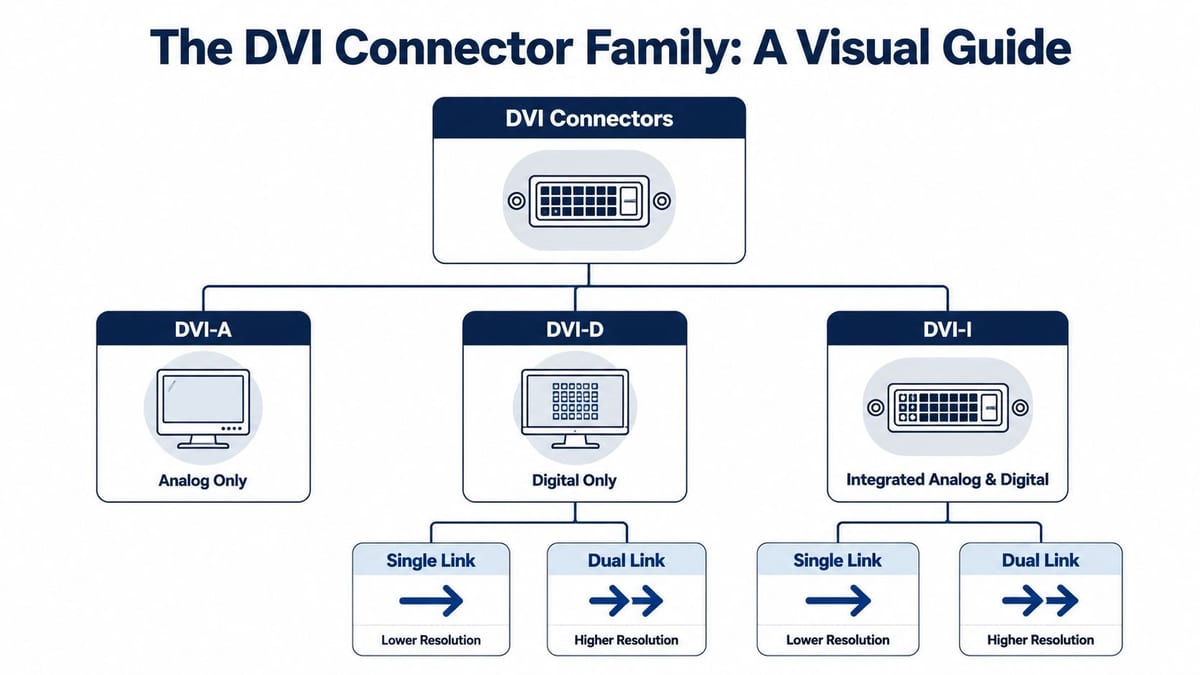
DVI causes confusion because people often treat it as one connector. It isn't. There are several variants, and if you get them mixed up, you end up buying the wrong adapter, wondering why VGA won't work, or discovering too late that the display path is digital-only.
What makes DVI-I different
Think of DVI-I as the bilingual member of the family. It speaks both analogue and digital video. That's the reason it stayed useful for so long in estates that straddled old VGA kit and newer flat panels.
According to ITM Components' guide to DVI connectors and signals, DVI-I was introduced in 1999 and comes in single-link and dual-link versions. A single-link DVI-I connector has 23 pins, while a dual-link version has 29 pins. The design reflects its hybrid role and is why it can work with older VGA equipment in a way DVI-D cannot.
The three DVI types in plain terms
Here's the quick way to think about them:
| Connector Type | Signal Type | Primary Use Case | VGA Adapter Compatible |
|---|---|---|---|
| DVI-A | Analogue only | Older analogue display paths | Yes |
| DVI-D | Digital only | Flat panels and digital video paths | No |
| DVI-I | Analogue and digital | Mixed estates and transitional upgrades | Yes |
If you're looking at the back of a monitor or graphics card and trying to work out what you're dealing with, this is the distinction that matters. The letter tells you what signal types are present. The link type tells you how much display data the connection can handle.
What UK buyers usually get wrong
The mistake isn't usually identifying DVI itself. It's assuming all DVI ports do the same job. They don't.
- DVI-D mistakes: Teams buy a cheap VGA adapter and expect it to work on a digital-only port.
- DVI-I confusion: Someone sees a DVI connector and assumes any DVI cable will preserve every compatibility option.
- Procurement shortcuts: Matching the plug shape without checking the signal type leads to avoidable returns and desk-side fixes.
For IT managers dealing with user screens, deskside swaps, and ad hoc requests, that confusion wastes time. If the organisation also supports design teams or users who care about panel specs, a curated monitor resource for competitive gamers can also be useful as a quick way to compare display characteristics when users bring their own expectations into purchasing conversations.
Buy by signal path first, connector shape second. That one habit avoids a surprising number of DVI support calls.
Single Link vs Dual Link DVI Performance
Once you've confirmed the connector type, the next question is whether the connection has enough capacity for the display you're trying to run. Many DVI deployments often fail here. The plug fits, the monitor powers on, and then the user reports the image won't run at the expected resolution.
What changes between single-link and dual-link
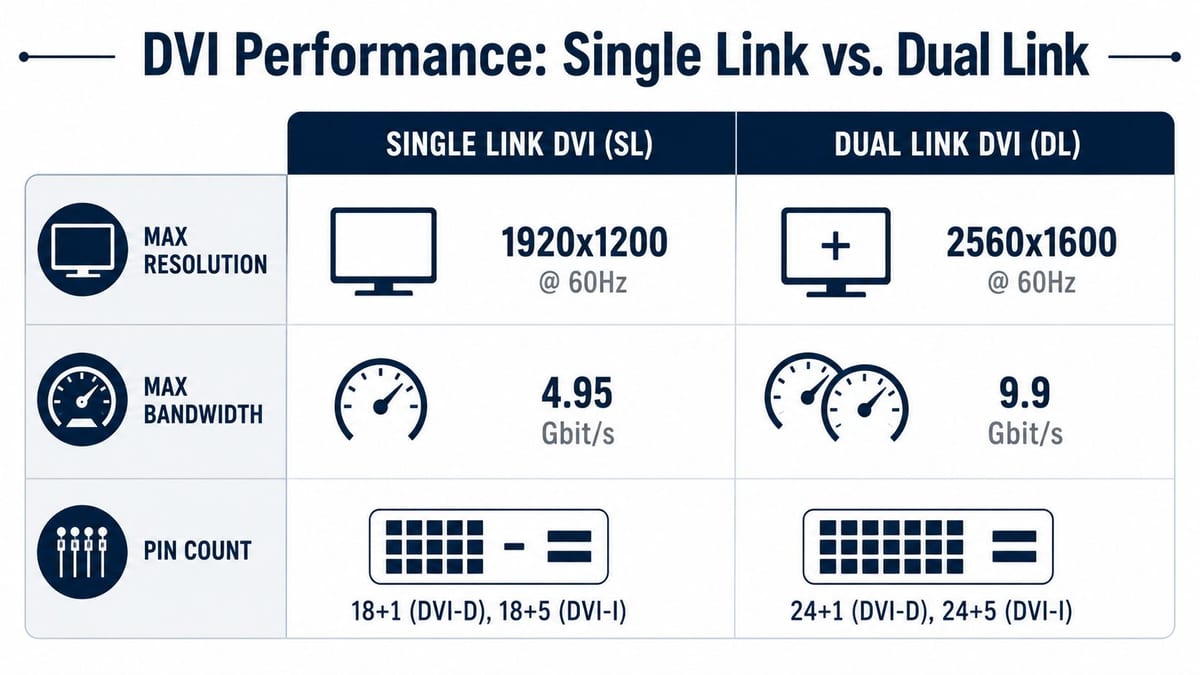
For planning purposes, the difference is clear in the published specifications from the Mouser DVI cable datasheet. A DVI-I dual-link cable supports a maximum data rate of 9.9 Gbps and can drive resolutions up to 2560 × 1600. A standard single-link connection is capped at 4.95 Gbps, which limits it to resolutions such as 1920 × 1200.
That means cable selection is not a detail. It determines whether the screen can run as intended.
What that means in day-to-day deployments
In practical terms:
- Desk upgrades: If a user is moving from an older office monitor to a higher-resolution panel, a single-link cable can become the bottleneck.
- Control room or specialist use: Higher-resolution displays need the right link type from end to end, not just the right connector shell.
- Mixed stock cupboards: Old single-link leads often get reused by habit, even when the display path now needs dual-link.
If the monitor's native resolution sits above what single-link can carry, no amount of driver reinstalling will fix the wrong cable.
The checks worth making before you send an engineer
Before blaming the monitor, GPU, dock, or KVM, verify these basics:
- Check the cable specification: Don't assume an existing DVI lead is dual-link because it looks substantial.
- Check both endpoints: A dual-link cable doesn't help if one device only supports a lower-capacity path.
- Check the intended use case: For multi-screen desks, make sure the display plan matches the actual connection limits. If you're planning broader desktop layouts, this guide to setting up 3 monitors is a useful reference for the wider design issues around multi-display workstations.
Single-link DVI is still fine for many legacy office screens. The problem starts when teams expect it to behave like a modern universal standard. It won't.
Common Use Cases in UK Office and Server Rooms
DVI-I tends to survive in the places where replacement is awkward, risky, or poor value. You don't usually choose it for a brand-new standard desktop build. You inherit it where the estate has grown in layers.
Legacy displays that are still doing a job
One of the most defensible uses for DVI-I is keeping a working VGA-era display in service during a phased rollout. The DVI specification includes integrated digital and analogue support, and the interface also carries DDC lines and a +5 V supply for EDID handshaking and monitor detection, as described in the DVI 1.0 specification reference. In plain terms, that makes mixed-vendor monitor detection more dependable and lets passive VGA adapters work where the analogue path is available.
That matters in real projects. A business may be replacing PCs this quarter and displays next quarter. DVI-I gives the team breathing room.
Typical places it still turns up
These are the situations where it still solves a problem:
- Server rooms with older KVM infrastructure: The servers may be new, but the console path often isn't.
- Office relocations: Existing monitors are reused to control cost and reduce disruption.
- Specialist screens: Certain medical, industrial, or embedded display setups stay in service longer than standard office monitors.
- Meeting and presentation spaces: Transitional AV panels sometimes need to support mixed input expectations during a refit.
Why it can still be the sensible option
The strongest case for DVI-I isn't performance. It's controlled compatibility.
If a passive adapter lets you keep a known-good display live while you move users, swap endpoints, or phase budgets across financial periods, that can be the right decision. You avoid unnecessary replacement, reduce immediate user disruption, and keep the migration on your timetable instead of the connector's.
Inherited infrastructure often dictates the connector strategy more than anyone wants to admit.
That said, DVI-I only earns its place when the dependency is real. If you're carrying it forward just because “it still works”, the case gets weaker very quickly.
Connecting DVI-I to VGA HDMI and DisplayPort
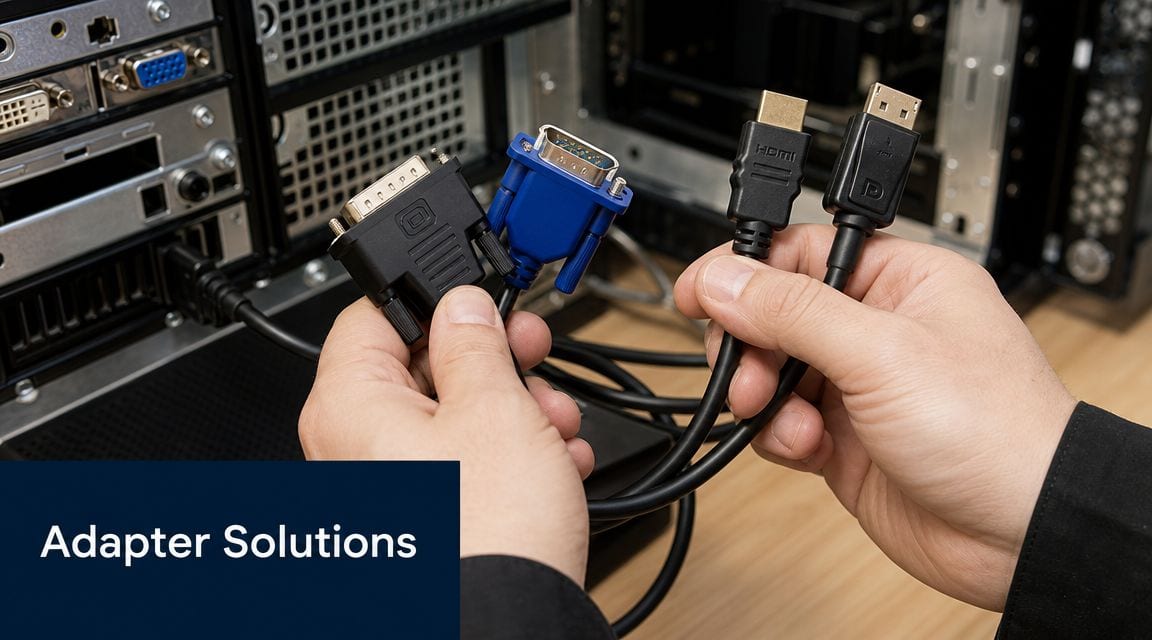
Most purchasing mistakes occur in this context. Teams know DVI-I is flexible, so they assume any cheap adapter will bridge it to anything else. Sometimes that works. Sometimes it absolutely does not.
DVI-I to VGA
This is the straightforward one. Because DVI-I carries an analogue signal path, a passive DVI-I to VGA adapter can work. There's no mystery here. The analogue output is already present on the connector.
This is why DVI-I stayed relevant in office refreshes for so long. If you're trying to keep older projectors or VGA-only monitors running temporarily, this is often the cleanest low-friction bridge.
DVI-I to HDMI
This needs more care. DVI and HDMI can align on digital video signalling, but the practical issue is to confirm you're using the digital side of the DVI-I connection and not expecting analogue compatibility to carry across. Also remember that DVI is video-focused. If the destination setup expects sound over the same path, plan audio separately.
For laptop-to-display scenarios, the broader workflow matters as much as the adapter itself. This guide on how to connect a projector from a laptop is useful when you're dealing with meeting rooms, presenters, and mixed connection types rather than a simple desk monitor.
DVI-I to DisplayPort
Assumptions can prove expensive. DisplayPort is not the same sort of transitional connector. In many cases, you're into active conversion territory rather than a passive plug shape change. That means direction matters, compatibility matters, and bargain-bin adapters are far more likely to disappoint.
Use active conversion when the display path demands it, and test it on the exact devices involved before rollout. Don't bulk-buy first and troubleshoot later.
A useful visual primer sits here:
A simple decision guide
Use this rule set when ordering:
- Need VGA from DVI-I: Use a passive adapter, but only if the source is indeed DVI-I.
- Need HDMI from DVI-I: Confirm the digital video path and plan for separate audio if required.
- Need DisplayPort from DVI-I: Expect to use an active converter in many real deployments.
- Not sure what the source port is: Stop and verify whether it is DVI-I or DVI-D before buying anything.
The pitfall to avoid is treating all adapters as equal. With DVI-I, the signal direction and signal type decide whether the job is simple or troublesome.
Installation Tips and Troubleshooting
DVI problems are often physical before they're logical. The connector is bulky, the screws tempt people into over-tightening or ignoring strain, and adapters can turn a neat run into a lever hanging off the back of a device.
Start with the mechanical basics
Seat the connector squarely. If it's resisting, stop and inspect it. Don't force it home at an angle. Bent pins and half-seated plugs are still among the most common reasons a screen shows no signal after a rushed desk move or cabinet tidy-up.
A few habits help:
- Support the cable head: Don't let the connector's own weight pull against the port.
- Tighten the thumbscrews evenly: Finger-tight is usually enough to prevent creep without stressing the socket.
- Inspect adapters closely: A cheap adapter can introduce wobble before you even power the display.
Troubleshooting no-signal faults
When a DVI-I setup fails, check these in order:
- Signal mismatch: A DVI-D-only path won't magically feed a VGA adapter.
- Wrong cable type: Link capacity may be too low for the chosen display mode.
- Physical damage: Bent pins, damaged sockets, or a loose adapter stack are common culprits.
- Display detection issues: Re-seat the connection and power-cycle in the simplest possible configuration.
A lot of “mystery” DVI faults disappear once you remove extra adapters and test with one known-good cable direct from source to screen.
Tight spaces and right-angle adapters
The physical bulk of DVI becomes a real issue behind wall-mounted screens, inside shallow cabinets, and in dense racks. Manufacturer guidance for right-angle DVI adapters shows they are intended for tight-space routing, but the trade-off is operational rather than theoretical, as noted by DVIGear's right-angle adapter product guidance.
Right-angle fittings can reduce cable strain, but they can also create:
- Adapter stack-up: More joints, more movement, more failure points.
- Bend-radius problems: The cable may still be forced into a poor path just a few centimetres later.
- Maintenance headaches: What looks tidy at install can be awkward during fault-finding.
Use them when they solve a specific access problem. Don't use them to disguise poor cabinet planning.
Planning Your Migration Away from DVI
The right long-term strategy is usually to reduce DVI, not preserve it. The question is pace.
When keeping DVI-I makes sense
Keep it for a defined period when it protects continuity. Good examples include a live office relocation, an interim desktop refresh, or a server room where the KVM path is scheduled for replacement later in the programme. In those cases, DVI-I can be a tactical bridge that prevents unnecessary disruption.
That's different from letting it become part of the permanent standard.
When to rip and replace
Move away from DVI when any of these are true:
- The adapters are multiplying: Every extra converter adds confusion and another support point.
- Users need modern display features: DVI quickly becomes the limiting factor.
- The installation is physically awkward: Bulky connectors and cramped routing rarely improve with age.
- Procurement is becoming messy: If your team has to stop and decode the connector every time, the standard is already costing you time.
Design the next phase properly
A clean migration means planning the display path with the rest of the infrastructure. Don't treat video as a last-minute desktop detail. In office fit-outs and server room upgrades, the sensible approach is to align screen standards with rack layout, AV requirements, user desk setups, CCTV monitoring needs, and the wider network design.
That same discipline applies in autonomous and low-touch sites. If you're building out lightly attended or fully autonomous unmanned building units, access systems, CCTV, commercial electrical installation and certification, display requirements, power resilience, and data cabling all need to be designed together. In practice, many unmanned building projects fail when teams split these decisions between disconnected workstreams. Access control gets specified without thinking about maintenance access. Power gets designed without considering network switches, display equipment, or remote support paths. Data routes get value-engineered until serviceability disappears.
Battery-less, NFC proximity locks can be a strong choice in those environments because they reduce battery maintenance overhead and suit controlled-access areas where service visits need to be minimised. They're commonly useful in comms rooms, remote plant spaces, managed offices, storage areas, and small distributed operational sites. But they only work well when the access layer, electrical design, monitoring, and support model are planned as one system.
For the cabling side of that future state, this overview of structured cabling is a helpful starting point. It's the sort of groundwork that makes connector migration easier because the underlying infrastructure is already organised for change.
A DVI-I connector is best treated as a migration tool. Once it stops solving an immediate problem, it should leave with the rest of the legacy estate.
If you're balancing old display dependencies against a modern office fit-out, relocation, server room refresh, or autonomous site build, Constructive-IT can help you map what should be retained, what should be phased out, and how to deliver the change without creating avoidable downtime or long-term technical debt.