
The laptop is open. The deck is ready. The room is full. Then the projector says No Signal and everyone starts looking at the nearest person who “knows IT”.
That failure rarely comes from the projector alone. In most offices, the problem sits somewhere between the laptop port, the cable, the adapter, the room input, the display mode, and the way the room was designed in the first place. That's why a dependable projector from laptop setup isn't just about plugging in whatever lead is nearest. It's about making sure the room, the devices, and the infrastructure all agree with each other.
In practice, I've found office managers and internal IT teams usually aren't struggling with the basic concept. They know a laptop should connect to a projector. The core issue is reliability under pressure. Modern workplaces have USB-C laptops, legacy HDMI-only projectors, mixed Windows and Mac devices, docking stations, wireless policies, and meeting spaces that have grown piecemeal over time. Even straightforward guidance often misses that gap around adapter choice, cable standard, and compatibility planning for hybrid rooms, which is exactly why modern laptop-to-projector reliability still catches teams out in live environments, as noted in this guidance on modern laptop-to-projector compatibility in workplaces.
Setting the Stage for a Perfect Presentation
A projector from laptop connection only feels simple when the room has been set up properly before anyone walks in. In a well-run office, the presenter shouldn't have to crawl under a table, guess which adapter fits, or experiment with display settings while clients wait.
That's the practical difference between a room that's merely equipped and one that's usable. The first has a projector. The second has the right cable path, a known input, sensible labelling, tested adapters, and a display mode that behaves predictably.
What usually goes wrong in real offices
Most presentation failures come from one of these conditions:
- Mixed hardware: A modern USB-C laptop arrives in a room that was built around HDMI or older standards.
- Bad room habits: Cables get borrowed, adapters disappear, and nobody checks the setup between meetings.
- Unclear signal path: The projector is live, but the wall plate, switcher, or input selection isn't.
- Last-minute expectations: Staff assume any laptop will work in any room without preparation.
Practical rule: If a room depends on a loose adapter living in a drawer, the room isn't really ready.
There's also a planning issue people often overlook. Some offices need a projector for ordinary presentations. Others need projection as part of a wider experience, such as reception branding, temporary events, or visual wayfinding. If you need to project custom logos for your event, that's a different use case from a boardroom deck, and it affects projector choice, mounting, optics, and control.
Reliability starts before the meeting starts
A good setup standard is simple. Every room should have a primary connection method, a secondary fallback, and a known workflow for Windows and Mac. If the room supports wireless, keep a wired option available anyway. If the room uses adapters, mount or secure them so they stay with the space.
Office managers usually don't need more features. They need fewer surprises. That means treating projection as part of the room's operational readiness, not as a gadget that happens to be hanging from the ceiling.
The Go-To Method Wired Connections for Ultimate Reliability
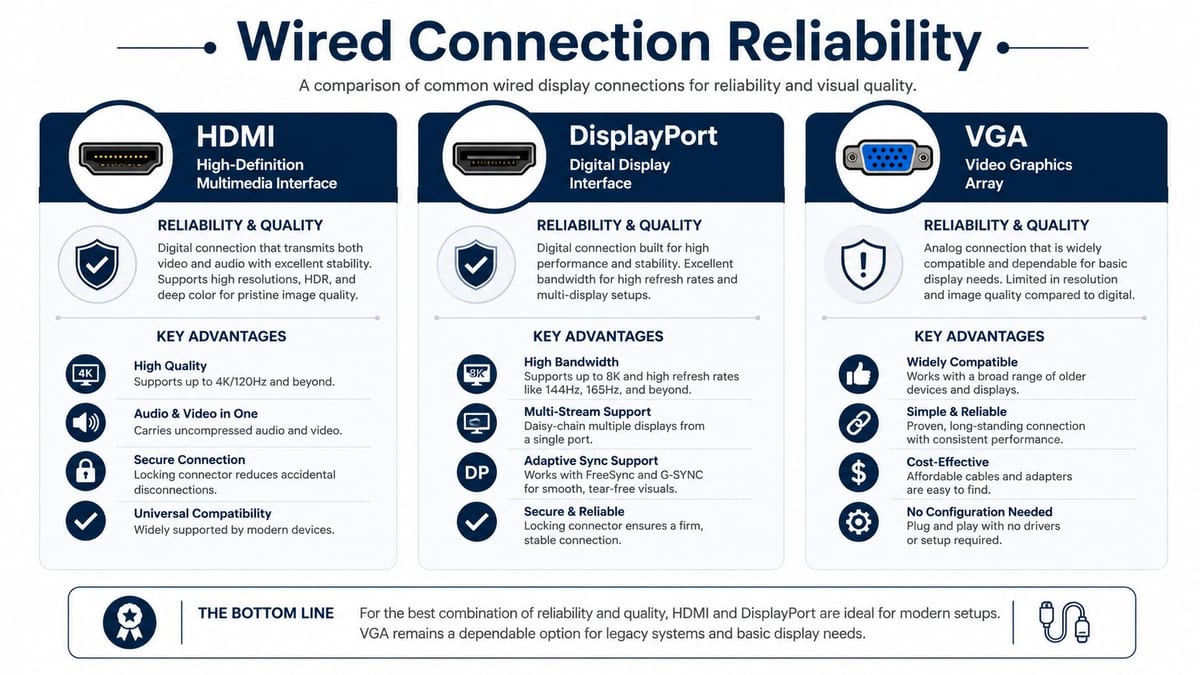
If the meeting matters, use a cable first. Wireless has its place, but a wired projector from laptop setup is still the standard I trust most in offices because it removes variables from the chain.
For day-to-day business use, direct HDMI remains the most reliable method. Practical setup guidance is consistent on this point: power both devices, connect HDMI, select the matching projector input, choose Duplicate or Extend mode, and match the laptop output to the projector's native resolution, as outlined in this HDMI projector setup guide for office and classroom environments.
Start with HDMI if you can
HDMI is the office default because it's familiar, carries video cleanly, and in many rooms it also carries audio. It's the connection most users recognise immediately, which matters when you want less hand-holding.
Use this sequence:
- Power the projector first: Let it complete startup so the input becomes available.
- Connect the laptop directly: Avoid chaining through random adapters unless you have to.
- Select the correct input on the projector: HDMI 1 and HDMI 2 are not the same thing.
- Set display mode on the laptop: Use Duplicate for standard presenting, Extend if the presenter needs notes.
- Match the output resolution: If text looks soft, this is often the first setting to check.
USB-C works well when the laptop supports video properly
USB-C has made office setups both easier and more confusing. The easier part is obvious. One compact port can support power, data, and video. The confusing part is that not every USB-C port outputs video in the same way, and that's where many rooms fall over.
If the laptop supports video over USB-C, a direct USB-C to projector connection or a proper USB-C-to-HDMI adapter can work very well. But “USB-C fits” doesn't automatically mean “USB-C displays”. For office standards, that's why I prefer rooms to have tested adapters assigned to known laptop types rather than a pile of generic dongles.
A cheap adapter can make a good projector look unreliable. The room gets blamed, but the adapter was the weak point.
VGA still appears more often than people expect
Older meeting rooms, training suites, and public-sector spaces still have VGA in the chain somewhere. VGA can still get an image on screen, but it's legacy kit and needs to be treated that way. You may also need separate audio if sound matters.
If you're maintaining mixed rooms, document exactly what each space accepts. Don't assume users will figure it out from the sockets on the day.
A short comparison helps:
| Connection | Best use | Main caution |
|---|---|---|
| HDMI | Standard office presentation rooms | Wrong input selection is common |
| USB-C | Newer laptops and flexible desks | Video output support must be confirmed |
| VGA | Legacy rooms and older projectors | Lower convenience and more adapter dependence |
For offices standardising room technology, the bigger win is consistency across spaces. If your network and room design are being updated at the same time, it helps to align AV cabling with broader ethernet and wireless planning for office infrastructure so users don't end up with one room that behaves completely differently from the next.
Cutting the Cord Wireless Projection in the Office
Wireless projection is attractive because it reduces visible clutter and gives staff more flexibility. In hot-desk offices and collaboration rooms, that can make the space feel cleaner and easier to use.
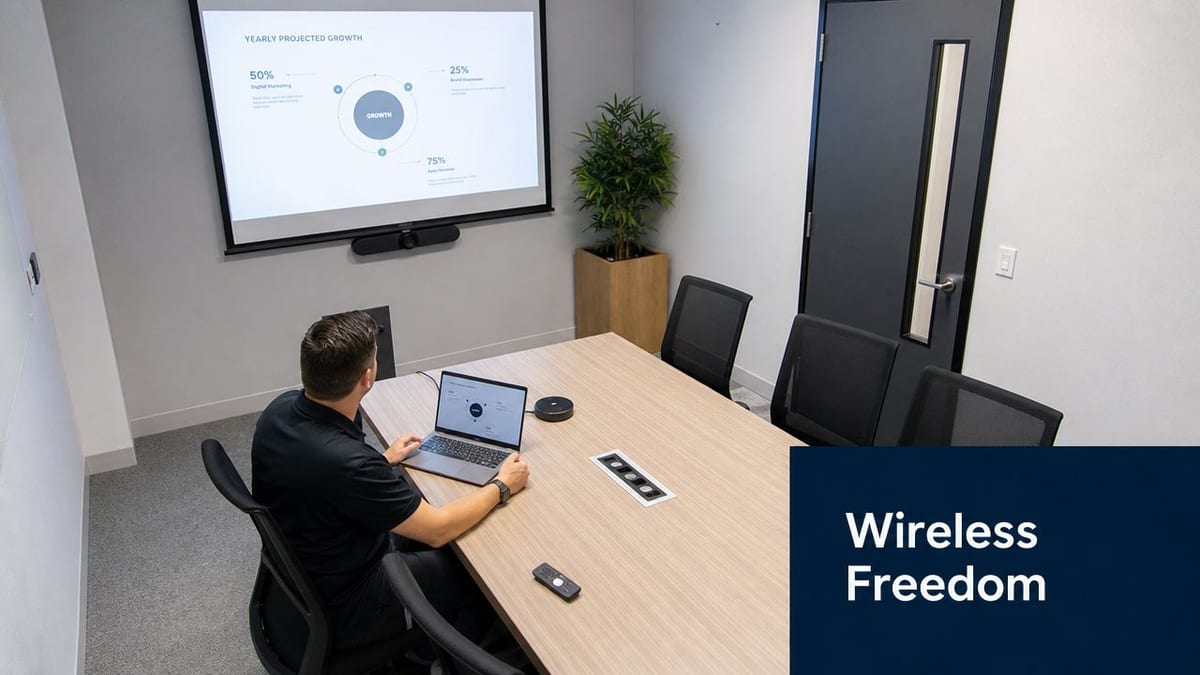
The trade-off is simple. Wireless is convenient, but it depends on the surrounding environment being disciplined. Device support, network behaviour, security rules, and room configuration all matter more than people expect.
Guidance covering current office use reflects that shift. UK organisations have moved from VGA toward HDMI and wireless casting, with Windows laptops using Windows+P and Mac users mirroring displays in system settings, which shows how projector workflows have become more standardised across platforms even while many sites still support mixed-generation hardware, as explained in this overview of laptop-to-projector methods in office environments.
The three wireless approaches you'll actually encounter
Miracast is the common Windows route. It works well when the laptop and room system support it cleanly, especially for quick ad hoc sharing. It can be useful in internal meeting rooms where devices are managed and tested against the room kit.
AirPlay is the natural fit for MacBooks, iPads, and iPhones. In Apple-heavy organisations, it often feels the least awkward because users already understand the interaction.
Google Cast is usually strongest when browser-based sharing is part of the workflow or when Android devices need to join in. It's flexible, but it needs sensible configuration.
Here's the practical view:
- Miracast: Good for Windows-first estates. Less ideal when wireless policies are restrictive.
- AirPlay: Very smooth in Apple-friendly rooms. Not the answer for every mixed-device office.
- Google Cast: Useful for shared content workflows. Needs proper room and network planning.
If your team is comparing room casting options, this breakdown of Apple TV and Chromecast for workplace use is a useful starting point.
Wireless fails for ordinary reasons, not mysterious ones
Most wireless problems aren't dramatic. The device is on the wrong network. Guest access is isolated. Firewall rules interfere. The room receiver has been powered off at the wall. Staff expect personal-device behaviour in a managed corporate environment.
That's also why office fit-outs sometimes need input from broader building services rather than AV alone. Reliable wireless presentation depends on power, containment, and network readiness in the room itself. When those basics haven't been planned properly, teams often end up bringing in specialists who understand the practical side of home and small-site network installation work because the issue isn't the projector feature set. It's the infrastructure around it.
A quick visual overview can help when you're choosing a route for your rooms:
Mastering Display Settings for a Perfect Image
Getting a signal on screen is only the first half of the job. A projector from laptop setup can be technically connected and still look poor. Blurry text, a cropped desktop, wrong aspect ratio, washed-out slides, and unreadable spreadsheets usually come down to settings or physical placement.
The fix is usually straightforward if you approach it in the right order.
Duplicate or Extend
For most office presentations, Duplicate is the safe option. The laptop and the projector show the same thing, so the presenter sees exactly what the room sees. That reduces confusion and keeps handovers simple.
Extend is better when the presenter needs a second workspace. Typical examples include speaker notes, preview windows, or keeping confidential material off the projected image. It's useful, but only if the presenter understands where their windows are going.
A simple decision guide works well:
- Choose Duplicate: Boardroom presentations, training sessions, client decks, quick updates.
- Choose Extend: Presenter-view workflows, demos, multi-window tasks, moderated sessions.
- Avoid guessing: If a user doesn't know which mode they need, set Duplicate and start there.
The wrong display mode can look like a connection fault. It often isn't. The laptop is sending video, just not in the way the presenter expects.
Resolution matters more than people think
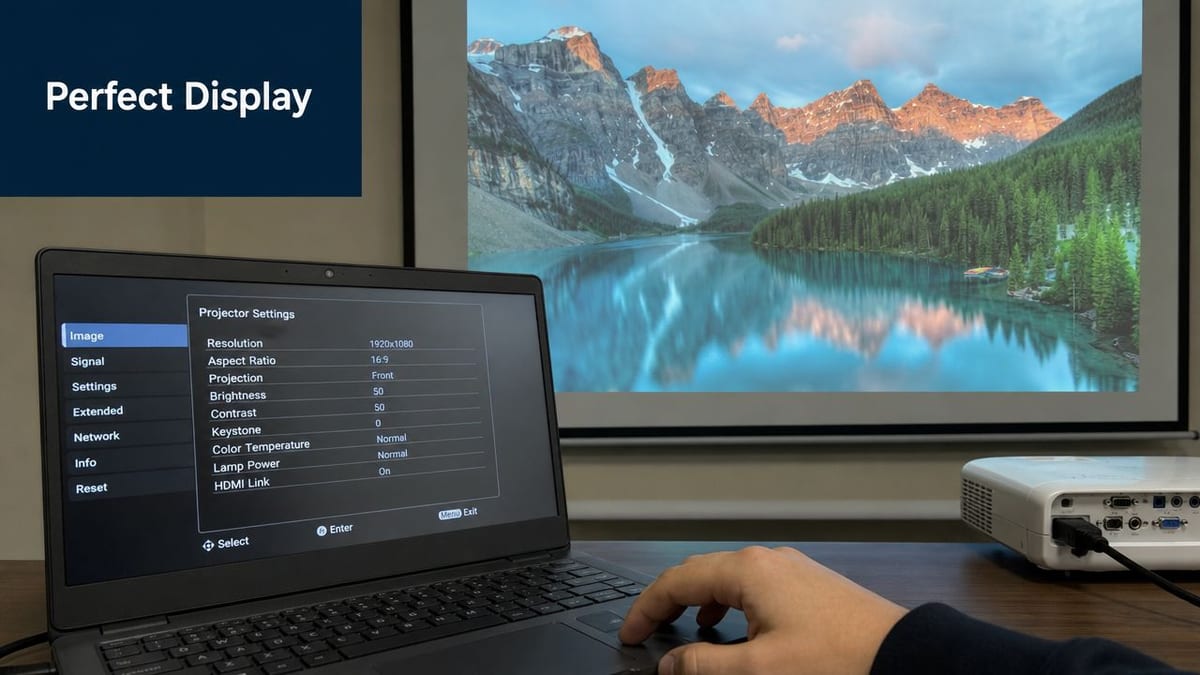
If text looks fuzzy, don't blame the cable immediately. In many cases, the laptop is outputting a resolution that doesn't suit the projector properly. Matching the laptop's output to the projector's native resolution is the cleanest way to get sharper text and better graphics.
That matters most with spreadsheets, browser windows, and detailed presentations where soft edges are obvious. It's less noticeable with full-screen photos, which is why some rooms seem “fine” until someone opens a dense PowerPoint or an Excel file.
Position first, keystone second
A lot of users ask whether the projector can sit off to one side or be installed wherever there happens to be space. It can sometimes be made to work, but that doesn't mean it will work well.
Technical projector guidance is clear that heavy digital keystone correction degrades sharpness, and poor perceived image quality often comes from ambient light, room geometry, and reflections rather than the laptop connection itself, as explained in this technical guide to projector angle and image quality.
Use this order instead:
- Place the projector as square to the screen as possible
- Set the correct height and throw
- Use focus carefully
- Apply only light keystone correction if needed
- Control room light before blaming the source device
A quick quality check before the meeting
Before anyone important walks in, open a slide with small text, a spreadsheet, and a dark image. That quick test exposes most image problems immediately.
Check for:
- Soft text: Usually a resolution issue.
- Trapezoid shape: Usually projector angle.
- Grey-looking blacks: Often room light and reflections.
- Missing edges: Scaling or aspect ratio settings.
- Presenter confusion: Wrong display mode.
Good projection is partly electronic and partly physical. Rooms that ignore the physical side never look as good as they should.
Beyond One Room Planning Scalable AV Infrastructure
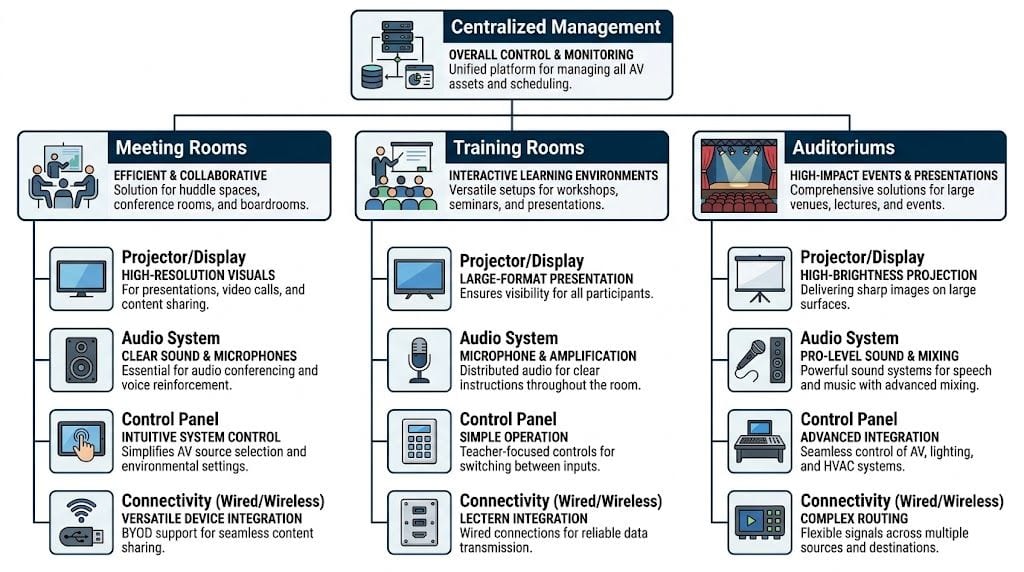
A single meeting room can survive on a cable and a bit of luck. An office with multiple rooms can't. Once users expect any laptop to work in any space, projector from laptop reliability becomes an infrastructure problem, not a one-off support task.
That's where many office projects either become organised or become expensive.
Why standard room logic matters
Older laptop-to-projector workflows relied on mirrored displays controlled by function-key toggles such as Fn plus a function key, which is part of why mixed estates still need careful display-mode planning today, as shown in this legacy laptop-to-projector setup reference. That history still matters because plenty of UK organisations are supporting old and new equipment at the same time.
If one room uses table HDMI, another uses a wall plate, another depends on a dock, and another is wireless-only, staff lose confidence quickly. Standardisation isn't glamorous, but it's what makes rooms usable at scale.
The building-wide pieces that make rooms behave
Scalable AV usually depends on a few core design choices working together:
- Structured cabling: Clean pathways, labelled terminations, and documented routes make support faster.
- Room connectivity standards: The same user experience in every room reduces support calls.
- Signal extension: Larger rooms often need reliable transport back to equipment locations.
- Central equipment design: Switchers, control hardware, and room processors need sensible placement.
- Power coordination: AV, control, and network hardware must all be powered predictably.
A room may look simple on the surface while hiding a lot of coordination underneath. The more polished the user experience, the more likely it is that someone designed the backbone properly.
For offices rebuilding meeting spaces, structured cabling in commercial environments is often the part that determines whether AV remains supportable a year later.
Where wider building systems come in
This is also where the conversation sometimes widens beyond presentation rooms. In larger commercial sites, teams may be planning CCTV, commercial electrical installation and certification, and even fully autonomous unmanned building units at the same time. In practice, unmanned building management means spaces that can be opened, secured, powered, monitored, and supported without permanent on-site staffing.
Those projects fail when access, power, and data are treated as separate decisions. They work when door hardware, network paths, electrical circuits, surveillance coverage, and room technology are designed together from the start.
Battery-less, NFC proximity locks are often chosen in these environments for practical reasons rather than novelty. They reduce routine battery-change maintenance, simplify access control workflows, and suit sites where regular manual checks aren't desirable. Typical use cases include serviced offices, small satellite units, plant-access areas, storage spaces, and other low-touch commercial environments.
Buildings don't become autonomous because someone fitted smart locks. They become manageable when access control, electrical design, connectivity, and monitoring all support each other.
Fixing Common Projector Connection Problems Fast
When a projector from laptop connection fails, people often assume the projector is faulty or the laptop is incompatible. Most of the time, the issue is smaller than that. The fastest fix comes from checking the basics in the right order.
Start with the physical path. Is the projector fully on? Is the correct cable seated at both ends? Is the room expecting HDMI 1 while the projector is listening on HDMI 2? Those sound obvious, but they're still the first things I check because they're still the first things that go wrong.
The quick triage sequence
Run through this list in order:
- Power check: Confirm the projector is on and not still warming up.
- Input check: Select the exact input the laptop is using.
- Cable check: Reseat the cable firmly. If available, swap it.
- Adapter check: If an adapter is involved, test another one before blaming the room.
- Display mode check: On Windows, change projection mode. On Mac, review display settings.
- Resolution check: If the image appears but looks wrong, correct the output settings.
- Wireless check: Confirm the device is on the right network and allowed to cast.
What different symptoms usually mean
Different faults point in different directions:
| Symptom | Likely cause | First action |
|---|---|---|
| No signal | Wrong input, loose cable, bad adapter | Check source path and reseat everything |
| Image but no sound | Audio not routed as expected | Verify laptop audio output and room path |
| Flicker or drop-out | Weak cable connection or failing adapter | Swap the cable or adapter |
| Blurry text | Resolution mismatch | Match output to projector native resolution |
| Odd shape on screen | Placement or keystone issue | Reposition before adjusting digitally |
| Wireless won't connect | Network policy or wrong Wi-Fi | Check room network and device permissions |
Maintenance and operations matter more than features
The most dependable rooms are usually the least exciting. Their cables are labelled. Their adapters are fixed in place. Their projector filters and vents are checked. Their inputs are documented. Their room instructions are short enough that a visitor can follow them without calling support.
That same principle applies in wider building operations. Whether you're running a presentation suite, CCTV-backed access points, or low-touch unmanned units, maintenance has to be designed in. If a system depends on someone remembering a fiddly workaround, it isn't ready for live use.
Many unmanned building projects fail for exactly that reason. The hardware may be impressive, but nobody planned how staff would gain access when a lock, room controller, or network path misbehaves. Access control, power resilience, data connectivity, and maintenance responsibility need one owner and one operating model. Otherwise faults drift between teams and stay unresolved longer than they should.
If your office is struggling with inconsistent meeting rooms, mixed AV standards, building-wide connectivity, CCTV integration, or the electrical and data planning needed for reliable autonomous spaces, Constructive-IT can help design and deliver a setup that works properly in day-to-day use, not just on install day.