
You've got the drive plugged in, the copy is half-finished, and then Windows throws an I/O Device Error at the worst possible moment. That's the point where you might start swapping cables at random, while the core question is simpler: whether this is a bad path, a degrading drive, or a filesystem problem that's already too late to “fix” in place.
An I/O device error means the operating system tried to read from or write to a device and the request failed. In enterprise work, that failure is rarely a neat single event, it's usually a pattern of failed operations, retries, timeouts, and log entries that point to the storage path rather than one neat root cause. That's why seasoned teams look at cumulative device-error counters, not just a momentary fault, because the useful signal is the history of failures and the conditions around them Fujitsu SPARC manual.
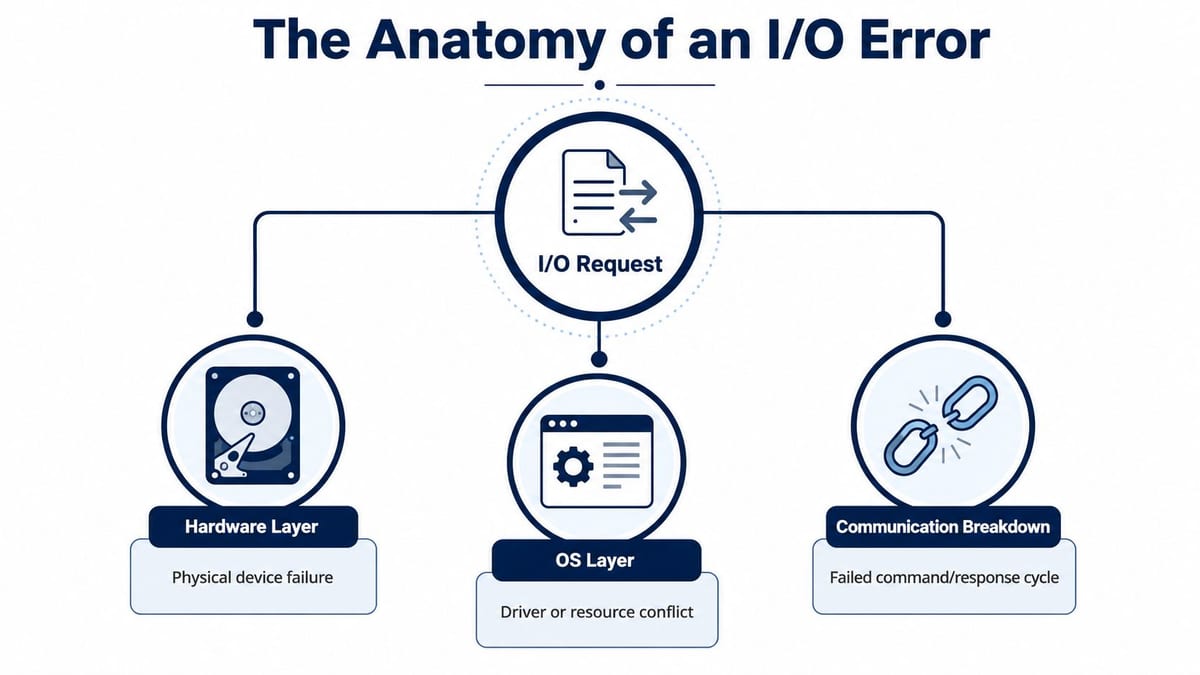
If the request broke because of the hardware layer, you're dealing with the device itself, the cable, the enclosure, the controller, or power delivery. If it broke in the OS layer, the driver, controller stack, or resource contention is in the frame. If the communication breakdown happened, the device and host stopped completing the command-response cycle cleanly, which is why the same message can show up on SATA, NVMe, USB, and network-backed storage.
Practical rule: treat the error as a path failure first, not as proof that the drive has died.
That distinction matters because the message alone doesn't tell you whether a quick reseat will solve it or whether the media is already failing. On Linux, Oracle's iostat can show total, hard, soft, and transport errors, which makes it a better operational signal than a one-line “failed or not failed” mindset. It's the difference between a temporary disconnect and a recurring storage problem that needs proper triage Oracle iostat documentation.
A useful way to think about it is simple. The OS asked for data. The device didn't answer in the expected way. The reason might be a loose connector, a saturated queue, a controller fault, or corrupted metadata, and the fix changes completely depending on which part failed.
The shortest route to a useful diagnosis is to identify the exact device, then decide whether the failure looks physical or logical. That same logic underpins serial ATA connector basics, because the connector, the path, and the storage device are all part of the same chain.
Understanding the I/O Device Error Message
The first time you hit the error, it usually shows up right in the middle of live work. A file copy stalls at an awkward percentage, a VM datastore throws a fit, or a USB external drive disappears just as you are about to pull a backup. The mistake is to treat the message as a diagnosis. The message indicates a failed transaction, not a final verdict.
A failed request, not a clean answer
At the OS level, an I/O request is a read or write command sent to storage. The request can fail because the device is offline, because the controller cannot complete the exchange, or because the filesystem cannot map the blocks cleanly. On Windows, Linux, and macOS, the wording changes, but the shape of the problem stays the same, the machine asked for data and did not get a valid response back.
That is why the message can mislead you in mixed environments. A USB-C dock with a bus-powered SSD can raise the same visible error that a failing RAID member does, even though one points to a link problem and the other to a storage fault. In practice, the hardware path and the operating system layer are both part of the incident, and the visible error is just the point where the chain broke.
Why enterprise teams count failures
In UK infrastructure work, the useful measure is usually how many times the device failed, not whether it failed once. That is the logic behind device-error counters, and IBM's z/OS guidance treats error statistics as a record of how often I/O devices have failed, which is why teams use it for diagnosis over time rather than a single instant of panic. A one-off blip can be a cable wiggle. Repeated failures point somewhere deeper.
When I am looking at a problem in a live environment, I do not start with repair tools. I start by asking whether the fault is repeatable, whether it happens on the same port, and whether the device is still enumerating cleanly. If the answer is inconsistent, the path is usually unstable, not the filesystem.
A quick way to separate the two is to compare the device's behaviour under different hosts or ports. If the problem follows the drive, suspicion shifts to the media or its controller. If the problem stays with the host path, the cable, enclosure, dock, or power chain is where you look next. That is why a hardware path review matters before anyone writes to the disk again, especially when a connector is part of the story, as covered in serial ATA connector basics.
The internal symptom may look identical, but the remediation is not. A filesystem repair can be reasonable on a healthy device with corruption. It is a bad idea on a degrading drive that is already struggling to answer reads, and it is often the moment you should stop and decide whether the safer move is data rescue rather than repair.
Diagnosing the Failing Device Before Attempting Fixes
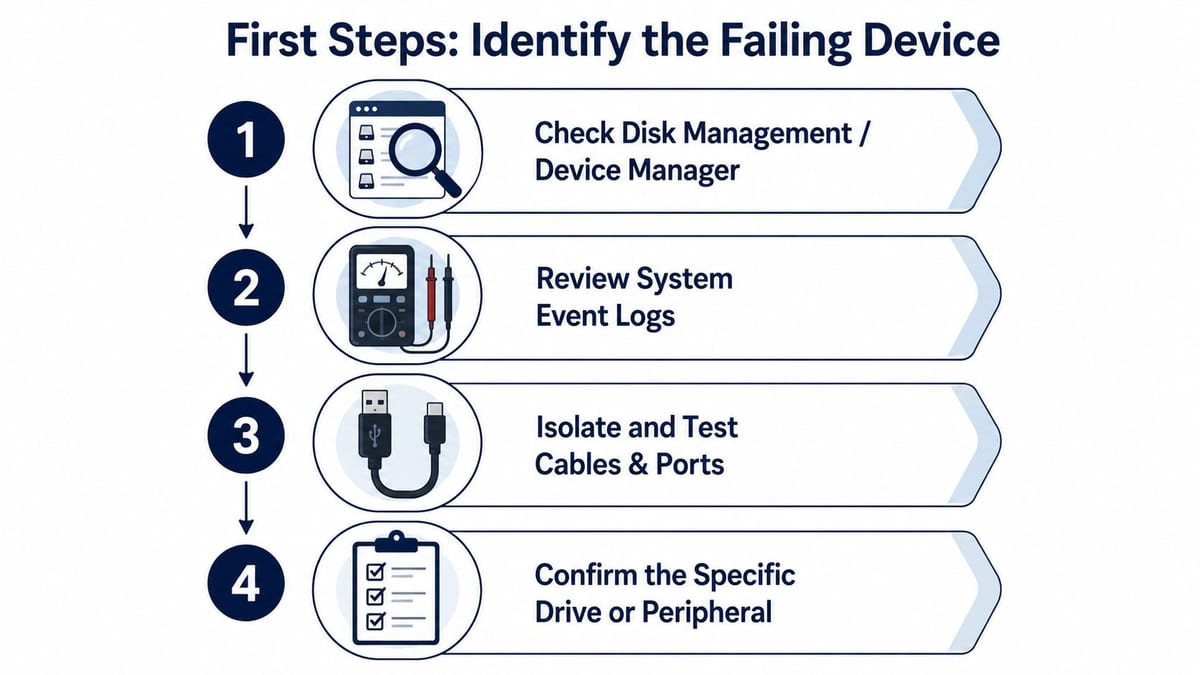
The first job is identification, not repair. I've watched plenty of outages drag on because someone jumped straight into a disk repair tool before pinning down the actual failing device. That's how intermittent faults get masked, and it's how useful evidence disappears.
Start with the logs, then the hardware view
On Windows, Event Viewer is the first place I check because it often names the exact disk or controller that threw the error. Device Manager then tells you whether the storage controller or disk driver is carrying a warning flag. If SMART data is available, read it before writing anything back to the disk, because it can show whether the media is degrading or whether the issue looks more like a path interruption.
That same discipline is useful when you're matching devices to inventory or figuring out which peripheral is throwing the error. Evright Industrial's identification guide is a good reminder that precise identification comes before remediation, even though the environment may look messy on first glance.
If you can't name the failing device, you can't make a safe repair decision.
On Linux, iostat -x is the early warning tool worth watching. Oracle Linux documentation says it reports %util, the percentage of CPU time spent handling I/O requests, and avgqu-sz, the average queue length, and warns that when %util approaches 100% or avgqu-sz is greater than 1, device saturation is occurring Linux I/O performance measurements with iostat. That's not a cosmetic warning, it's a clue that the device is close to falling behind and user-facing errors may not be far away.
The triage sequence that saves data
The safest sequence is boring, and boring is good here.
- Capture the failing operation. Note what was being read or written, and whether the error happened on a copy, boot, mount, or backup job.
- Inspect system logs for the device identifier. You want the exact disk, volume, controller, or enclosure involved.
- Verify the physical path. Check the cable, port, enclosure, USB bridge, dock, power supply, or controller link.
- Decide whether the media is still trustworthy. Only then should filesystem repair enter the discussion.
That sequence matters because a repair tool writes to the volume. If the drive is already unstable, the repair attempt can make recovery harder or wipe out the very metadata you needed to salvage.
For removable devices, I also test on another machine or another port before doing anything invasive. If the device appears differently there, you've learned a lot without changing the disk. If it behaves the same everywhere, the problem is more likely in the media or its controller.
The internal USB warning path is also worth checking in cases that look vague, especially when the OS shows a generic descriptor failure rather than a clear disk fault. unknown USB device descriptor request failed is a good reminder that a bad enumeration can look like storage failure long before the filesystem is involved.
Quick Fixes That Resolve Most I/O Device Errors
The fastest fixes remove doubt from the path first. I start with the physical side because it is cheap to test, easy to reverse, and often the actual fault on modern kit. If the error stays with the device after that, software checks become worth the time.
Work from the outside in
A reseated cable, a different port, or another host can show whether the fault follows the device or the machine. That matters on USB-C docks, powered hubs, and external NVMe enclosures, where cable quality, adapter compatibility, and port negotiation matter far more than old PIO-era advice ever did. A bus-powered drive with weak power delivery can throw the same symptom as a damaged filesystem, so a powered hub or a direct port is often a better test point than a chained dock.
If the drive lives in a removable enclosure, do not keep retrying it in place. Repeated reconnect attempts can stress a marginal disk, and each bounce can turn a recoverable issue into a harder one to pull back. One clean test on a different port tells you more than ten noisy attempts on the original setup.
Use software fixes only when the device still looks healthy
Driver updates can help when the controller stack is the problem. Firmware updates can help when the enclosure or SSD vendor has a known bug. Both are useful only after the storage path is stable enough to trust, because software changes on an unstable device can waste time and blur the fault.
For Windows filesystem corruption, Microsoft's guidance for chkdsk points to /f /r /x when logical corruption and bad-sector scanning are needed. Use it only when the device still reads reliably, because write-heavy repair on a sick drive is where avoidable damage starts. The same caution applies when the problem looks like a related controller fault, such as a device that cannot start and shows a Code 10 error.
Practical rule: test the port and cable first, run repair last.
The old “just update the driver” advice is still popular because it sounds simple. It is not always wrong, but it leaves out the enclosure, dock, cable, and power path. If the issue appears only with one USB-C dock, one powered hub, or one enclosure, the host path matters more than the generic storage driver.
A sensible first pass looks like this.
- Swap the cable: Use a known-good cable, not one that has been bent, crushed, or left hanging off a laptop dock.
- Change the port: Test directly on the machine, then on another host if you can.
- Check power delivery: Bus-powered drives are sensitive to weak current delivery, especially through adapters and hubs.
- Update controller or enclosure firmware: Do this only after the path is stable enough to trust the test.
- Run
chkdskcarefully on Windows: Use it when the drive is readable and the fault looks logical, not when the media is clearly degrading.
If the same drive works on a different port or another machine, you have already ruled out a lot. If it fails everywhere, stop treating it like a simple connector fault and start thinking about the media or controller itself.
When to Stop DIY Fixes and Prioritise Data Recovery
The hard call is knowing when a fix attempt becomes a gamble. That's where SMART data and the behaviour of the device start to matter more than convenience. If the disk is degrading, the priority changes from “repair the volume” to “get the data off intact”.
Read the health signals before you write
SMART attributes are useful because they point to wear, not just failure. A rising reallocated sector count, pending sector count, or uncorrectable error count means the media is moving into risky territory. In that state, a repair tool that writes back to the same disk can make the outcome worse, not better.
The split I use is straightforward. If the issue looks like a path problem, a port, cable, enclosure, or controller test makes sense. If the issue looks like media wear, move to rescue-oriented copying or imaging first. Don't keep feeding the drive more writes in the hope that a repair will magically stabilise it.
The UK business context matters here too. The UK government's Cyber Security Breaches Survey reports that around 1 in 10 businesses (10%) experienced any data loss in the 12 months before the survey, which is a good reminder that storage failure isn't background noise, it's a real continuity issue Penguin Gym Linux article. That makes the repair-versus-rescue decision a business decision as much as a technical one.
Clone first when the media is still readable
If the drive still responds, cloning or imaging it onto healthy media is usually safer than trying to repair it in place. The value of a clone is simple, it gives you a working copy to diagnose, repair, or mount without repeatedly touching the failing original.
That approach is especially important when the device starts dropping out under load. A disk that mounts briefly and then disappears is not a good candidate for aggressive fix attempts. It's a candidate for controlled imaging, careful logs, and, if needed, a professional recovery lab.
For enterprise storage, I also go beyond the single drive and check the surrounding path. Controller failover, SAN multipath, and RAID health all need validation, because a perfectly good disk can still be unreachable through a bad path. If the array has already degraded, the wrong recovery step can push it into an unrecoverable state.
If you're preparing to send a drive to a specialist, gather the basics first, the exact symptoms, what was tried, whether the drive clicks or drops out, and whether it still enumerates. That gives the recovery team a clean starting point and prevents a lot of wasted effort.
Outdated Advice That No Longer Applies to Modern Hardware
A lot of search results still read like they were written for IDE drives, Windows XP, and beige towers. That advice misses the way storage is attached now. In many UK offices, the problem isn't a jumper setting or a PIO transfer mode, it's a USB-C dock, NVMe enclosure, Thunderbolt adapter, or powered hub with a power negotiation problem.
Why old fixes miss modern failure modes
Changing IDE transfer mode to PIO doesn't help a USB-C SSD enclosure. Updating a generic disk driver doesn't address a flaky dock that drops link quality under load. Jumper settings are irrelevant on most of the hardware people are using now.
The more useful modern checks are physical and environmental. Test another USB port. Verify the cable spec, not just whether it fits. Use a powered hub for drives that draw more current than a single port comfortably provides. Check system logs for USB errors before assuming the filesystem is corrupt. One current technical guide even points readers towards different ports, powered hubs, and USB error logs before jumping to filesystem repair, which is the right order for these setups Eassos I/O device error guide.
NVMe has its own trap as well. A drive can be healthy enough to enumerate but still hit timeout errors because of thermal throttling or controller-level instability. That's a very different failure mode from a classic spinning disk with a bad sector, and it needs different evidence before anyone reaches for repair tools.
Match the test to the device class
If the drive is in a USB-C dock, start with the dock, the cable, and the power source. If it's an NVMe enclosure, check the enclosure firmware and thermals. If it's a removable SSD behind a powered hub, test it without the hub if possible, then with a known-good powered hub if the drive needs the extra current.
What doesn't help much is treating every error as if it came from the same old desktop SATA problem. That mindset wastes time and often leads to the wrong repair path. The physical interface now matters just as much as the volume itself.
I've seen plenty of cases where a user was told the cable was “probably fine” because it worked on a different device. That's not enough. A cable can pass a light-load test and still fail under sustained I/O, especially in a docked or bus-powered setup.
Preventing Recurring I/O Errors Through Infrastructure Design
The cleanest way to reduce repeat I/O faults is to stop designing power, data, and access as separate jobs. That's where office fit-outs, server rooms, and building automation projects often go wrong. The storage issue is just the visible symptom of a wider coordination problem.
Design the path, not just the device
A drive, a controller, a powered dock, and a network path only behave well when the surrounding infrastructure supports them. In fit-outs and upgrades, that means structured cabling, electrical certification, backup power, and monitoring need to be planned together from the outset. If those pieces are left to separate trades with separate assumptions, you get avoidable failure points.
That logic also explains why battery-less, NFC proximity locks are attractive in some building projects. They reduce local dependency on batteries, and the access point can be designed as part of the wider power and data ecosystem rather than as a standalone gadget. In a building that's meant to run with minimal on-site staff, that matters.
Unmanned building management in practice means the site is operated with minimal or no on-site staff, because physical access, power distribution, network connectivity, and monitoring are engineered as one integrated system. That's the practical basis for building out a fully autonomous unmanned building units, where door control, CCTV, and remote alarms still need to work even if nobody is physically present.
Maintenance keeps small faults from becoming incidents
Routine inspection still matters in unmanned sites, because small faults don't correct themselves. Access review, fault logging, periodic testing of CCTV, power backup, and door hardware all belong in the maintenance plan. The absence of on-site staff makes remote alerts and certification records even more important, because those are what operators use to trace problems later.
That's also why commercial electrical installation and certification shouldn't be an afterthought. The building owner needs proof that the system was tested properly, and later fault-finding depends on that record. In offices, server rooms, healthcare estates, schools, and multi-tenant commercial buildings, the practical goal is continuity, not just installation.
A building that can't be supervised properly will eventually fail in a way that looks like a single fault, even when the cause was design drift.
For storage infrastructure, the same principle applies. Monitor SMART data, manage cable stress, size UPS systems for graceful shutdown, and keep controller firmware under control. For larger estates, SAN health, multipath I/O, and capacity planning need the same kind of attention, because saturation and path instability are where user-facing errors begin.
If you're planning an office relocation, a server room upgrade, or a building project where storage, access, CCTV, and electrical resilience all have to work together, talk to the engineers who can design the whole path properly. Constructive-IT helps UK teams plan, install, certify, and support infrastructure that's built to stay up, and that's exactly the kind of work that prevents the I/O failures people only notice when they're already under pressure.