
A user rings in from a freshly moved desk. Their laptop says connected, but nothing opens. You check the adapter and see 169.254.x.x. At that point, too many teams do the same thing: reboot the laptop, reboot the router, hope for the best, then lose half a day when the fault comes back.
That approach is fine for a home broadband issue. It's weak in an office, a fit-out, a floor restack, or a live migration where the problem might sit in patching, switch config, VLAN tagging, DHCP reachability, or a dead outlet. In those environments, an IP address 169 is useful because it narrows the investigation. It tells you the device is trying to participate on the network, but it hasn't completed normal address assignment.
The mistake is treating 169.254 as the disease. It's a symptom. The work is finding which part of the path failed, then proving the fix properly.
The 169 IP Address A Signal Not a Sickness
The usual story goes like this. One person can't get online after a desk move, then a printer on the same side of the floor starts doing the same thing, then someone mentions the meeting room display dropped off earlier. All three devices show an IP address 169. That matters, because it shifts the conversation away from “the computer is broken” and towards “what failed between the endpoint and DHCP”.
A device showing 169.254.x.x has usually self-assigned a link-local address because it didn't receive a normal lease from DHCP. Microsoft's support guidance describes this in Windows as an APIPA fallback when the DHCP client can't obtain a lease, with the practical result being loss of normal LAN connectivity until DHCP is restored or the adapter is reconfigured, as noted in Microsoft's support discussion on 169.254 addresses.
Why this matters on real sites
In office work, the hard part usually isn't spotting the 169 address. It's deciding whether the fault is:
- Local to one endpoint. Bad NIC, stale settings, faulty dock, disabled adapter.
- Local to one outlet or patch. Damaged cable, incorrect patching, wrong switch port.
- Local to one VLAN or segment. Mis-tagged port, broken DHCP relay path, wrong scope.
- Wider than the floor. DHCP service issue, upstream switch problem, routing failure.
That's why “restart your router” isn't serious troubleshooting in a business setting.
Practical rule: Treat a 169.254 address as a boundary marker. The endpoint is alive enough to self-assign. Something in the DHCP path isn't.
The gap most guides miss
Generic consumer advice rarely helps during relocations or fit-outs. A device can self-assign 169.254.x.x even when the wider network is healthy if the local switch port, cabling, VLAN, or DHCP scope is wrong. That distinction is highlighted in Ask Leo's explanation of limited connectivity with 169.254.x.x. On site, that's the difference between swapping a perfectly good laptop and fixing the actual building fault.
When you frame IP address 169 as a clue instead of the core issue, the job becomes cleaner. You stop guessing. You start isolating.
What Is an APIPA 169.254.x.x Address
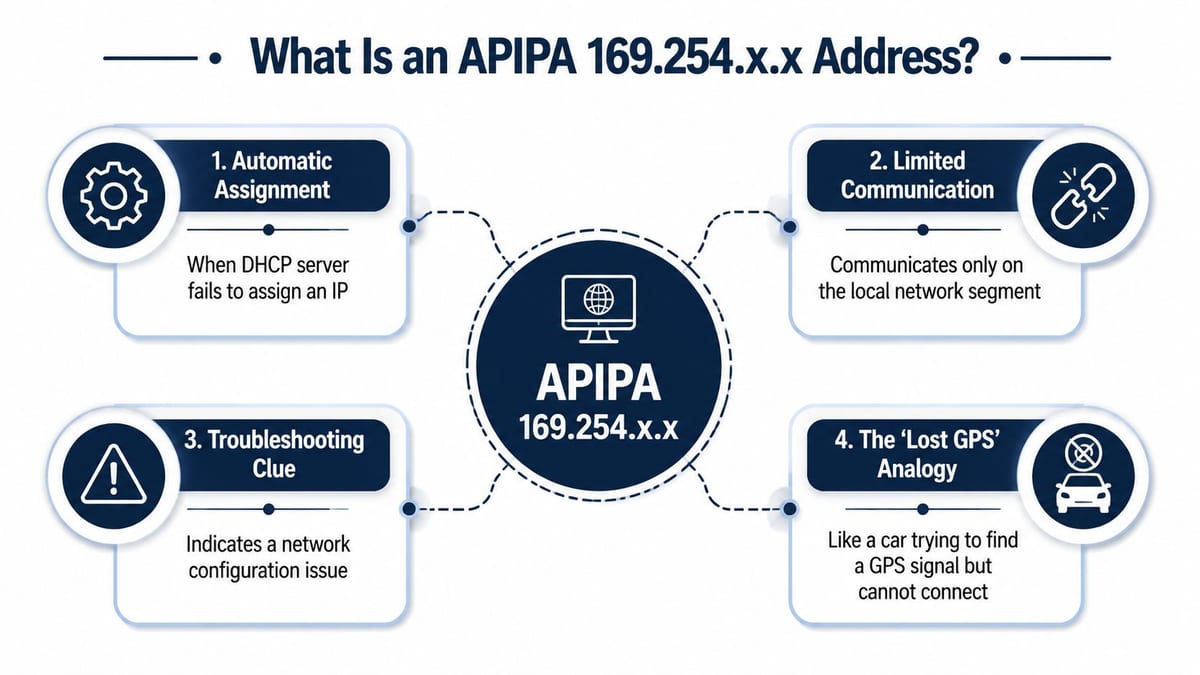
APIPA stands for Automatic Private IP Addressing. In plain terms, it's what a device uses when it expects DHCP to provide an address but doesn't get one. Instead of sitting there unusable, it picks an address for very limited local use.
In the UK, an address beginning with 169.254 is typically an APIPA or link-local address. That means the device hasn't received a normal DHCP lease and has self-assigned an address in the 169.254/16 range. It's a diagnostic signal, not a routable public address, as explained in ARIN's address filtering reference.
A simple way to think about it
Think of DHCP as reception at a large event. You arrive, give your details, and receive the correct badge that lets you move around properly. APIPA is what happens when reception never responds. You scribble your name on a blank sticker so you can at least identify yourself to people standing nearby, but you still don't have proper access.
That's why a 169.254.x.x address doesn't mean the machine has joined the network in the normal sense. It means it has fallen back to something temporary and local.
What APIPA is and what it isn't
A lot of confusion comes from mixing APIPA with private addressing. They are not the same thing.
| Address type | Typical use | Routable in normal business networks |
|---|---|---|
| DHCP-assigned private address | Normal LAN operation | Internally, yes |
| 169.254.x.x APIPA address | Link-local fallback after DHCP failure | No, not for standard connectivity |
That distinction matters when people say, “It still has an IP, so the network must be fine.” It isn't fine. The adapter has an address, but not the one it needs for ordinary business traffic.
Why engineers care about this detail
Once you understand APIPA properly, you stop wasting time on the wrong layers. DNS isn't your first suspect. Internet breakout isn't your first suspect. Naming issues aren't your first suspect. The focus should be on lease delivery, local link status, and the path between the client and the DHCP service.
For junior technicians building that troubleshooting discipline, a good grounding in addressing and DHCP behaviour helps. A practical starting point is this Network+ certification guide, which covers the fundamentals behind what you're seeing in the field.
A Methodical Approach to Diagnosing the Root Cause
The cleanest way to handle IP address 169 is to work from the edge inward. Don't start with assumptions about the server room. Don't start by swapping random hardware. Start by proving scope.
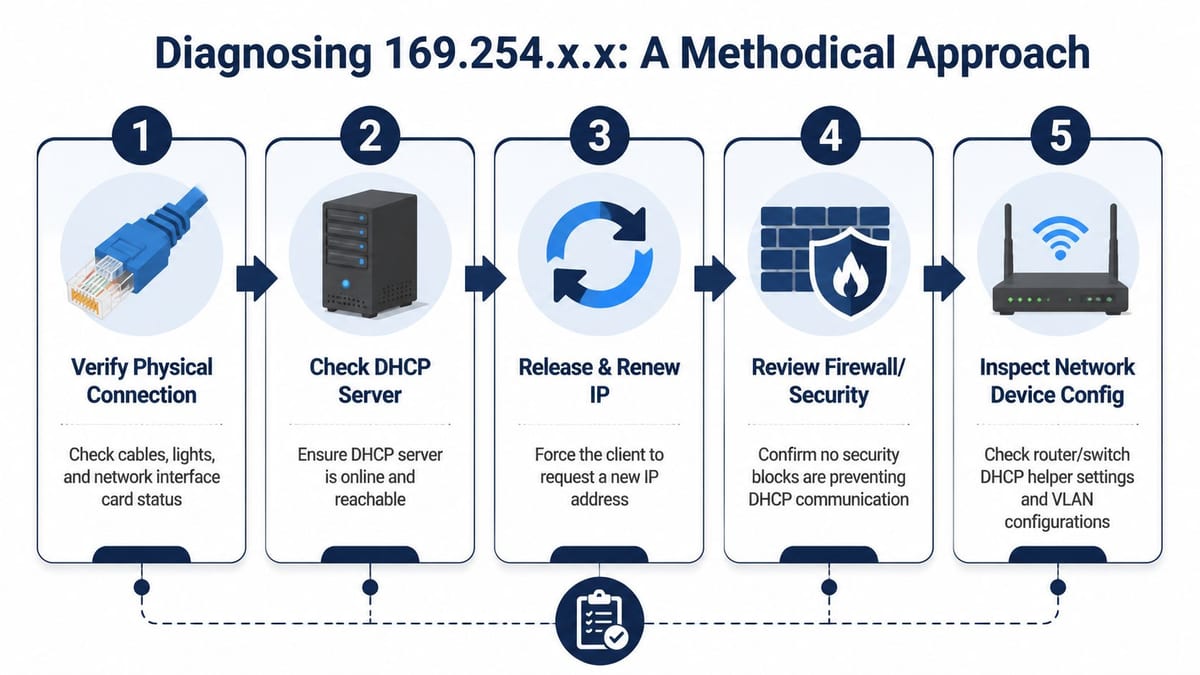
A quick visual walkthrough can help if you need to brief a colleague or client contact:
From an operations standpoint, a 169.254.x.x result is a strong indicator of a DHCP-path failure rather than an IP-layer naming issue. Likely causes include a downed DHCP service, broken VLAN reachability to the server, bad cabling, or a disconnected or wedged router or switch port, as outlined in this practical explanation of 169 IP addresses.
Start with scope, not theory
Ask one question first: is it one device, one location, or many devices across the same segment?
That answer changes the whole job.
- One device only usually points towards the endpoint, its adapter, its dock, or its local patch lead.
- Several devices on one bank of desks points towards local patching, one switch stack, one access switch, or one VLAN assignment issue.
- Devices across multiple areas pushes suspicion towards DHCP service availability or upstream network design.
If you don't define scope at the start, you can spend hours on the wrong layer.
Check the client properly
On the client, you're trying to answer two simple questions. Is the adapter healthy, and is it attempting DHCP on the expected interface?
That means checking:
- Link state. Does the port show link? Are NIC lights present where applicable?
- Wrong interface selection. Laptops on docks often prefer the wrong adapter after moves.
- Static settings left behind. Temporary manual settings can break expected behaviour.
- Physical path at desk level. Patch lead, floor box, wall outlet, dock, USB Ethernet adapter.
For Windows devices, basic checks with Command Prompt are still useful. If you need a concise refresher on the key commands and what to look for, this guide to Command Prompt IP address checks is a practical reference.
Don't assume the laptop is at fault just because it's the visible problem. In offices, the visible problem is often only the first device to complain.
Then test the building path
When a desk move or fit-out is involved, the physical and logical path needs to be treated together. A clean patch panel won't save a wrong VLAN. A correct VLAN won't help if the outlet was never patched through. A healthy switch won't matter if the uplink carrying the DHCP path is down.
A site checklist often looks like this:
Desk outlet and patching
Confirm the outlet is patched to the intended switch port and labelled correctly.Access port configuration
Verify the port is enabled and assigned to the right data VLAN.Switch uplink path
Check that the uplink is passing the relevant VLANs upstream.DHCP relay path
If the DHCP server sits elsewhere, confirm the Layer 3 device is relaying requests correctly.
Finally, examine the server side
Server-side checks matter most when the fault appears across more than one area, or where local connectivity appears healthy but no valid leases are being handed out.
Look for:
- DHCP service state. Is the service up and responding?
- Scope health. Is the relevant scope active and suitable for that segment?
- Authorisation and binding issues. Especially in Windows environments after changes.
- Recent changes. Firewall changes, VLAN work, relay edits, maintenance windows, server migration.
A lot of recurring IP address 169 incidents happen after change work. The switch port gets moved, the patching gets altered, or a VLAN is renamed in design documents but not in the live config. The endpoint then self-assigns, and everyone starts troubleshooting the wrong thing.
Where projects go wrong in practice
The significance of the wider building conversation emerges. During office upgrades, teams often design access, power, and data separately. That's how faults hide.
An unmanned building management setup, in practice, means the building relies on connected systems instead of permanent on-site staff for day-to-day control. Access control, CCTV, alarms, environmental monitoring, door events, comms cabinets, remote support links, and occupancy-related systems all need to work without someone physically babysitting them. If one of those systems lands on the wrong outlet, on the wrong VLAN, or on an unstable power circuit, the issue won't look like “building management failed”. It will look like intermittent device faults, missing door events, dead cameras, or repeated 169.254 addresses.
Many unmanned building projects fail for ordinary reasons, not exotic ones:
- Access control was chosen before the network design was finished
- Power provision didn't match lock, controller, or comms requirements
- Data cabling was installed cleanly but not documented well enough to support moves
- Operational ownership was split across facilities, electrical, security, and IT with no single technical lead
Battery-less, NFC proximity locks are often chosen in these environments because they simplify maintenance and avoid a hidden estate of batteries that someone eventually forgets to replace. They can make sense in shared offices, managed spaces, plant areas, risers, and low-touch utility rooms where reliability and reduced maintenance burden matter. They still need proper planning though. Access, power, and data have to be designed as one system, not three separate packages.
Step-by-Step Remediation and Verification
Once you've isolated the likely fault domain, fix what the evidence supports and test after each change. On site, that discipline saves time. It also stops a simple DHCP fault turning into a longer outage because three people changed three different things.
A 169 address tells you the device did not get a valid lease. The repair depends on where that failure happened: the endpoint, the switching and patching path, or the DHCP service path.
If the fault is on the client
Start with the least disruptive checks and confirm the result before moving on.
- Reconnect the physical path. Reseat the patch lead, dock connection, or USB Ethernet adapter.
- Disable and re-enable the adapter. This restarts the interface cleanly.
- Renew the lease. Use the normal OS tools to request DHCP again.
- Remove incorrect manual settings. Check the NIC is not pinned to an old static IP, gateway, or DNS value.
- Test with a known-good cable or adapter. This quickly rules out a bad lead or failed USB NIC.
If Wi-Fi works but wired does not, treat that as a useful split in the evidence. It usually points away from the operating system and toward the switch port, patching, outlet, or VLAN assigned to that wired connection.
If the fault is in switching or patching
Check the path in order. Don't guess.
| What to verify | What a bad result usually means |
|---|---|
| Port up and stable | Physical layer issue or disabled port |
| Correct VLAN on access port | Misconfigured switch assignment |
| Patch panel to outlet continuity | Wrong patching or damaged run |
| Uplink carrying expected VLANs | Segment reachability problem |
Office moves expose this all the time. A desk gets repatched, the link light comes up, and everyone assumes the service is correct. The device then pulls an IP address 169 because the outlet is live on the wrong VLAN, or on a segment with no working DHCP relay.
If the fault is on the DHCP path
If several devices on the same segment fail together, stop touching endpoints and follow the DHCP path end to end.
Check whether:
- The DHCP service is running and reachable
- The correct scope or pool is available for that VLAN
- The relay or helper configuration on the gateway is present and correct
- Any recent switch, firewall, or gateway change broke the path
- Address exhaustion or conflict protection is preventing new leases
For teams checking gateway details during this stage, this guide on how to find the IP address of a router helps confirm you're testing the right hop. If you need better visibility across switches, gateways, and DHCP-dependent devices, this guide for security and compliance is a useful reference for network device monitoring.
A successful fix means the device receives the correct address, mask, gateway, and DNS settings, then passes traffic to the services it actually needs.
Verify the repair properly
Don't stop when the 169 address disappears.
Confirm the device now has:
- A valid address for the correct subnet
- The expected subnet mask
- The expected default gateway
- The expected DNS settings
- Working access to the services it depends on
For a user device, that means line-of-business apps, file shares, printers, and internet access where policy allows it. For building and office infrastructure, verification is stricter. Check CCTV streams, door controllers, reader events, wireless AP management, switch reachability, and any remote monitoring tied to that segment. A green port light proves link. It does not prove service.
Where possible, repeat the test from a second known-good device on the same outlet or switch stack. That single comparison often tells you whether the issue is tied to one client or baked into the network path.
Enterprise Best Practices for DHCP Resilience
A 169.254 address exists to preserve minimal local communication when normal IP configuration fails, not to provide standard internet connectivity. That's the key point made in BlueCompute's explanation of 169.254 and APIPA. In business terms, if users or building systems are hitting APIPA regularly, the design needs work.
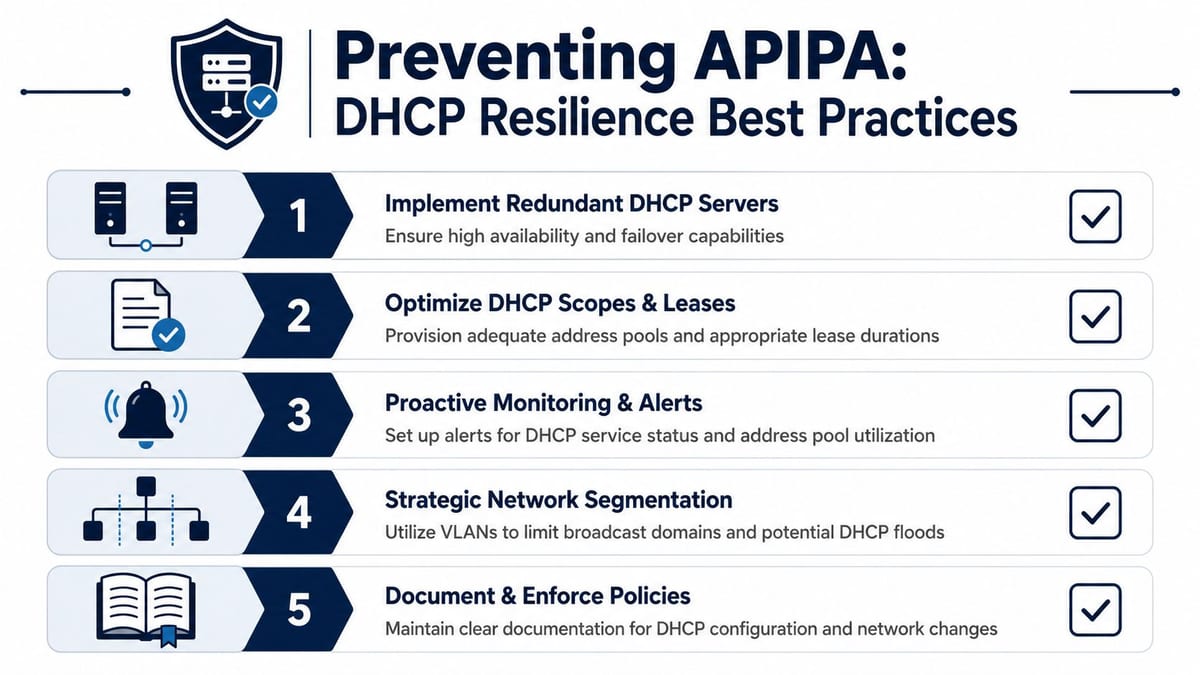
Build DHCP into the wider service design
Reliable DHCP isn't just a server setting. It's part of the network architecture.
Good practice usually includes:
- Redundancy. Don't leave one service failure able to strand an entire floor.
- Scope planning. Addressing should reflect real device growth, guest access, printers, AV, CCTV, and building systems.
- Relay awareness. VLAN design and DHCP forwarding need to be checked together.
- Monitoring. Alert on service health and investigate early warning signs before users call.
If the estate includes CCTV, access control, managed switches, wireless, and remote plant monitoring, DHCP resilience becomes an operational requirement rather than a convenience.
Design access, power and data together
This matters most in new builds, fit-outs, and autonomous units. The network team can't solve everything after the fact.
A building intended to operate with minimal on-site intervention needs:
- Access systems that fit the use case and can be supported over time
- Power design that supports controllers, switching, door hardware, and comms spaces
- Data infrastructure that's documented, certified, and aligned to the access and security design
Commercial electrical installation and certification are part of the same picture. So is the network behind CCTV. So is the structured cabling supporting autonomous building units. If those workstreams don't meet in one design conversation, support teams inherit a fragile environment.
Choose maintainable components
Battery-less NFC proximity locks are a good example of a choice driven by operations rather than brochure features. They can reduce one recurring maintenance burden because teams don't have to manage battery replacement across a dispersed estate. That can be useful in managed offices, remote riser areas, storage rooms, shared buildings, and spaces where doors are numerous but support visits are limited.
Security and compliance still need proper oversight, especially where network devices underpin those systems. For teams reviewing monitoring and visibility controls around connected infrastructure, this guide for security and compliance is a useful reference point.
One more point often missed: maintainability isn't only about the lock, camera, or switch. It's about labelling, records, test results, and change control. That's where stable environments are won.
For organisations tightening standards around switching and segmentation, a clear grasp of what a managed network switch is helps when deciding how much visibility and control the edge really needs.
When to Call a Network Infrastructure Specialist
Some IP address 169 faults are simple. One dead patch lead. One disabled switch port. One endpoint with bad settings. Internal teams can usually clear those quickly.
The point to escalate is when the symptom becomes a pattern. If 169.254 issues are recurring, intermittent, tied to moves, affecting multiple device types, or showing up during office changes, there's usually a deeper problem in the infrastructure or design. That's especially true where user devices sit alongside CCTV, access control, telephony, AV, or autonomous building systems.
A specialist earns their keep in the awkward middle ground. Not when the issue is obvious, but when it crosses boundaries between IT, cabling, switching, electrical works, certification, and facilities. That's common during relocations, new fit-outs, server room changes, floor reconfigurations, and projects building out fully autonomous unmanned building units.
If the same class of fault keeps returning after local fixes, stop treating it as a support ticket and start treating it as an infrastructure problem.
That's also the moment to correct the underlying design. Verify patching. Validate VLANs. Review DHCP resilience. Test access, power, and data as one operational system. Confirm that maintenance ownership is clear after go-live. Doing that well is cheaper than repeatedly dispatching engineers to chase the same symptom.
If you're planning an office move, a fit-out, a network refresh, or a building project where cabling, switching, CCTV, electrical works and operational readiness all need to line up, Constructive-IT can help you design and deliver it properly from the start.