
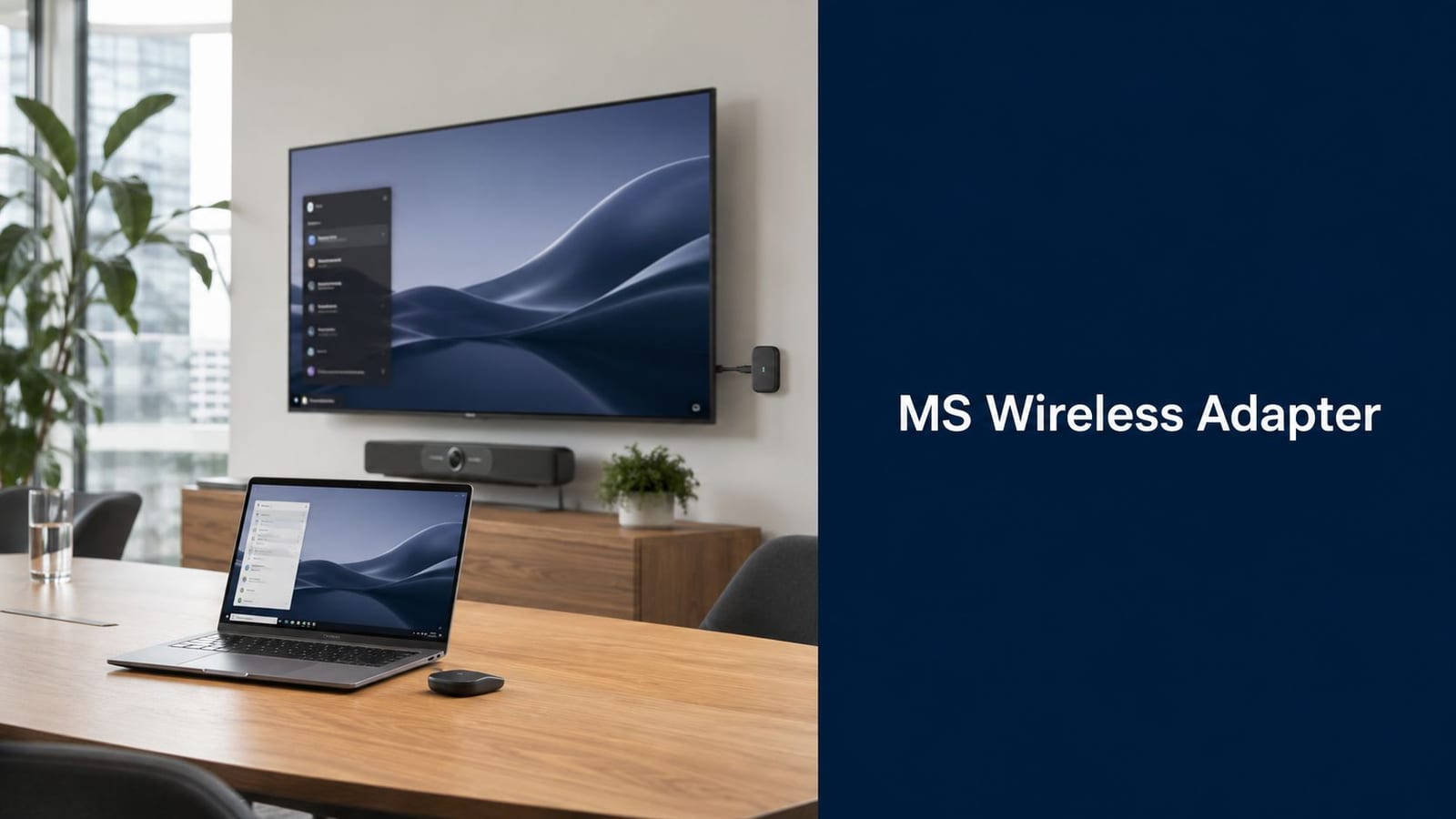
The old advice on the Microsoft Wireless Display Adapter is mostly wrong for current buying decisions. It treats the device like a timeless little convenience product. It isn't. It's now a legacy endpoint with real lifecycle risk, and that changes the conversation from setup to strategy.
For years, the adapter made sense in UK meeting rooms because it solved a simple problem cheaply. If you had an HDMI screen on the wall and wanted staff to cast from a Windows laptop without pulling new cabling, it was an easy answer. In 2026 planning, that same simplicity can become a trap if you standardise on hardware that's already at the end of its commercial life.
The End of an Era for a Meeting Room Favourite
The Microsoft Wireless Display Adapter was never a strategic meeting room platform. It was a handy fix for a common retrofit problem.
That distinction matters now. In older rooms, the adapter earned its place because it gave IT teams a low-cost way to add wireless presentation to a standard HDMI display without opening walls or specifying a full room system. CNET's Microsoft Wireless Display Adapter review captured why it caught on early. The price was modest, the install was simple, and the spec sheet was good enough for everyday presentation use in smaller rooms.
That same simplicity is the reason many estates still have these units hanging behind screens years later. I still see them in huddle spaces and lightly used meeting rooms because they often keep working long after the original project team has moved on. The problem is that reliability in a legacy room is not the same as suitability for a new standard.
Why the adapter's history is now the risk
For current planning, the key issue is not how the adapter worked at launch. It is that the product line is at the end of its life, with Microsoft ending support in 2026 and no long-term future as a standard room endpoint, according to Microsoft's accessories support page.
That changes the buying decision. If you keep existing adapters running until a room refresh, that is a controlled legacy-support choice. If you specify them into a new office fit-out, you are building dependency on discontinued hardware with limited replacement stock, uncertain future compatibility, and no sensible path to standardisation across a professional estate.
Procurement teams often miss that point because the unit looks harmless. In practice, every discontinued endpoint creates extra support work. Spares become inconsistent. User experience varies by room. Asset records get messy. Replacement decisions start happening under failure pressure instead of as part of a room strategy.
What to do with existing estate
Keep the adapters you already own where they still perform acceptably, especially in low-priority spaces. Do not treat that as an endorsement for new deployments.
A better approach is to classify each installed unit as transitional infrastructure. Record which rooms depend on it, note the business impact if that room loses wireless presentation, and set a replacement trigger tied to refurbishment, display replacement, or repeated support calls. That gives you a managed exit instead of a slow drift into unsupported room tech.
When that retirement cycle starts, use a documented disposal process rather than handling failed units as general AV waste. This guide to responsible IT equipment retirement is a useful reference if your meeting room hardware sits inside a wider office refresh or asset disposal programme.
A Practical Guide for Supporting Legacy Adapters
If the Microsoft Wireless Display Adapter is still deployed in your rooms, treat it as ageing AV infrastructure with a short support horizon. That changes how you handle it. The job is no longer to get the most out of a current product. It is to keep legacy rooms usable, contain support effort, and avoid spending time on fixes that do not make sense this close to end of life.
Start with the physical install
Most recurring faults start at the screen, not the laptop. The adapter still depends on a basic chain working properly. HDMI carries video. USB supplies power. If the display's USB port is weak or unstable, the adapter will behave unpredictably, especially after the room has been powered down and back up.
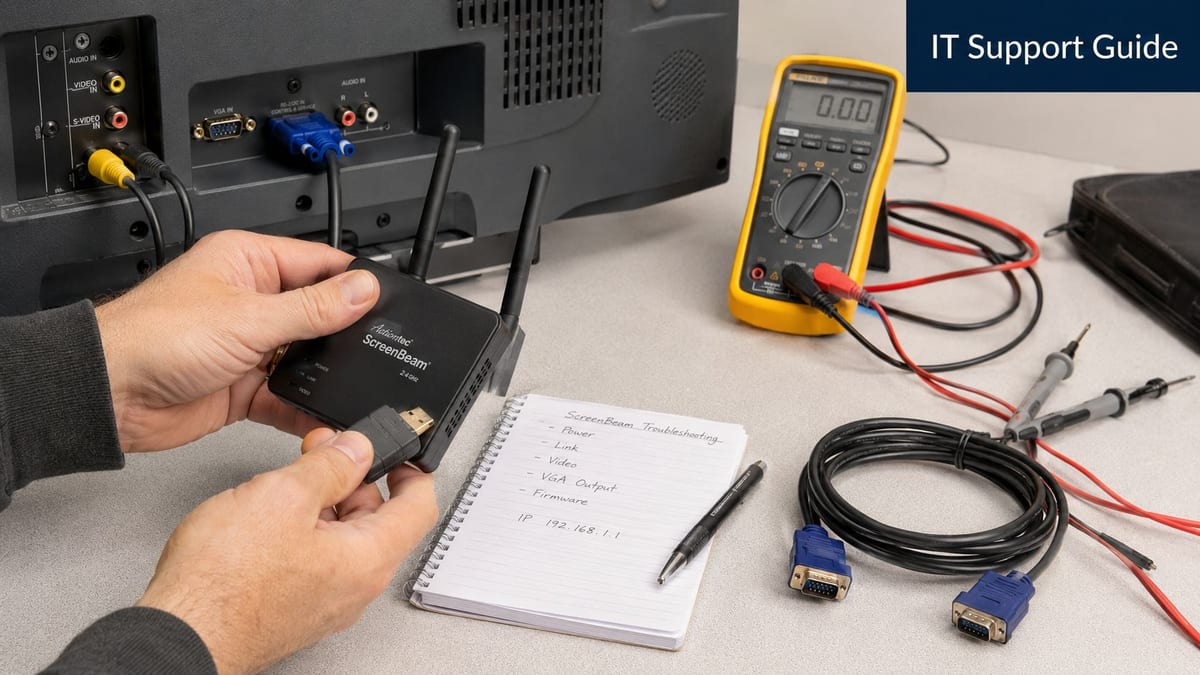
Before you blame the user device, check the room itself:
- Power source: Do not assume the screen's USB port is good enough. Many display USB ports are intended for service use or low-draw accessories, not stable adapter power.
- Correct input: Confirm the display is on the adapter's HDMI input. This remains one of the most common avoidable call-outs.
- Mechanical strain: If the adapter or cable is under tension behind the screen, expect intermittent dropouts and complete failures over time.
- Mounting position: Metalwork, recessed wall boxes, and dense cabinetry can reduce reliability and make pairing more erratic.
One practical rule helps here. If the adapter is hidden in a way that makes it hard to inspect, it is hard to support. Legacy devices should be easy to reach, easy to reseat, and easy to swap.
Give users one connection method
Support load rises when rooms offer vague instructions or multiple workflows. For Windows estates, keep the room guidance short and standardised.
- Open the wireless display list: Press Windows key + K.
- Select the room display: Choose the adapter for that room.
- Retry once, not repeatedly: If pairing hangs, disconnect and try again after a short pause.
- Escalate after a room check: If several users fail in the same room, treat it as a room fault first.
A simple room card usually works better than a long help sheet. Keep it to the action the user needs, not background explanation.
Treat support as room maintenance
The adapter was sold into a simpler era of ad hoc wireless presentation. In a managed office, it needs a maintenance routine like any other room endpoint. That matters even more now, because every hour spent chasing flaky legacy hardware is an hour not spent on the replacement plan.
| Check area | What to verify |
|---|---|
| Display side | Correct HDMI input, stable power source, adapter not pinched or buried behind the screen |
| User side | Windows device can see the room and supports wireless display properly |
| Room side | Nothing changed after screen, furniture, or fit-out work that affects placement or signal path |
| Operations side | Keep a small stock of known-good power supplies and HDMI extension leads for testing |
I would also document these adapters separately from newer room tech. Mark them as legacy, note the last fault date, and record whether the fix was power, placement, or pairing. That gives IT and facilities a cleaner basis for deciding whether a room should be repaired again or replaced outright.
If you need a wider policy reference for how legacy wireless endpoints should sit inside office infrastructure, this guide on improving office network security is a useful companion for AV and IT teams.
Rooms with repeated faults should go onto a replacement list. At that point, the trade-off is clear. The adapter may still be cheap to keep alive, but the room is becoming expensive to support.
Securing the Adapter on Your Corporate Network
The Microsoft Wireless Display Adapter was designed to make wireless presentation easy. That doesn't make it a sensible thing to drop onto a flat corporate environment without guardrails.
In a busy office, shared space, or client-facing meeting suite, the main security concern isn't theoretical. It's simple misuse. If anyone nearby can see the room and try to cast, you've got a governance problem. That gets worse in open-plan floors where meeting rooms sit close together and visitors move through the same wireless environment as staff.
What security looks like in practice
For most organisations, the right approach is containment. Put wireless presentation endpoints on a dedicated AV or guest segment rather than letting them sit alongside core user services. That won't solve every risk, but it does stop a low-cost room peripheral from becoming part of the same trust zone as business-critical systems.
If your wider wireless policy needs work, this overview on improving office network security is a useful companion read for facilities and IT teams planning room technology together.
The day-to-day controls should be familiar:
- Use segmentation: Keep room devices separate from production systems wherever possible.
- Limit discoverability: Name rooms clearly, but don't expose unnecessary environment detail in the device name.
- Control pairing: If the room supports it, require a PIN for pairing so random passers-by can't throw content to the screen.
- Document ownership: Every adapter should belong to a room, and every room should have a support owner.
Where people get this wrong
The common mistake is assuming that because it isn't a full collaboration bar or conferencing codec, it doesn't need policy. That's backwards. Simple devices are often the ones people deploy casually, outside normal standards.
A wireless display endpoint in a meeting room still belongs in your security model, your room standard, and your support process.
For in-house IT managers, the product starts to show its age. There's no meaningful enterprise management story around broad rollout, and that matters when your estate includes many meeting spaces, project rooms, and temporary touchdown areas. One or two adapters can be lived with. A large estate of them becomes inconsistent quickly.
Security and user experience must be balanced
Over-locking a room is nearly as bad as under-securing it. If pairing becomes frustrating, users revert to ad hoc cables, personal streaming devices, or unapproved workarounds.
The practical target is controlled simplicity. Staff should be able to walk in, identify the correct room display, connect without confusion, and know they're not projecting into the wrong space. If you can't deliver that consistently with the adapter, the problem isn't user training. It's that the platform no longer matches the way the office operates.
Troubleshooting Common Connection and Performance Issues
Most support calls about the Microsoft Wireless Display Adapter fall into a handful of patterns. The screen is found but won't connect. Video lags. Audio stutters. The picture drops during a presentation. These aren't random faults. They usually point to environmental sensitivity.
Microsoft's own troubleshooting guidance shows how sensitive the adapter is to power quality, HDMI angle, display resolution, band selection, and physical placement. Independent coverage also notes a practical range of about 23 feet (7 m), which is the figure to keep in mind for room planning in the Microsoft troubleshooting guidance.
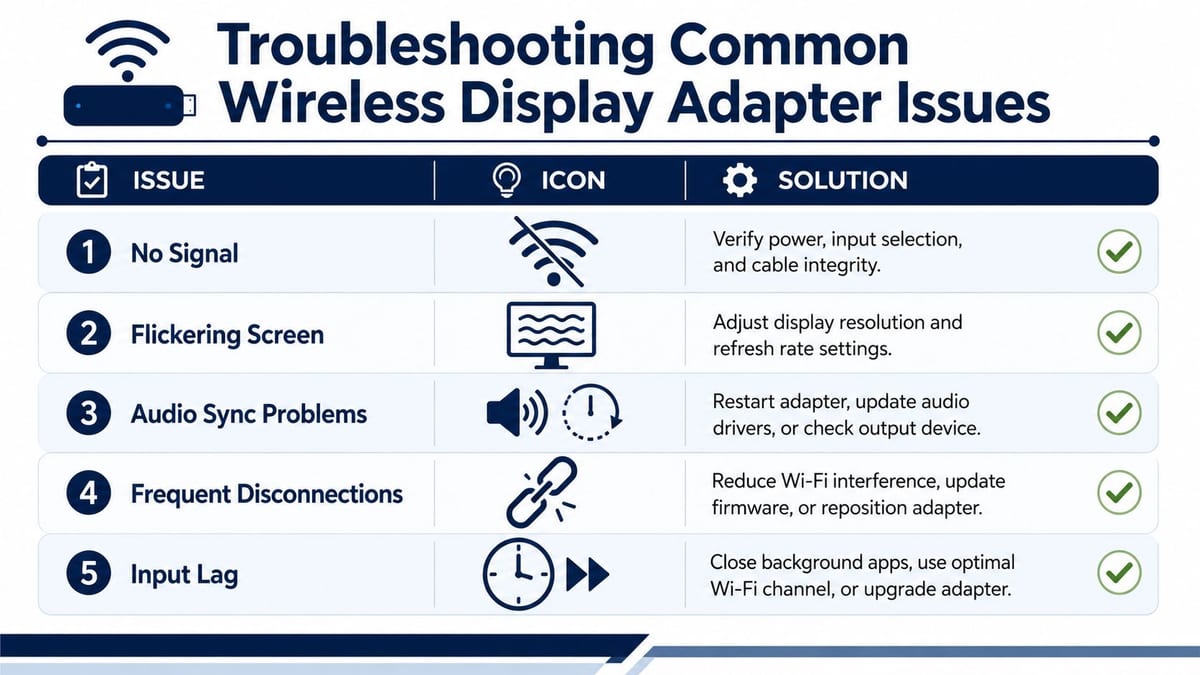
Diagnose the room before the laptop
If one user complains once, it may be their device. If several users report the same symptom in one room, start with the room.
A quick triage sequence works well:
- No image on screen: Check power integrity, HDMI seating, and input selection before touching the source laptop.
- Frequent disconnects: Look at physical placement and room interference first. Cabinets, display backs, and metalwork often make things worse.
- Lag or poor motion handling: Reduce expectations in larger spaces and avoid treating it like a high-performance media transport.
- Audio oddities: Test the display's own audio path separately so you know whether the issue belongs to the adapter or the screen.
Room conditions matter more than people think
The adapter behaves best in small, straightforward spaces. It struggles in the kinds of rooms modern offices create: glass-fronted meeting spaces, partitions, multiple nearby wireless devices, and users joining hybrid calls while trying to cast at the same time.
That's why I'd class it as a room-specific endpoint, not a universal standard. If the room is dense, noisy, or physically awkward, the adapter often needs careful positioning and repeated adjustment to stay usable.
For teams dealing with video traffic and competing wireless demand, it's also worth reviewing how presentation traffic sits alongside wider meeting-room performance. This piece on QoS for video in office environments is useful if your issue is less about one adapter and more about how room media behaves across the site.
Here's a quick visual checklist many teams find useful before escalating to replacement:
When to stop troubleshooting
You can spend a lot of engineering time making a marginal room behave slightly better. That doesn't mean you should.
Use replacement criteria, not endless tinkering:
| Symptom pattern | Likely decision |
|---|---|
| Occasional issue in a small room | Keep in service and monitor |
| Repeated disconnects in one space | Rework placement and power once, then reassess |
| Persistent problems in larger or busy rooms | Replace with a more suitable platform |
| User confusion across many rooms | Standardise the room experience, not the workaround |
If a room needs regular “magic touch” intervention from IT, it isn't operationally sound.
Why Standardising on This Adapter in 2026 Is a Risk
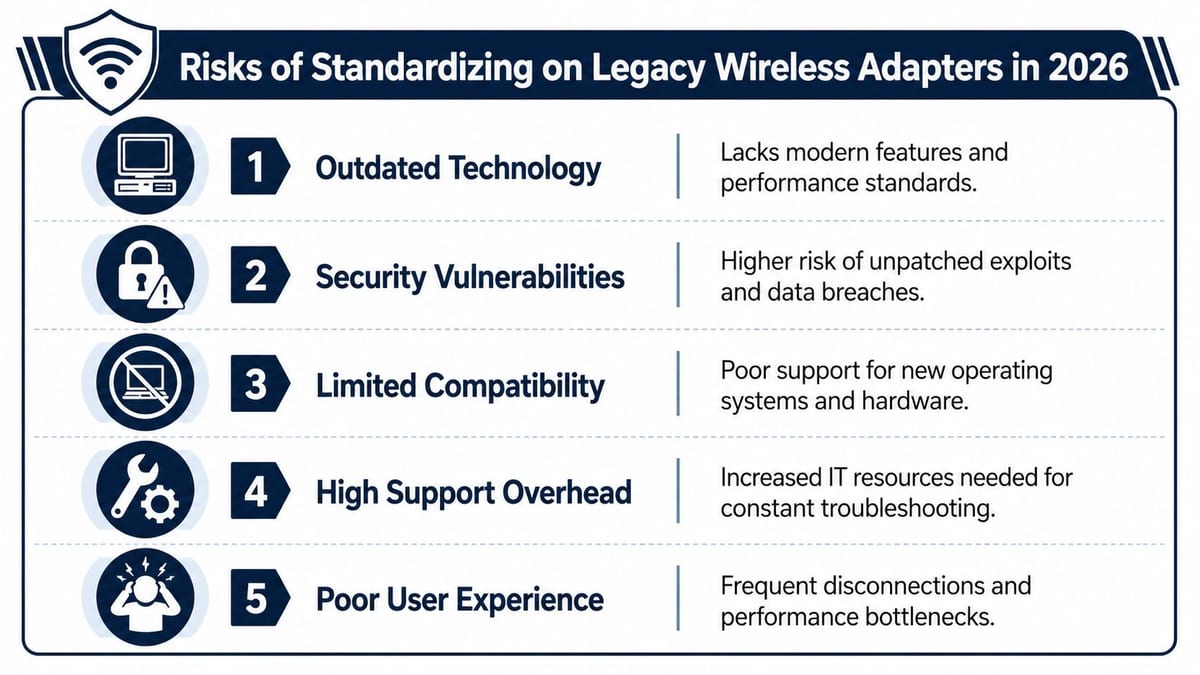
A discontinued adapter is not a room standard. It is a short-term patch that creates long-term support debt.
For existing rooms, keeping the Microsoft Wireless Display Adapter alive for a bit longer can be reasonable. For new rooms, relocations, or floor-wide refreshes, it is the wrong baseline. Microsoft has already exited this product line, so any decision to standardise on it now ties your meeting room design to ageing hardware, uncertain replacement stock, and future Windows compatibility questions. That is a poor position for an in-house IT team to defend once the fit-out is signed off and users expect rooms to just work.
The business case against new deployment
The issue is bigger than supply.
Once a legacy adapter becomes your room standard, it affects procurement, support, and change control at the same time. Buying turns into a reseller stock hunt instead of a planned purchasing cycle. Room consistency drifts because different batches, firmware states, or substitute units start appearing across the estate. OS updates need hands-on validation because nobody wants to find out on Monday morning that a routine laptop patch has broken casting in twelve client-facing rooms.
Support cost rises in quieter ways too. Service desk teams spend time on intermittent faults that are hard to reproduce. On-site engineers lose hours on room visits for devices that are technically functional but operationally unreliable. Finance still sees a cheap adapter. IT carries the labour cost.
Why fit-out teams should treat this as an operational risk
Office fit-outs often budget neatly for displays, mounts, containment, power, and commissioning. The weak point is usually the user workflow after handover.
If presentation in a professional meeting room depends on discontinued, lightly managed hardware, the room inherits that weakness from day one. That matters more in UK office projects where rooms need to work across mixed laptop estates, hybrid meeting patterns, and limited on-site support coverage. A room that only behaves properly under ideal conditions is not properly finished, whatever the hardware schedule says.
I would treat this as a standards issue, not an accessory choice. The hardware at the display edge has to match the support model for the building. If the building expects predictable operation with minimal IT intervention, legacy casting adapters pull in the opposite direction.
Legacy standards fail in the same way other isolated building decisions fail
The pattern is familiar. Teams choose a single low-cost product because it solves one visible problem, then discover later that it does not fit the wider operating model.
Meeting room AV is part of building infrastructure. It sits alongside power, data, wireless coverage, access control, and remote support. If one layer needs repeated manual recovery, the overall environment becomes more labour-intensive than planned. That is why room technology should be selected as part of the office standard, not as an add-on chosen room by room.
For teams weighing consumer-style casting against systems designed for managed spaces, this guide to Apple TV vs Chromecast for business meeting rooms is a useful comparison. The underlying question is the same. Are you choosing something easy to buy, or something your IT team can support properly across the whole office?
Modern Alternatives for Professional Meeting Rooms
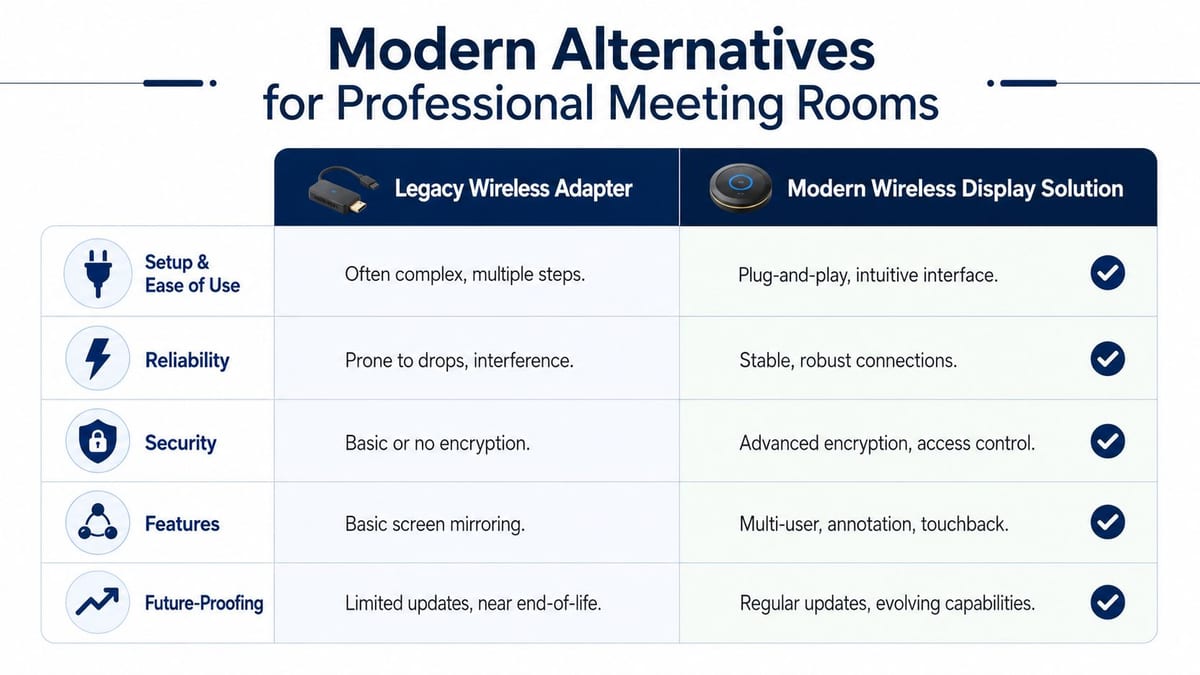
The right replacement depends on what the room is for. If users only need occasional local display from Windows laptops in a very small room, a simple wireless path may still be enough. But most professional meeting rooms now need more than basic Miracast. They need consistency across different users, clearer support boundaries, and a design that fits the rest of the office infrastructure.
That's where enterprise-grade platforms make more sense than the old Microsoft adapter. In practice, teams usually look at products such as Barco ClickShare, ScreenBeam, and Mersive Solstice when they want something built for managed meeting spaces rather than ad hoc casting.
What separates a room platform from an adapter
The old Microsoft unit was attractive because it stayed narrow. It cast a Windows screen to a display. That's useful, but it isn't a room strategy.
Modern room platforms are better suited when you need:
- Cross-platform support: Offices rarely run Windows-only user behaviour now.
- Central administration: IT needs room standards that can be managed, monitored, and documented across multiple spaces.
- Better room resilience: Meeting rooms must cope with changing users and mixed device estates.
- Integration with the rest of the fit-out: Power, switching, display control, Wi-Fi design, and cable infrastructure all need to align.
Matching the solution to the space
Not every room deserves the same kit. A huddle room, a client boardroom, and a project space shouldn't all get identical hardware just because procurement wants a single SKU.
A sensible approach looks more like this:
| Room type | Better-fit approach |
|---|---|
| Small internal huddle room | Managed wireless presentation platform with simple local display workflow |
| Shared meeting room | Platform with stronger access control and easier standardisation |
| Client-facing boardroom | Higher-spec integrated room system with reliable fallback paths |
| Flexible project area | Solution chosen around mobility, supportability, and user turnover |
The best wireless display system is the one that fits the room, the users, and the support model. Not the one that looked cheapest per room on a spreadsheet.
One practical way to assess options is to compare the adapter against current room requirements rather than nostalgia. This wireless display adapter planning guide is useful for defining those requirements before you buy.
The wider building and operations view
This is also where meeting-room AV stops being an isolated purchase. In well-run office projects, the display system sits inside a coordinated package that can include structured cabling, Wi-Fi surveys, switching, display power, commercial electrical installation and certification, and links to wider building systems such as CCTV and access control.
That matters in conventional offices, but even more so in spaces with reduced staffing, managed access, or semi-autonomous operating models. Common examples include serviced offices, training suites, satellite clinics, managed reception-less spaces, and industrial office units. In those settings, maintenance planning matters as much as features. Hardware that requires frequent on-site touching is the wrong hardware.
If you're replacing legacy meeting-room casting during a relocation or fit-out, treat it as an infrastructure decision rather than a peripheral purchase. Constructive-IT is one option for organisations that need room AV, wireless presentation, cabling, Wi-Fi, electrical works, and wider office infrastructure planned as one deliverable instead of separate trades.
If your team is still relying on the Microsoft Wireless Display Adapter, keep the stable rooms running and build a replacement roadmap now. For new meeting spaces, design around supported platforms, proper power and data planning, and an operating model that won't keep generating tickets after handover.