
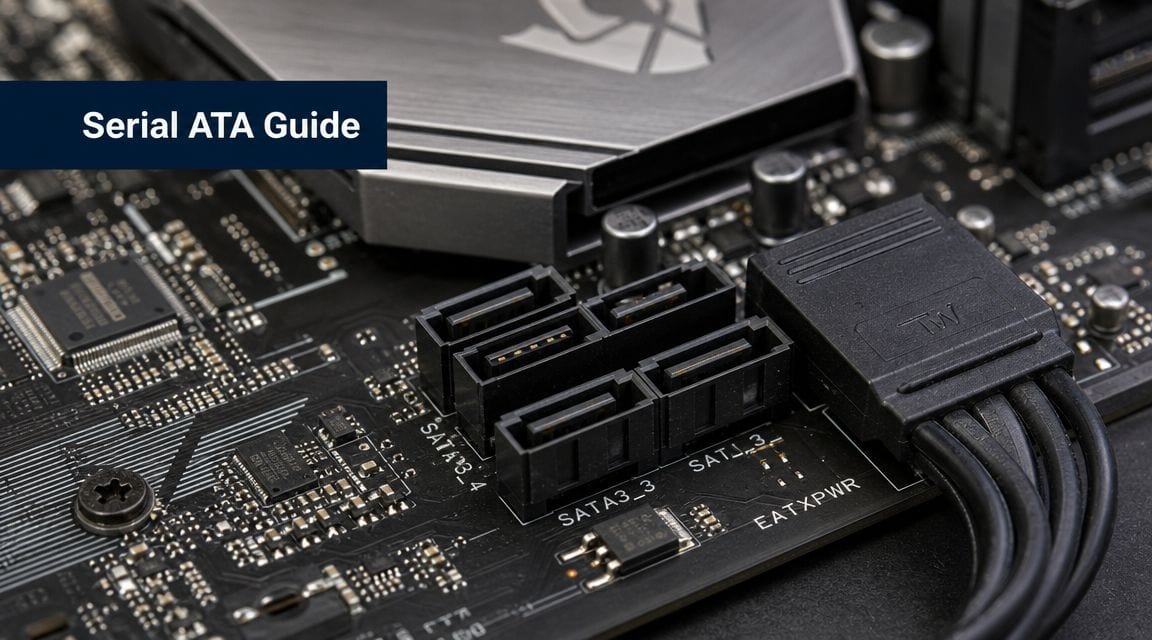
A SATA problem rarely looks like a SATA problem at first.
A server goes into build, the OS installer intermittently loses sight of a storage drive, and the team starts chasing firmware, RAID settings, BIOS options, or a suspect SSD. Then someone reseats the cable, swaps one lead for a known-good spare, and the issue disappears. In office moves, workstation refreshes, and small server-room upgrades, that kind of fault still wastes more time than it should.
That's why the Serial ATA connector still deserves attention. It sits at the point where storage design becomes physical reality: cable routing, connector strain, airflow, service access, and long-term reliability. If you manage mixed-age hardware, deploy file storage, maintain CCTV recording systems, or keep cost-sensitive office infrastructure running, SATA isn't old trivia. It's part of the practical work.
Why SATA Connectors Still Matter in Modern IT Infrastructure
The usual assumption is that SATA belongs to the past and NVMe belongs to the present. That's too simplistic. In many business estates, the storage that keeps operations moving is still connected through SATA: archive volumes, secondary SSDs, backup targets, local file stores, and internal drives in workstations that don't need premium performance.
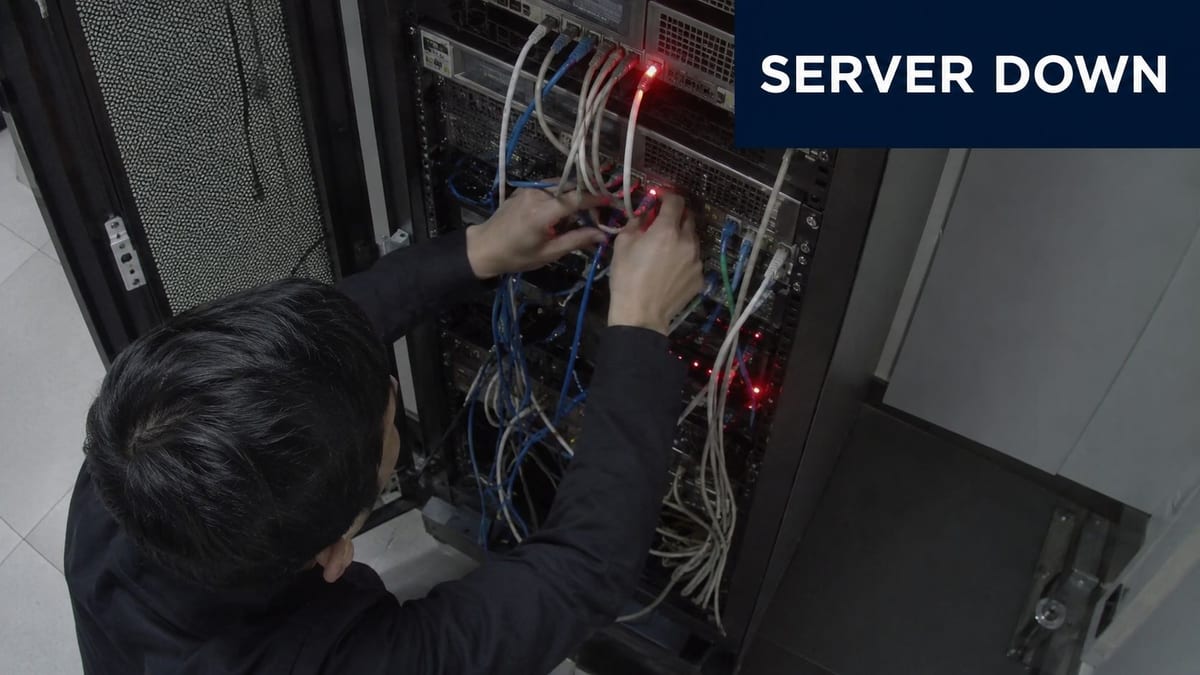
A badly chosen or poorly seated SATA lead can create exactly the sort of fault that frustrates IT managers during a relocation or fit-out. The drive may appear during POST and disappear under load. The machine may boot one day and fail the next. Because the connector issue is mechanical and electrical at the same time, the symptoms often look like a software problem until someone checks the basics properly.
Where the connector becomes the real issue
In practice, SATA reliability is shaped by physical conditions:
- Tight chassis layouts put sideways pressure on plugs when side panels close.
- Drive cages in dense builds make it easy to over-bend a cable near the connector.
- Server-room rework often leaves old cables in place long after the equipment around them has changed.
- Workstations with GPUs can crowd out straight connectors and force awkward routing.
A storage link only looks simple when the case is open on a bench. In a live rack or under a desk, connector clearance becomes an infrastructure issue.
That matters more in UK office environments than many buyers expect. Real installations have short maintenance windows, mixed vendors, reused chassis, and facilities constraints that don't show up on a parts list. A SATA cable that “fits” on paper may still be the wrong choice if it blocks access, strains a port, or turns a five-minute drive swap into a thirty-minute disassembly.
Why this still deserves engineering attention
The point isn't nostalgia for older storage standards. The point is that reliability and serviceability depend on details. When a system has to stay supportable after an office fit-out, data-room tidy-up, CCTV expansion, or workstation rollout, the connector choice, cable path, and termination quality all matter.
For IT managers, that means treating SATA as part of deployment design, not just as a commodity accessory. If the drive is critical enough to install, the connection is critical enough to plan.
Understanding SATA Data and Power Connectors
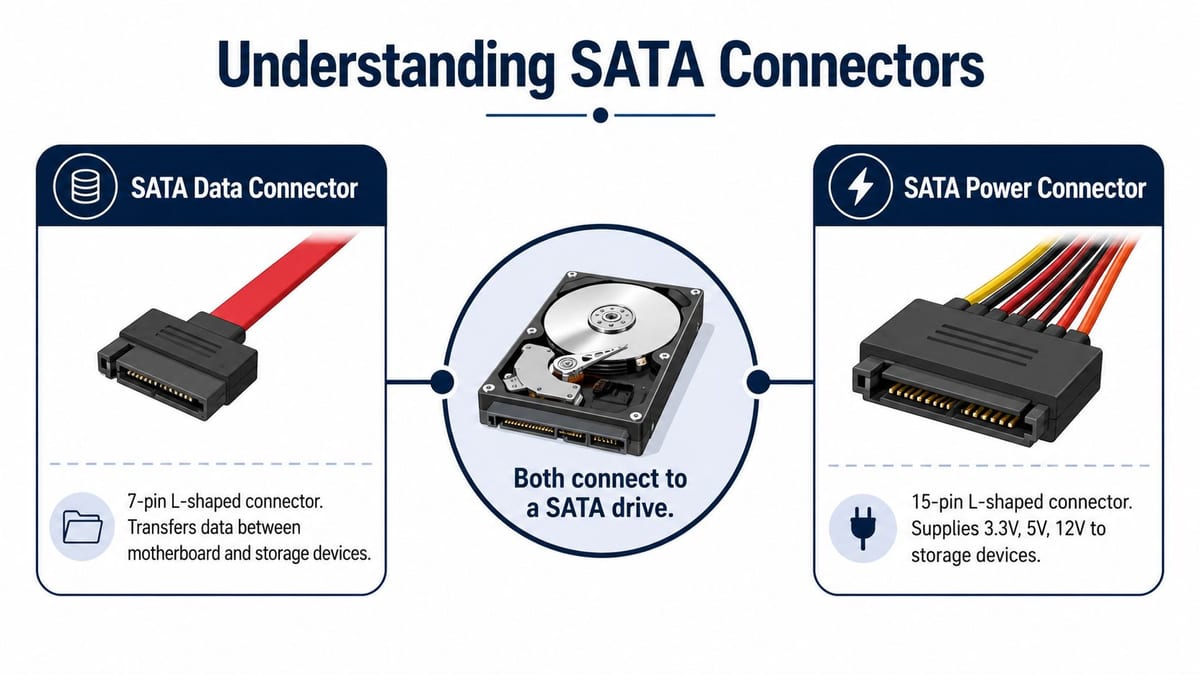
People often say “SATA connector” as if there's only one. In real deployments there are two separate interfaces to think about: the SATA data connector and the SATA power connector. Mixing them up is common during field work, especially when junior staff are building or rebuilding desktops and small servers.
The data side
The SATA data connector is the smaller L-shaped plug that links the motherboard or controller to the drive. Its job isn't just to make contact. It's designed to maintain clean signalling.
In UK server-room and workstation deployments, the SATA data connector uses 7 contacts arranged as four active conductors in two differential pairs plus three grounds, and the interface is specified with an 8 mm wafer connector and a maximum cable length of 1 metre (3.3 ft). SATA signalling also runs at about 250 mV compared with 5 V for PATA, which is one reason poor termination or damaged crimps can show up as intermittent link errors rather than obvious physical failure, as outlined in Delkin's SATA technical overview.
A practical way to think about it is this: the connector isn't only carrying a signal, it's preserving signal quality. That's why a cheap cable can behave acceptably in one chassis and fail unpredictably in another.
Later in the same discussion, this video is useful for the wider storage context and where SATA fits in current infrastructure choices.
The power side
The SATA power connector is the wider L-shaped plug from the PSU or backplane. It's physically distinct for a reason. It supplies power to the drive, while the smaller connector carries data.
In day-to-day work, this separation helps with fault isolation. If a drive spins up or warms up but isn't detected, that points you towards the data path. If it isn't powering at all, the problem is usually on the power side, the harness, the PSU lead, or the backplane.
Field note: Don't diagnose a drive by sight alone. A plug can look seated and still sit just far enough out to cause intermittent behaviour.
What matters during installation
The practical checks are straightforward:
- Confirm connector type before applying force. The L-shape is keyed, but damaged housings still get forced in the wrong way.
- Support the cable near the plug when removing it. Pulling on the wire body stresses the termination.
- Check cable path before closing the case. A panel that presses on the connector can create a fault after the machine leaves the bench.
The lesson is simple. A Serial ATA connector is a small component, but it behaves like an engineered link, not a disposable bit of plastic.
Navigating SATA Generations and Backwards Compatibility
SATA has been around long enough that many environments now contain several generations at once. That matters whenever you reuse hardware, move drives between systems, or install newer SSDs into older platforms.
Serial ATA was introduced in 2001 and replaced Parallel ATA. The first revision delivered 1.5 Gbps, SATA II reached 3.0 to 3.2 Gbps, and SATA III reached 6 Gbps. For practical UK procurement, those are commonly described as 150 MB/s, 300 MB/s, and 600 MB/s for SATA I, II, and III, according to EBSCO's SATA reference overview.
SATA generation comparison
| SATA Revision | Theoretical Speed | Practical Throughput (Approx.) | Common Use Case |
|---|---|---|---|
| SATA I | 1.5 Gbps | 150 MB/s | Legacy desktops and older embedded systems |
| SATA II | 3.0–3.2 Gbps | 300 MB/s | Older business PCs and ageing servers |
| SATA III | 6 Gbps | 600 MB/s | Modern SATA SSDs, newer boards, general current use |
What backwards compatibility really means
The useful part is that SATA generations are generally backward compatible. A newer SATA drive can usually work on an older SATA controller, and an older drive can usually work on a newer port. What changes is the negotiated link speed.
That has direct planning implications:
- New SATA SSD on an older port means the drive will work, but performance will be limited by the older controller.
- Older hard drive on a newer board is usually fine if the connector, controller mode, and firmware support are all in order.
- Mixed estates during relocation often run perfectly well when expectations are set correctly and the bottleneck is identified in advance.
Where people get caught out
The mistake isn't usually incompatibility. It's assumption. Teams buy a SATA III SSD and expect SATA III behaviour everywhere, even when the host system can't provide it. The result is confusion, not failure.
That's also why it helps to separate SATA from adjacent technologies when planning storage tiers. If you're weighing business storage options more broadly, this comparison of SATA vs SAS is worth reading before you lock in controller and drive choices.
Backwards compatibility is useful for extending asset life. It doesn't remove the need to check what the motherboard or controller can actually negotiate.
For budget planning, that's good news. You can often reuse drives and cabling sensibly. For performance planning, it's a warning. Compatibility doesn't equal full speed.
eSATA, mSATA, and Angled Connectors
Not every SATA-related connector you'll encounter in the field is the standard internal data plug. Some variations solve a specific deployment problem. Others belong mainly to older device classes you still have to support.
Where each variation fits
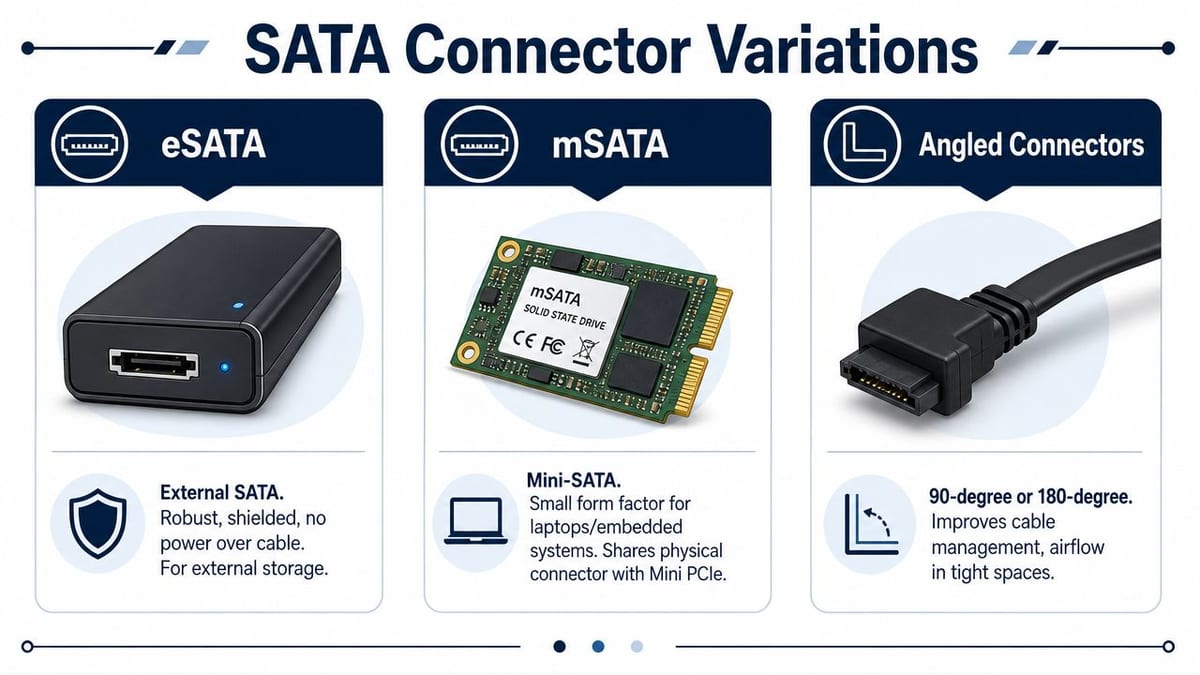
eSATA was built for external storage. In practical terms, it gave a more direct external SATA connection than the usual USB storage path of its era. You'll still see it in older specialist equipment and some legacy backup workflows. In most office environments today, it appears more often during support than new deployment.
mSATA belongs to compact devices and earlier small-form-factor designs. You may still encounter it in older laptops, embedded systems, and certain mini PCs. It matters less for new office standardisation and more for maintaining existing kit without making the wrong assumptions about upgrade paths.
Angled SATA connectors are the variation that still matters most during active deployment work. They solve mechanical problems inside the chassis, and those problems directly affect reliability and serviceability.
When angled connectors stop being optional
The practical importance of right-angle or left-angle SATA connectors is often understated. The primary issue is mechanical clearance and cable strain near GPUs, side panels, and vertically mounted drives in tight chassis layouts, where a straight connector can block airflow or make maintenance impossible, as discussed in Eaton's guide to SATA cables and connector choices.
That shows up in several common scenarios:
- 1U and shallow-depth servers where the lid sits close to the drive plane.
- CAD or media workstations with large graphics cards crowding motherboard ports.
- Compact edge systems installed in cupboards, risers, comms cabinets, or wall-mounted enclosures.
- Drive cages with vertical mounting where the cable exit direction determines whether the panel will close cleanly.
Choosing the angle properly
Not every right-angle lead is the right right-angle lead. The orientation matters. A connector that exits left in one chassis may foul the neighbouring cage in another.
A good selection process looks like this:
- Check the drive or motherboard orientation in the actual chassis, not just in a product photo.
- Identify the service path. Ask how the drive will be removed later.
- Confirm that the cable route protects airflow and doesn't force a hard twist immediately after the plug.
In dense builds, the wrong angled connector is worse than a straight one. It can lock the cable into a bad route that nobody can service cleanly later.
The practical benefits of angled SATA leads save experienced installers time. They don't choose them because they look tidy. They choose them because they prevent strain, preserve access, and stop the casework fighting the connector.
Diagnosing and Fixing Drive Detection Issues
When a SATA drive isn't detected, start with the physical path before changing settings or replacing parts. Most of the wasted time happens when people jump straight into firmware theory without proving the cable and port.
Start with simple isolation
Use a short, methodical sequence.
Power down and inspect both ends
Check that the data connector is fully seated at the drive and the motherboard or controller. Then check the power connector separately. Look for plugs sitting slightly proud, twisted leads, or side pressure from the case.Reseat, don't just press
Remove the connector and reconnect it cleanly. A half-seated plug can survive transport badly and fail after the machine is moved into place.Swap in a known-good SATA cable
This is one of the fastest ways to remove doubt. Don't test with another random loose cable from the same drawer if you can avoid it.
Then test the path
If the problem remains, isolate the fault domain:
- Try another SATA port on the motherboard or controller.
- Test the drive in another system if that's practical.
- Check BIOS or UEFI storage settings to confirm the port is enabled and the controller mode is what the system expects.
- Listen and observe. If a mechanical drive powers but behaves abnormally, that may point away from the connector and towards the device itself.
What intermittent faults usually indicate
Intermittent detection is often more revealing than complete failure. If the drive appears sometimes, the issue is frequently physical: damaged cable, poor crimp, connector strain, or movement after the chassis is closed.
A few useful habits help on site:
- Don't bend the cable sharply near the plug after reseating it.
- Don't leave the cable under tension because the system worked once on the bench.
- Don't replace the drive first unless you've proven the link path.
The fastest diagnosis usually comes from changing one thing at a time and keeping the test conditions controlled.
In office environments, especially during moves, transport is often the trigger. A system that ran perfectly in one room may develop a storage fault after being shifted, not because the drive failed, but because the cable moved just enough to expose a weak connection.
Professional SATA Cabling for Reliability and Airflow
Neat SATA cabling isn't about appearance. It's about making the system behave properly six months later when someone has to service it under time pressure.
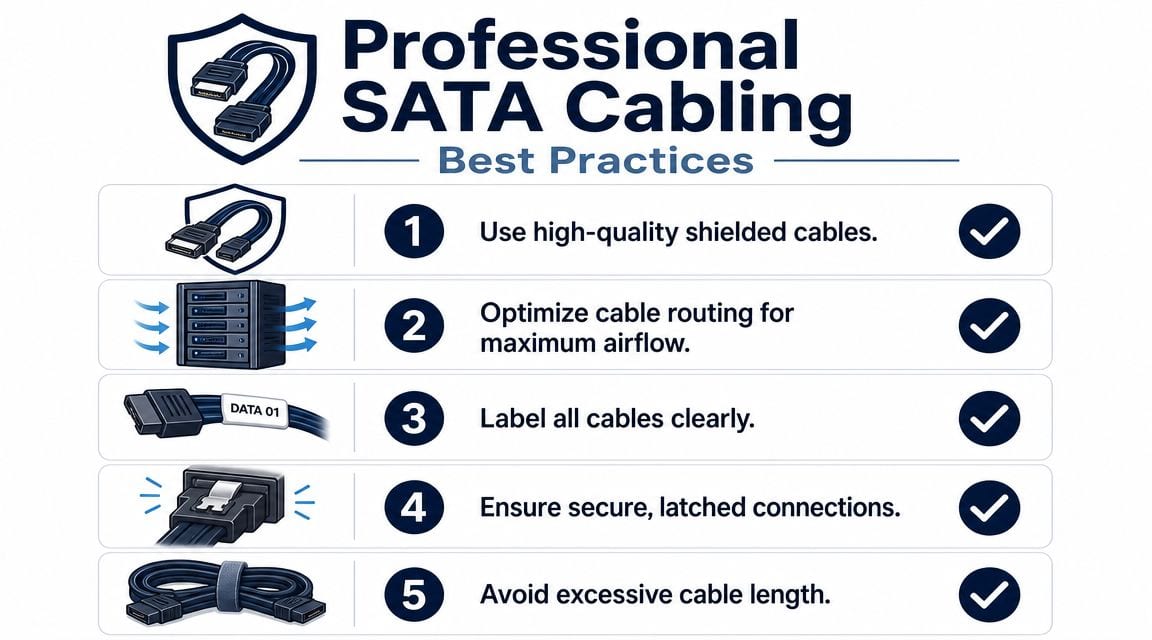
Bad cable discipline creates three problems at once. It increases the chance of connector strain, it makes airflow less predictable, and it slows every future intervention because nobody can see what's connected to what.
What good SATA cabling looks like
A professional build usually follows a few consistent rules:
- Use the shortest practical cable length that reaches comfortably without tension.
- Route away from fan intakes and hot zones where possible.
- Avoid excess slack that bunches into drive cages or blocks access to adjacent ports.
- Label where it matters on systems with multiple drives, especially when identical bays sit side by side.
A cable that's too long isn't harmless. It tends to get folded, tied too tightly, or stuffed behind a drive cage. That puts stress exactly where SATA is least forgiving: close to the connector body.
Reliability and serviceability are linked
The same cable path that supports airflow also improves maintenance. If an engineer can identify the drive, trace the lead, and remove it without disturbing neighbouring links, the system is easier to support and less likely to suffer accidental faults during routine work.
That's why basic cable-management hardware matters. Clips, anchors, and disciplined routing often do more for long-term stability than buying another premium component. For teams reviewing those physical methods, this guide to cable ties and clips for structured installations is a useful reference point.
What doesn't work in live environments
Some habits look acceptable on a bench and fail in production:
| Poor practice | What happens later |
|---|---|
| Leaving large loops of spare cable | Airflow becomes messy and access gets worse |
| Pulling cables tight to make them look neat | Connectors carry mechanical strain |
| Running SATA leads across service paths | Routine maintenance disturbs working links |
| Mixing unlabeled old and new cables | Fault finding takes longer than it should |
Practical rule: If replacing one drive means moving two others, the cabling was wrong when it was installed.
A disciplined SATA installation is cheap compared with the cost of an avoidable outage. That's true in a back-office file server, a design workstation, or a CCTV recorder tucked into a comms cupboard. The principle doesn't change. Build the storage path so it can be maintained without drama.
SATA vs NVMe When Planning Your Next Upgrade
The better question isn't whether SATA or NVMe is “best”. It's which one fits the job, the budget, and the service life of the system you're building.
For UK infrastructure refreshes in 2026, the important planning question is when SATA still makes sense. NVMe dominates for performance, while SATA remains the right design choice for cost-effective bulk storage, backup targets, and CCTV archives, making a hybrid approach common in modern office and data-centre builds, as noted in this storage planning discussion on YouTube.
Where NVMe wins
NVMe is the clear choice when latency and throughput affect user experience or application performance. Typical examples include:
- OS and application drives in high-spec workstations
- VM storage where responsiveness matters
- Database or analytics workloads
- Systems with no appetite for storage bottlenecks
If the workload is performance-led, forcing it onto SATA just because the connector is familiar usually creates a false economy.
Where SATA still earns its place
SATA remains useful when the priority is capacity, compatibility, simple replacement, or sensible cost control. That's common in:
- File storage
- Backup repositories
- CCTV recording systems
- Secondary drives in office desktops
- Capacity tiers in mixed storage estates
The smartest design is often a split model. Use NVMe where the user or application will feel the difference. Use SATA where dependable, lower-cost capacity matters more than top-end speed. If you're weighing SSD choices for that kind of balanced design, this guide to fast SSD drives and upgrade planning helps frame the trade-offs.
The Serial ATA connector still matters because many organisations aren't replacing every storage role with NVMe. They're building layered systems. In that world, SATA doesn't disappear. It becomes a deliberate choice for the parts of the estate where practicality wins.
If you're planning a server-room refresh, office relocation, CCTV expansion, or a wider storage and cabling redesign, Constructive-IT can help you map the physical and technical trade-offs before they turn into deployment problems. That's often the difference between a system that merely powers on and one that stays reliable, serviceable, and ready for the next upgrade.