
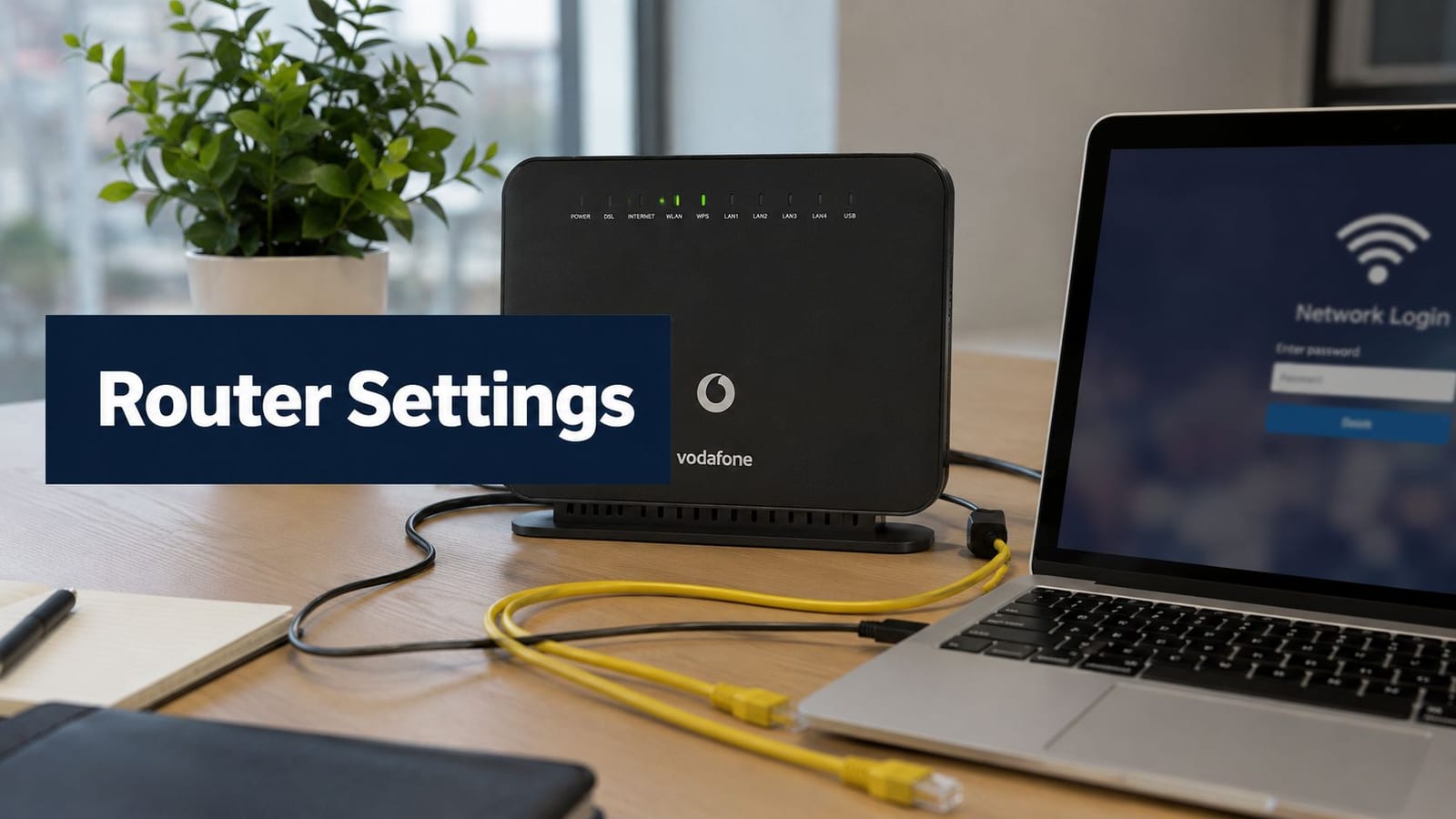
You've inherited a Vodafone hub in a small office, the Wi-Fi password is written on a label, nobody knows who changed the admin credentials, and a CCTV installer is asking for network details that don't exist in the handover notes. The broadband works, so the setup gets treated as finished. Then a device won't reconnect, a remote-access request arrives, or a second site needs the same configuration.
That gap between working internet access and a controlled business network is where most Vodafone router settings problems begin. Vodafone's consumer documentation is useful for straightforward changes, but offices, CCTV systems, guest access, IoT equipment, and unmanned building units need repeatable decisions, documented changes, and clear limits on what the supplied hub can manage.
Accessing Your Vodafone Router Admin Interface
For many Vodafone UK routers, the starting point is the local management page at 192.168.1.1. Connect to the router, open a browser, enter that address, and use the administrator credentials associated with the hub. Vodafone's guidance confirms that many models use this local interface and that users may be prompted to change the admin password during first login if it hasn't already been changed (Vodafone router password guidance).
The Vodafone Broadband app and the web interface serve different purposes. The app is convenient for routine changes such as Wi-Fi details and basic status checks. The browser interface is generally more useful when you're documenting an office deployment, checking advanced options, or working through a setting that the app doesn't expose. Vodafone's current guidance directs users towards the app or the router login rather than informal configuration changes (Vodafone router setup guidance).
The reliable login sequence
Start with a device connected to the Vodafone network. If 192.168.1.1 doesn't load, check that the device is using the Vodafone router rather than a separate access point, mesh unit, or guest network. A browser may also retain an old session, so closing the browser and reconnecting can remove a misleading login loop. If you need to identify the gateway address on a particular device, use this practical guide to find the IP address of your router.
After signing in, change the administrator password immediately if Vodafone presents that option. This is separate from the Wi-Fi password. The admin credential controls access to network configuration, including wireless names, security settings, and wider broadband options. Store it in the organisation's approved password manager, not in a shared chat or an engineer's personal notes.
Operational rule: The person who can change router security settings should be identifiable, and the current credentials should be recoverable without guessing.
If the router has been inherited with unknown credentials, don't repeatedly try old passwords. Vodafone notes that forgotten administrator credentials may require a factory reset on some routers (Vodafone reset guidance). A reset removes the existing configuration, so record the broadband details, Wi-Fi requirements, port forwards, and connected equipment before pressing the rear reset button.
Finding advanced controls
Some Vodafone hub models hide options such as channel selection behind Expert mode. The older Vodafone workflow places this under Wi-Fi > Settings > Preferred channel, after Expert mode has been enabled (Vodafone router setup guidance). The exact labels vary by hub, which is one reason a screenshot-based handover should include the router model and firmware state.
Configuring Wi-Fi Networks for Office Environments
A wireless network that works in one office can become inconsistent across several sites unless its purpose, naming, and recovery steps are documented. Use a consistent SSID convention, but keep addresses, department names, security systems, and other sensitive details out of the network name. Record the site identifier in the network documentation instead.
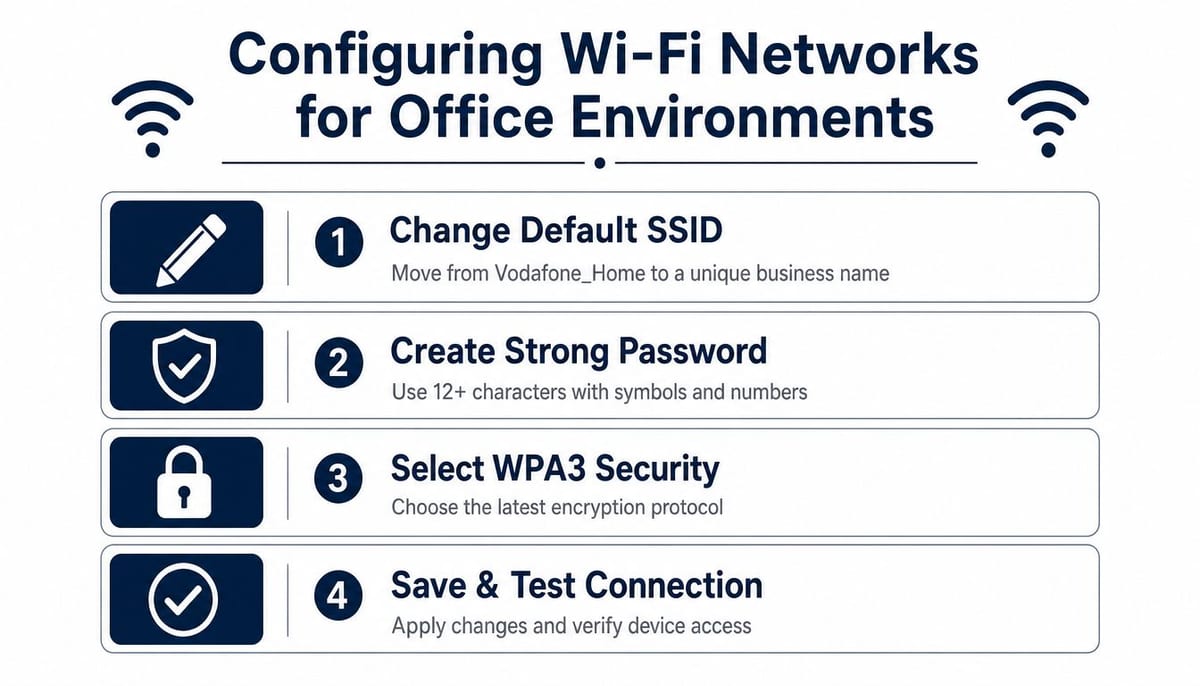
Vodafone supports Wi-Fi changes through the Broadband app or the router interface at 192.168.1.1. Exact controls vary by hub model, but the working sequence is consistent: edit the SSID, set a new password, select the strongest compatible security mode, save the configuration, and reconnect a test device. Vodafone's consumer guidance is useful for this basic workflow, while a multi-site rollout needs its own configuration record and validation process.
Build the wireless baseline first
Use WPA3 when all important clients support it. Older printers, scanners, and building controllers may require WPA2, so use a compatible mixed mode only where necessary. Place legacy equipment on a restricted network when the router supports that design. Encryption protects the wireless connection, but it does not remove the management risk created by an outdated operating system or unsupported device.
Create a guest network if the hub provides one. Visitors need internet access, not access to office printers, file servers, CCTV recorders, access controllers, or router management pages. Wi-Fi risk management from F1Group covers related concerns such as client separation and operational controls.
Choose channels based on evidence
Use a Wi-Fi analyser from the areas where staff work. Check nearby networks, overlapping channels, and congestion during busy periods before changing a setting. Select a less crowded channel, then retest from the same locations. Older Vodafone workflows place channel selection under Wi-Fi > Settings > Preferred channel after Expert mode is enabled, although the labels differ between hub models.
Physical placement affects the result as much as channel choice. Position the hub or access point centrally where practical, away from interference-producing equipment and enclosed cabinets. The 2.4 GHz band generally reaches farther and supports some older devices, while 5 GHz can provide faster local connections but loses strength more quickly through walls. Match the band to the device and location instead of forcing every client onto one setting.
For a wider installation checklist, use this guide to setting up business Wi-Fi. Change one variable at a time, document the result, and compare the same device in the same location before attributing any speed improvement to the configuration. This repeatable process matters more than relying on Vodafone's consumer-focused setup screens when several UK offices must be deployed and supported consistently.
Network Segmentation and VLAN Configuration
A single office network can let a compromised guest device reach systems it should never see. VLANs separate traffic logically, even when devices use the same physical switching infrastructure. Visitors can use one network, staff laptops another, while cameras and smart-building equipment remain in a restricted IoT segment. The value lies in limiting which systems can communicate when one device is compromised or misconfigured.
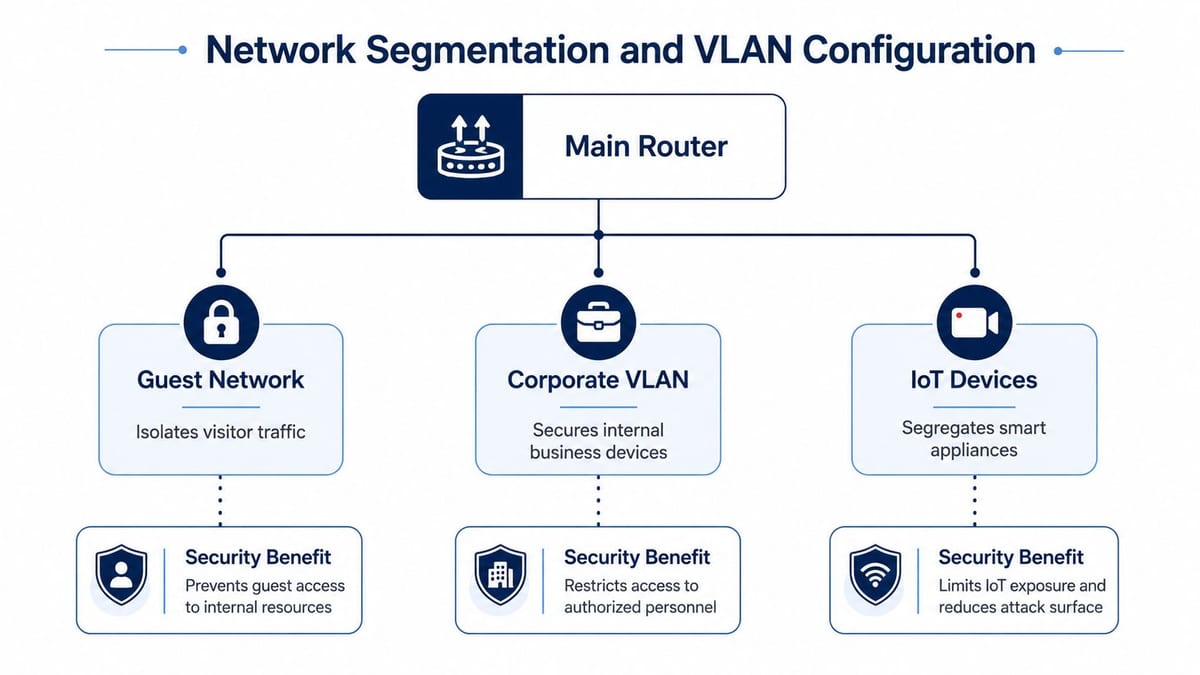
Standard Vodafone hubs can support basic guest access and small deployments, but VLAN and policy controls vary between models. Check whether the hub can create tagged networks, apply firewall rules between segments, and assign wired ports consistently before building the design around it. If those functions are missing, a managed switch and a capable firewall usually provide a more predictable result than forcing enterprise controls through consumer firmware. That distinction matters when the same configuration must be repeated across UK offices.
When a third-party router is appropriate
Replacing the Vodafone hub with your own router may suit a business that needs consistent VLANs, central policy control, or clearer separation between sites. UK community and support guidance commonly identifies PPPoE with VLAN ID 101 for the broadband handoff. CHAP authentication and MTU 1492 are often used with those settings (Vodafone third-party router discussion). Obtain the ISP credentials, configure the WAN interface, apply VLAN tagging where supported, and confirm broadband authentication before changing DNS or secondary options.
The failure mode is usually straightforward but disruptive. The wrong VLAN, PPPoA instead of PPPoE, incorrect credentials, or a mismatch between consumer and business-line guidance can prevent authentication entirely. Keep a known-good recovery configuration. Change one WAN setting at a time so the cause of an outage remains identifiable.
A practical segmentation model
Use the least complicated design that meets the risk:
- Guest access: Internet-only connectivity, with no route to internal devices.
- Corporate systems: Staff laptops, managed phones, printers, and approved business services.
- IoT and CCTV: Cameras, door controllers, sensors, and building equipment with access limited to required servers.
Document each segment's purpose, permitted traffic, DHCP scope, switch ports, and owner. This LAN design best-practices guide helps when the arrangement extends beyond one Vodafone hub. Segmentation earns its place when trust levels differ or critical systems need protection. It creates operational risk when nobody owns the rules or can restore them after a router or switch replacement.
Firewall Rules and Port Forwarding for Business Applications
In a UK office, a request to open a port often arrives as “make the application work remotely”. Translate that request into the service, destination device, users, and access method before changing the Vodafone router. Many CCTV and access-control platforms support secure outbound sessions, which can avoid exposing an inbound service at the hub.
If inbound access is required, create one port-forward rule to the specific internal host and record its purpose. Retain the router's default inbound-deny behaviour unless a documented business requirement requires a change. A DMZ setting can expose a device to unsolicited internet traffic, so it offers poor control compared with a targeted rule.
A safer change process
- Name the service owner: Record who approved the rule and who will review it.
- Identify the destination: Use a stable internal address or reservation so the rule does not reach the wrong device.
- Limit exposure: Use vendor-supported encryption, source restrictions, VPN access, or an allow list where available.
- Test externally: Connect from outside the office network, rather than relying on local routing behaviour.
- Record the result: Note the rule name, purpose, destination, date, test result, and rollback action.
CCTV needs particular care. A directly exposed recorder or camera can provide a route into a sensitive system. A poorly secured remote-access account can also undermine sound firewall settings. Keep camera traffic under managed controls and separate it from ordinary office access.
Vodafone hub models present different port-forwarding menus, and applications may require several services or vendor-specific settings. Use this firewall configuration guide to structure the review, then confirm the exact router model, firmware options, application requirements, and recovery method. Consumer hubs often provide enough control for one straightforward site, but repeatable multi-site rules may require a separately managed firewall.
Security principle: If you cannot explain why an open rule exists, which device receives the traffic, and how to remove it, deactivate the rule until those details are documented.
When Vodafone Routers Work for Business and When They Don't
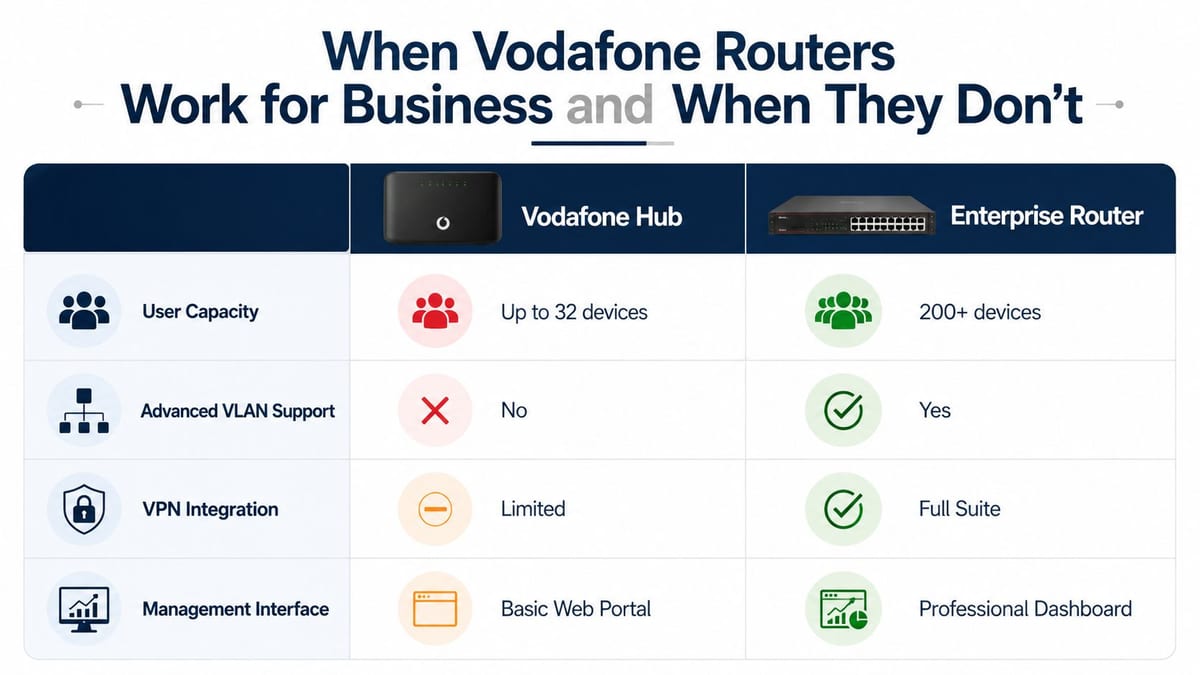
A small UK office may run reliably on a Vodafone hub when broadband use is straightforward, wireless demand is modest, and nobody needs centralised configuration. The same approach can suit a temporary site with limited operational dependencies and contained risk. Problems emerge as soon as the business needs repeatable controls across locations, separate trust zones, formal change records, or dependable remote administration.
The operational trade-off
A supplied hub reduces procurement effort and gives staff a familiar app or web portal. Its limitations can include shallow VLAN support, limited VPN integration, basic logging, restricted policy control, and no practical fleet management. An enterprise firewall paired with managed wireless costs more to design and maintain, while providing a consistent operating model across sites. That consistency matters when configuration knowledge cannot depend on one person.
Vodafone's help content is divided between the Broadband app, web portal, and different hub categories, including standard broadband and 5G indoor and outdoor hubs (Vodafone router settings management). For multi-site deployments, the access path and available instructions may differ between devices. Engineers should record the exact model and confirm its supported controls before creating a standard build.
The supplied router is usually appropriate where:
- The site is small: Staff need dependable internet and ordinary Wi-Fi, with little requirement for complex policy control.
- The deployment is temporary: The configuration has a defined lifespan and few operational dependencies.
- The risk is contained: Critical systems do not depend on exposed services or a flat network.
A separate firewall and managed wireless platform becomes the more practical choice where:
- Sites must match: Engineers need repeatable templates, central records, and controlled changes.
- CCTV and access control are critical: An outage could affect security, entry, or monitoring.
- The environment is dense: Many devices, competing wireless networks, and business-critical roaming require surveying and managed access points.
- Compliance matters: The organisation needs evidence of ownership, testing, and change control.
Including management time, replacement risk, security exposure, and downtime in the decision provides a more accurate picture than comparing monthly broadband costs alone. Consumer hardware can remain a sensible edge device, but multi-site businesses often need a separately managed security layer and a documented operating process.
Troubleshooting Common Configuration Issues
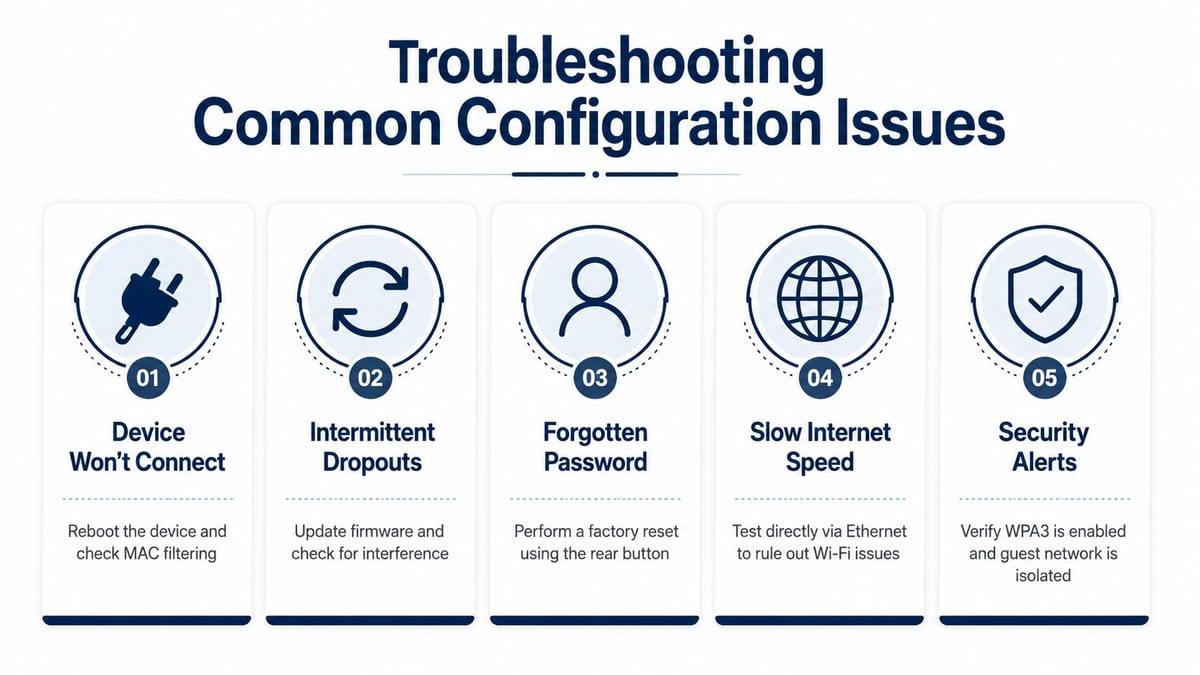
A fault report that says “the Wi-Fi is down” rarely identifies the actual failure. Isolate the client, wireless layer, router configuration, and broadband service in that order. Start with one known device at one known location. Check whether other clients are affected, whether Ethernet works, and whether the router still reports an active broadband connection.
Work through the symptom
- A device won't connect: Re-enter the current Wi-Fi password, forget the saved network on the device, and check whether MAC filtering or another access-control list is active. Reboot the client after changing the router setting.
- Dropouts seem random: Compare the affected locations, check for interference, and review the firmware status. If every device loses service together, investigate the router or broadband handoff before replacing individual laptops.
- Wi-Fi feels slow: Test directly over Ethernet first. If Ethernet is healthy, survey the wireless environment, check access-point or router placement, and compare performance across the available bands.
- A setting won't save: Confirm that the change was made in the correct interface, allow the router to restart its wireless service, and reconnect through a fresh browser session. Submit one change at a time.
- The admin password is forgotten: Gather the broadband and configuration details, then follow the factory-reset process documented for the specific hub. A reset can remove administrator access and return other settings to their defaults, so record the current configuration where possible.
For offices, maintain a change record covering the hub model, administrator owner, Wi-Fi names, network purpose, key firewall rules, and recovery steps. UK security expectations now extend beyond changing a default password. Ofcom's 2024–2025 security report notes that providers are required to change default passwords, while Vodafone's security guidance explains how administrators can change credentials through the router interface (Vodafone router security guidance). Businesses should therefore document secure onboarding, ownership, and recovery procedures for every site.
Autonomous sites need more than a router
Unmanned building management joins access, power, and data services that must continue operating without daily staff presence. A door may depend on an access controller receiving power while reaching a system that verifies credentials. If either service fails, the building may become inaccessible. The design should cover power resilience, network recovery, local fail-safe behaviour, monitoring, and an agreed response process (unmanned building management guidance).
Battery-less NFC proximity locks can reduce maintenance because they need no batteries, wiring, internet, or Wi-Fi. They can harvest energy from a smartphone's NFC field to open the lock (iLOQ energy brochure). That suits remote plant rooms, utility spaces, storage areas, and other locations that are difficult to service. The installation still needs credential governance, emergency access, physical inspections, and a process for lost or unsupported phones.
Fully autonomous unmanned building units often combine access control, CCTV, environmental sensors, remote power monitoring, and a managed network. Commercial electrical work must also be certified correctly. In England, registered electricians can self-certify notifiable work through an authorised competent-person scheme, and the electrician should provide an Electrical Installation Certificate confirming that the installation has been tested for safety (Planning Portal electrical safety guidance).
Site access brings another requirement. Clients and main contractors may require ECS or CSCS-backed competence evidence across local authorities, NHS Trusts, housing associations, house builders, energy generators, and data centres (KNX UK and ECS collaboration). Coordinate the network plan, CCTV installation, electrical certification, workforce credentials, and handover records from the project's start.
A Vodafone router can provide connectivity within this system, but it should not carry the full resilience burden. Unmanned building projects can fail when teams select locks, cameras, and sensors separately, then discover that a power fault, unsupported network feature, missing credential, or undocumented router reset affects the whole site. Design access, power, data, CCTV, certification, and maintenance as one operational service.
Constructive-IT can help organisations plan and deliver network infrastructure, structured cabling, Wi-Fi, CCTV, electrical works, certification, and go-live support around Vodafone broadband or dedicated business infrastructure. For an office relocation, fit-out, or unmanned building project, Constructive-IT can discuss the site requirements and support model for a repeatable design.