


How to Fix IP Configuration Failure in Your Business Network
- Craig Marston
- Dec 27, 2025
- 13 min read

When your computer flashes an "ip configuration failure" error, it’s telling you it can’t get a valid IP address from the network. Think of an IP address as a unique digital street number for your device; without one, it's effectively invisible and can't connect to the internet or anything else on your local network.
What Causes a Network Address Failure
At its heart, this error signals a breakdown in a fundamental process. Your office network has a DHCP (Dynamic Host Configuration Protocol) server that acts like a building manager, assigning a unique office number (the IP address) to every device that connects. The error is your computer’s way of saying the manager is unreachable, has run out of numbers, or the request simply got lost in transit.
This kind of failure can stem from a surprisingly wide range of issues, from the dead simple to the deeply complex. It could be as basic as a loose network cable tucked away under a desk, or a Wi-Fi dead spot in a newly configured corner of the office.
On the flip side, it might point to a more significant problem in your core infrastructure. A classic example we see in growing businesses is the DHCP server simply running out of available IP addresses to lease out.
The first, most critical step is to figure out the scope of the problem. Is it just one person, or is an entire department offline? Answering that question will instantly narrow down the possible culprits.
This decision tree gives you a clear visual for that first diagnostic step, helping you quickly distinguish between a localised device issue and a broader network problem.
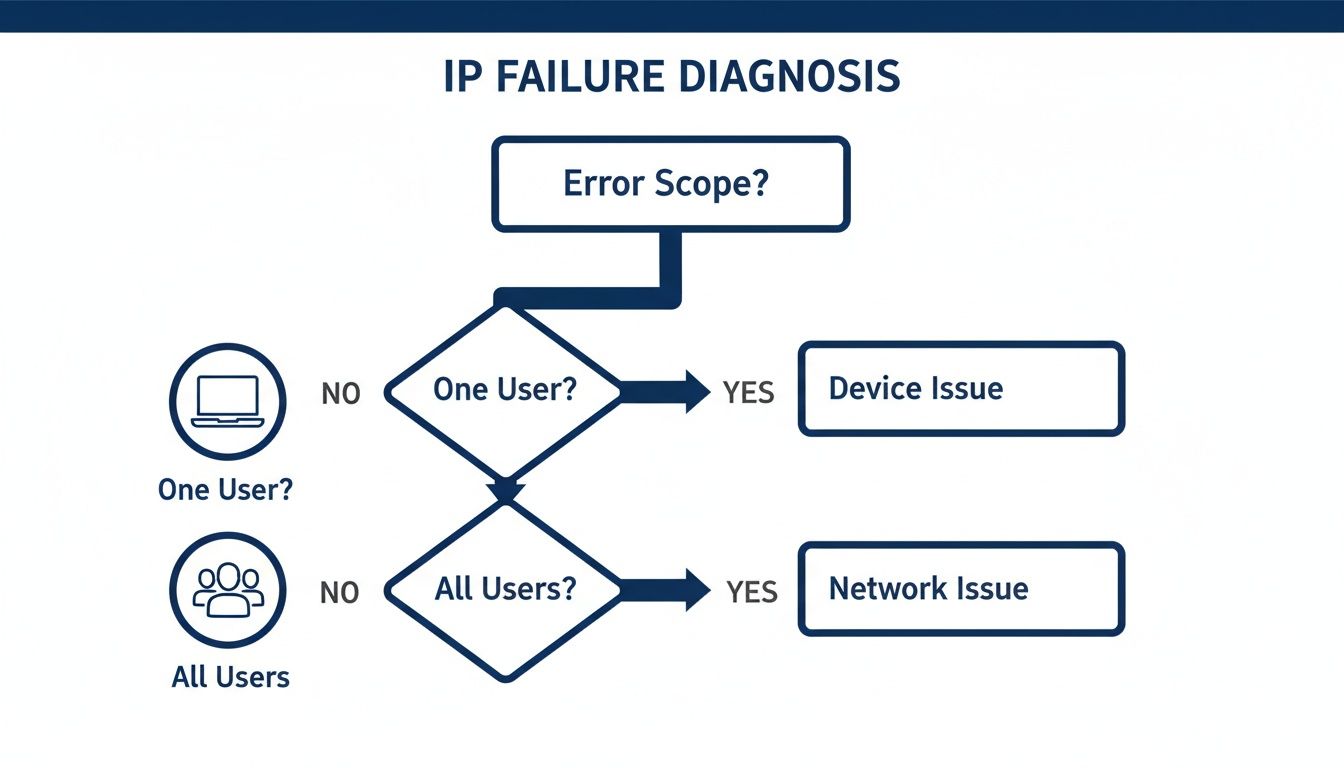
The key takeaway is simple: if only one person is affected, the problem is almost certainly with their specific device. If multiple users are down, you need to start looking at the central network infrastructure.
To help you get started, this table matches common symptoms to their likely causes so you can decide on the best first action to take.
Quick Diagnosis for IP Configuration Failure Scenarios
Symptom | Likely Cause | First Action to Take |
|---|---|---|
A single user can't connect via Wi-Fi, but others can. | Local Wi-Fi driver issue or incorrect password. | Forget the Wi-Fi network and reconnect. |
A single user can't connect via a wired connection. | Bad network cable or inactive wall port. | Try a different cable and a known-working port. |
An entire department or floor loses connectivity. | DHCP server issue or network switch failure. | Check the status of the area's network switch. |
Multiple new devices won't connect, but old ones are fine. | DHCP scope exhaustion (no more IP addresses left). | Check the DHCP server's address pool. |
Random users lose connection intermittently. | Outdated network drivers or failing hardware. | Update the network drivers on affected devices. |
This table should give you a solid starting point before you dive into more detailed troubleshooting.
Common Data Network Mistakes
In many cases, an IP configuration failure is the direct result of common data network mistakes that have been allowed to build up over time. These issues are particularly common in dynamic environments like hospitals or during a poorly managed office relocation.
Here are the key culprits we see time and time again:
Poor Cable Management: A messy desk area with tangled or strained cables can easily lead to a physical disconnection that software diagnostics will never spot.
Untested Network Points: Just assuming a wall port is active and correctly configured without testing it first is a surefire way to waste hours of troubleshooting time.
Infrastructure Neglect: Relying on ageing hardware or using uncertified fibre cable installation can introduce all sorts of intermittent connection problems that show up as IP assignment errors.
A robust network isn't just about speed; it's about reliability. Ensuring your network is tested and certified by an Excel accredited partner with a 25 year equipment warranty is the foundation for preventing these frustrating and productivity-killing errors.
Troubleshooting on User Devices
When an IP configuration failure message pops up, the golden rule is to start with the simplest fix first. Before you even think about digging into servers and switches, the root of the problem is often sitting right there on the user's desk. In my experience, most individual connection issues can be sorted out with a few targeted actions on the client's machine.
Sticking to this endpoint-first approach helps your IT team knock out common tickets efficiently and stops minor issues from turning into unnecessary escalations. It's all about quickly ruling out the local culprits before committing resources to a deeper network investigation.
Forcing a Fresh IP Address Request
The first and most reliable trick in the book is to make the device ditch its old, problematic network data and ask the DHCP server for a completely new IP address. It’s like giving the connection a clean slate. The process varies slightly depending on the operating system, but the goal is always the same.
For Windows users: The key here is to open Command Prompt and run a quick two-step command sequence. First, type to tell the network adapter to let go of its current IP. Then, follow it up with to ask the DHCP server for a brand new one.
For macOS users: You can do the same thing through the graphical interface, no terminal needed. Just head to System Settings > Network, pick your connection (Wi-Fi or Ethernet), and click the "Renew DHCP Lease" button. That single click forces a fresh request.
For Linux users: In the terminal, you can usually force a renewal by releasing the current lease with and then requesting a new one with . The exact command might vary a little between different Linux distributions.
These commands essentially reset the conversation between the device and the network, often clearing the logjam that was causing the IP configuration failure in the first place.
Uncovering Hidden Device-Side Conflicts
If a fresh IP address doesn't do the trick, it’s time to hunt for less obvious conflicts happening locally on the machine. These are the kinds of issues that can quietly block network traffic without raising any obvious alarms.
A classic scenario we see all the time involves laptops that travel between different offices or network environments. A device might hang on to network settings from another office VLAN, which then causes a conflict when it tries to connect back at its primary location. Forgetting the network profile and reconnecting from scratch almost always sorts this out.
Software firewalls or antivirus programmes are also frequent culprits. An overly aggressive security setting can block the DHCP process entirely. A good troubleshooting step is to temporarily disable this software for a moment to see if it's the source of the blockage. Occasionally, the problem is deeper; learn how to remove viruses from your computer as malware can also secretly interfere with network settings.
By methodically checking these client-side factors—from IP renewal to software conflicts—you can solve the vast majority of single-user connection problems swiftly. This systematic approach saves time and ensures that when an issue is escalated, you've already confirmed it's not a simple device misconfiguration.
Getting to the Core of Your Network Infrastructure

So, you’ve ruled out issues with individual devices, but the IP configuration failures keep coming. When you see this problem hitting multiple users or even an entire department, it's time to stop looking at the endpoints and start investigating the source. The fault is almost certainly hiding in your core network infrastructure.
This is where we methodically peel back the layers, starting with your DHCP server and moving on to the network switches.
When a group of devices can't get an IP address, the DHCP server is always the prime suspect. First, you need to confirm it’s actually up and running. A crashed server or a stopped DHCP service is an obvious showstopper, but a far more common—and subtle—culprit we see is DHCP scope exhaustion.
Put simply, the server has run out of IP addresses to hand out. This is a classic growing pain for businesses adding more staff or connecting more devices, a scenario we deal with all the time in large commercial buildings.
Uncovering Hidden Network Conflicts
Beyond the server's basic health, you need to hunt for conflicts that can throw your network into chaos. One of the most disruptive gremlins is a rogue DHCP server. This happens when some unauthorised device on your network starts handing out incorrect IP addresses, causing absolute havoc.
It could be something as innocent as a Wi-Fi extender someone plugged in under their desk or even a misconfigured virtual machine. These devices intercept legitimate IP requests and dish out faulty information, sending devices down the wrong path and causing IP configuration failures that can be maddeningly difficult to trace.
In complex environments like hospitals, where network segmentation is critical, a rogue DHCP server isn't just an IT headache. It’s a serious security risk that can disrupt vital systems.
This is where effective network performance monitoring becomes your best friend. Having the right tools and alerts in place helps you spot these unauthorised devices before they can cause a major outage.
Investigating Switch and Port Configuration
If the DHCP server gets a clean bill of health, the next layer to inspect is your network switching fabric. This is where physical connections meet logical network rules, and even a tiny misconfiguration can isolate a device or an entire section of your office.
A classic mistake is an incorrect VLAN (Virtual Local Area Network) assignment on a switch port. Imagine someone from the finance department plugs their laptop into a wall port that's been accidentally configured for the marketing team's VLAN. Their machine will send out a request for an IP address, but because it's shouting into the wrong network segment, the correct DHCP server will never hear it.
The result? A persistent IP configuration failure for that one user, even though their device and the server are both working perfectly.
This really brings home why proper cable management and clearly labelled, tested network points aren't just about keeping a tidy desk—they are fundamental to a stable network. Here are the key things to check:
VLAN Assignments: Is the switch port assigned to the correct VLAN for that user or device?
Port Status: Is the port actually active and not administratively disabled or showing an error?
Physical Connection: Could it be as simple as a poorly seated cable or a dodgy patch panel connection?
A certified network delivery, backed by a 25 year equipment warranty from an Excel network accredited partner, prevents these hard-to-diagnose mistakes from the start. Every connection point is tested and verified, which is vital during major projects like an office relocation with equipment testing.
As the UK moves towards the PSTN switch-off, the risk of misconfiguration is higher than ever. Recent NCSC data shows a 50% rise in nationally significant incidents, many linked to flawed IP setups during digital upgrades. This underscores the need for expert network testing and certification during any infrastructure change to avoid downtime. Discover more insights about UK cyber growth and risks on gov.uk.
Investigating the Physical Network Layer
So, you've checked the DHCP server and your network gear, but devices are still failing to get an IP address. What now? It’s time to get out of your chair and look at the physical world of wires, ports, and connections. The root cause of an IP configuration failure might literally be hiding in plain sight.
It’s surprisingly easy to get so wrapped up in complex software diagnostics that you forget the basics. We’ve seen countless troubleshooting efforts go completely off the rails, only to discover the problem was something as simple as a poorly terminated network cable, a cracked wall port, or a tangled mess of leads creating poor cable management under a desk.
The True Cost of Poor Cabling
In a busy office or a critical environment like a hospital, the physical network is the absolute bedrock of every single operation. A loose connection isn’t just a minor hiccup; it’s a point of failure that can have serious consequences. A kinked patch lead or a port that's been kicked one too many times by an office chair can create intermittent faults that are a nightmare to track down.
These seemingly small physical issues can stop a device’s network request from ever reaching the switch. When that happens, it’s impossible to get an IP address. The device is fine, the server is fine, but there's a physical break in the chain of communication.
This is why a simple tidy desk policy is about more than just aesthetics. It's one of the most effective and low-cost ways to prevent accidental disconnections and makes it infinitely easier to troubleshoot when things do go wrong.
Why Professional Installation is Non-Negotiable
For any business, but especially those managing large or mission-critical facilities, cutting corners with uncertified cabling is a massive risk. A professionally planned and executed fibre cable installation isn't a luxury; it's a fundamental investment in your network's stability and long-term health.
When your network is installed by an Excel network accredited partner, you’re getting more than just connected ports. You receive a certified, tested network delivery, where every single link is verified to meet stringent performance standards.
This process removes all the guesswork. Before a single user even logs on, you have documented proof that every cable, patch panel, and wall outlet is working perfectly. This is particularly vital during a major event like an office relocation with equipment testing, where a flawless network from day one is essential to avoid crippling downtime. To see the full scope of what this involves, you can explore our detailed guide on data cabling installation.
Making sure your network is properly tested and certified provides a solid foundation, which is why these installations often come with a 25 year equipment warranty. This guarantee is a direct reflection of the quality of the components and the confidence in the installation itself, ensuring your physical layer won't be the source of future IP configuration failures.
This professional approach stands in stark contrast to the connectivity issues many face. A recent UK survey found a staggering 85% of adults reported connection problems in the last year, with over 20% dealing with frequent drop-outs. For a business, that level of unreliability is simply unacceptable and often traces back to a poorly implemented physical infrastructure. You can learn more about these common UK connection issues and their causes.
Knowing When to Call in a Specialist
Your in-house IT team are brilliant at handling the day-to-day user problems, but sometimes a persistent IP configuration failure isn't just another ticket to close. It’s often a symptom of a deeper, more complex issue—a sign that your network infrastructure has simply been outgrown.

Recognising the difference between a routine glitch and a systemic fault is crucial. If your team is spending more time fighting intermittent connection fires than focusing on strategic projects, that’s a massive red flag. These are the kinds of stubborn, network-wide problems that standard troubleshooting methods just can't seem to fix for good.
Identifying the Tipping Point
Knowing when to escalate to an infrastructure specialist saves time, money, and an immense amount of frustration. It’s not about replacing your team; it’s about augmenting their skills with specialised diagnostic muscle. It’s time to call for external support when you find yourself in these classic situations:
Persistent Intermittent Outages: You're facing random connection drops across different departments that defy any logical explanation. One day it's accounts, the next it's sales, with no clear pattern.
Post-Relocation Problems: Your team has managed an office relocation with equipment testing, but users are still plagued with connectivity issues that just won't go away.
Widespread Performance Degradation: The whole network just feels sluggish. User-level fixes like rebooting or clearing caches provide no lasting improvement.
Complex Environments: You’re managing a network where any downtime is simply unacceptable, such as in a hospital or a high-stakes commercial building.
A specialist approaches these challenges differently. The goal isn’t just to fix the immediate error but to diagnose the root cause through comprehensive site surveys and a certified, tested network delivery.
This methodical approach moves beyond guesswork. It uses advanced diagnostics to validate the entire physical and logical network, from the data centre to the desk, ensuring every single component performs as it should.
The Specialist Approach to Network Stability
The real value of bringing in a partner is getting to the "why" behind the failure. An Excel network accredited partner, for instance, won't just look at your DHCP server logs. They will physically test your fibre cable installation and every single connection point, making sure your network is genuinely tested and certified from end to end.
This process uncovers hidden data network mistakes that often cause chronic IP configuration issues. We only need to look at a recent, large-scale outage at a major UK telecom provider to see the stakes. A single IP configuration error plunged millions of mobile users into chaos, severing voice calls for hours. For commercial buildings and hospitals, it’s a stark reminder that complex network changes demand specialist expertise to prevent catastrophic disruptions. You can learn more about the impact of major configuration errors from this analysis.
Ultimately, a specialist partner provides the assurance that your network is not just patched up but is fundamentally sound, scalable, and backed by a robust 25 year equipment warranty. This frees your internal team to focus on what they do best—supporting your users, confident that the infrastructure beneath them is built to last.
IP Configuration: Your Questions Answered
When you're dealing with IP configuration failures, it's easy to get lost in the technical weeds. We get a lot of questions from IT managers and business owners trying to get to the root of these frustrating issues. Here are some straight-talking answers to the most common ones we hear.
Can a Single Faulty Switch Port Really Cause This Error?
Absolutely, and it happens more often than you'd think. A misconfigured or dying switch port is one of the classic culprits for an isolated IP configuration failure. Think of it as a gatekeeper that’s refusing to let a device's DHCP request out onto the network. The device is shouting for an IP address, but its message never leaves the port.
This is exactly why a certified, tested network delivery is so important. That process isn't just about plugging things in; it's about validating every single connection point in your infrastructure. It catches these hardware-level headaches before they can knock a critical workstation or server offline in environments like busy commercial buildings or hospitals.
Why Are We Suddenly Seeing More IP Conflicts After Our Office Expansion?
This is a classic growing pain and usually points to one of two things. The most likely cause is that your DHCP scope is exhausted. Put simply, you've run out of available IP addresses for all the new devices you've added. It's an easy oversight when you're focused on the physical expansion.
The other possibility is that someone has accidentally introduced a 'rogue' DHCP server onto your network, like a personal wireless router plugged into a desk port. A professional network audit from an Excel network accredited partner sorts this out quickly. We can resize your IP pool to match your new team size and hunt down any unauthorised devices to get your network topology clean and secure again.
A common cause of data network mistakes is overlooking DHCP scope planning during an expansion. Making sure your network is properly tested and certified after any changes is the best way to prevent these predictable failures.
How Can We Guarantee a Smooth Network Transition During Our Office Relocation?
The secret is proactive planning with an infrastructure specialist well before the first box is packed. A successful move is so much more than just shifting equipment. It starts with pre-move site surveys to map out the new space and designing a network blueprint from the ground up, often beginning with a certified fibre cable installation.
Crucially, it’s the comprehensive equipment testing and on-site support on moving day that makes all the difference. This ensures every single device connects and gets a correct IP configuration the moment it's plugged in. It’s a meticulous approach, but when it's backed by a 25 year equipment warranty, you can be confident of a seamless transition without any of that dreaded, costly downtime.
If you're tired of chasing persistent IP configuration failures, it might be a sign of deeper issues within your network's core infrastructure. For a comprehensive audit and a guaranteed robust network, it's time to partner with Constructive-IT.
Comments