


Why wireless network keeps disconnecting and how to fix
- Craig Marston
- Nov 25, 2025
- 15 min read
When your wireless network keeps disconnecting, it's usually down to something simple. Often, it's a minor software glitch, a cable that's worked its way loose, or your router just needs a quick reboot to clear its head. Running through these first checks is the quickest way to get back online before diving into more complex diagnostics.
Your First Steps When the Wireless Network Disconnects
Nothing stops productivity dead in its tracks like an unstable Wi-Fi connection. Whether you're mid-video call or just trying to send an email, a connection that drops in and out is incredibly frustrating. Before you assume the worst, it's always best to start with the basics, as these simple checks solve the vast majority of intermittent Wi-Fi problems.
Think of this as your first line of defence. The fix often doesn’t require any technical wizardry, just a methodical approach to rule out the most common culprits. By tackling these potential issues first, you can often be back up and running in minutes.
The Art of the Power Cycle
That old classic, "turn it off and on again," is genuinely the most effective first step in troubleshooting, but only if you do it properly. Many people just flick the power switch off and on, which often isn't enough to fully clear the fault from the router's memory.
Here’s the right way to do it:
Unplug the router: Don't just hit the power button. Physically pull the power cable out from the mains socket.
Wait a full minute: This is the crucial part. It gives all the internal components time to completely power down, clearing out any temporary software bugs or memory leaks that were causing the disconnections.
Plug it back in: Reconnect the power and give it a few minutes to boot up. The lights on the front should go through their sequence and then become stable, which tells you it has reconnected to the internet.
This simple process forces the router to get a fresh connection from your internet provider and can solve a whole host of frustrating issues.
Check Your Physical Connections
It might sound ridiculously obvious, but you’d be surprised how often a loose cable is the source of intermittent network dropouts. A cable that isn't plugged in snugly can work fine for a while, but the slightest vibration can be enough to break the connection.
Take a moment to walk through these quick physical checks:
Router to the wall: Make sure the cable connecting your router to the main internet socket (whether that’s a phone line or a dedicated fibre box) is pushed in firmly at both ends.
Power cables: Double-check that the power adapters for your router and any other network gear are securely plugged into the wall and into the devices themselves.
Ethernet cables: If you have anything wired directly to the router, like a computer or a TV, check those connections too. A loose link anywhere in the chain can destabilise the whole network.
Pro Tip: If you have a spare cable, try swapping out the one you suspect might be faulty. Cables don't last forever, and a cheap replacement is an easy way to rule out a physical fault.
To help you quickly pinpoint the issue, here’s a quick checklist you can run through.
Quick Fix Checklist for Unstable Wireless Connections
This table is designed to help you quickly identify and address the most frequent causes of a wireless network that keeps disconnecting.
Symptom | Potential Cause | Quick Fix Action |
|---|---|---|
Connection drops on all devices at once | Router software glitch or overheating. | Perform a full power cycle (unplug for 60 seconds). Ensure the router has adequate ventilation. |
Only one device keeps disconnecting | Device-specific driver or network setting issue. | Restart the specific device. "Forget" the Wi-Fi network and reconnect. Check for driver updates. |
Wi-Fi signal strength fluctuates wildly | Physical obstruction or signal interference. | Move closer to the router. Check for new large objects (furniture, appliances) blocking the signal path. |
Internet drops but Wi-Fi signal is strong | Loose connection to the internet source. | Check the cable running from the router to your wall socket (e.g., BT Openreach box) is secure. |
By working through these initial, high-impact steps first, you can quickly sort out the most probable causes of your wireless network dropouts.
If your connection is still playing up after trying all of these checks, it’s time to dig a bit deeper and start diagnosing other potential issues.
Pinpointing the Real Cause of WiFi Dropouts
If a quick reboot and checking the cables didn't get you back online, it's time to dig a little deeper. When a wireless network keeps disconnecting, the culprit is often an invisible force causing disruption. This means we need to put on our detective hats to figure out what's really going on behind the scenes.
Many people don't realise just how crowded the airwaves are. Your WiFi is essentially a radio, and just like any radio, it can suffer from interference from other devices broadcasting on similar frequencies.
This simple flowchart gives you a quick visual for those first few troubleshooting steps.
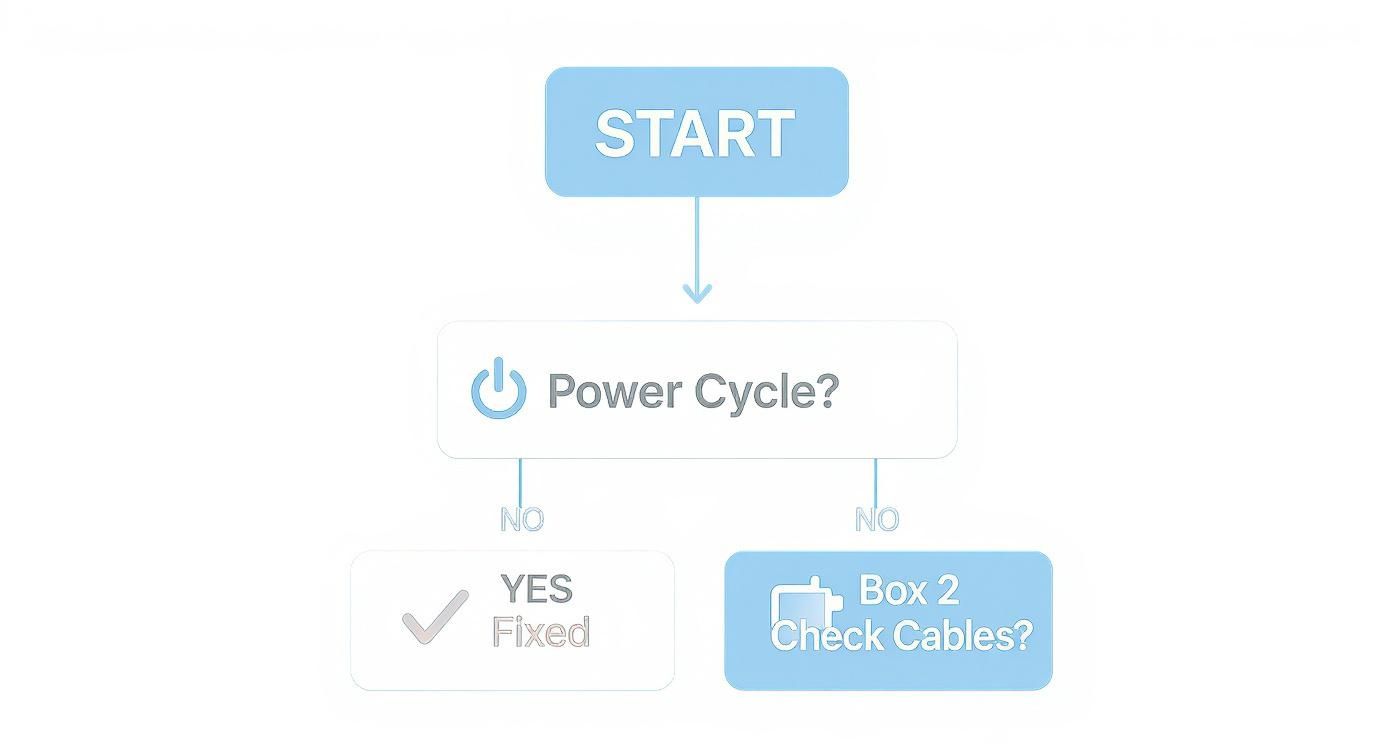
As you can see, power cycling the router and checking physical connections are the absolute fundamentals before you start diving into more complex diagnostics.
Unmasking Common Sources of Interference
Radio Frequency (RF) interference is one of the most common—and frustrating—reasons for an unstable wireless connection. Everyday gadgets in your home or office can emit powerful signals that clash with your WiFi, causing it to drop out without warning.
Keep an eye out for these usual suspects:
Household Appliances: Microwave ovens are notorious WiFi killers, especially on the 2.4GHz band. Cordless phones, baby monitors, and even some older Bluetooth devices can also throw a spanner in the works.
Neighbouring Networks: Living in a crowded block of flats or a busy business park? Your router is fighting for airtime with dozens of other networks. If too many are squashed onto the same WiFi channel, it creates a digital traffic jam that leads to dropouts.
Physical Obstructions: WiFi signals are not great at passing through dense materials. Think thick concrete walls, metal filing cabinets, fish tanks, and even large mirrors. These can all reflect or absorb the signal, creating dead zones where your connection becomes weak and unreliable.
I once worked with an office where the WiFi suddenly became unusable right after they installed a new smart security system. It turned out the main hub was constantly broadcasting on a congested 2.4GHz channel, creating just enough interference to knock everyone else offline.
Is Your Hardware or Software Out of Date?
Technology moves incredibly fast. The router that worked flawlessly a year ago might be struggling to keep up with today's demands. Outdated software on your router or your devices can often be the hidden cause of frequent disconnections.
Firmware is the operating system for your router. Manufacturers regularly release updates to fix bugs, patch security vulnerabilities, and improve overall performance. If your router is running on ancient firmware, it might have known stability issues that were fixed ages ago. Most modern routers can update automatically, but it never hurts to check the manufacturer’s website manually.
Likewise, the network drivers on your computer or phone are critical. A driver is the piece of software that lets the operating system talk to the WiFi hardware. An outdated or corrupted driver can easily cause your device to repeatedly fail to maintain a stable connection.
It's a frustrating reality for many. Connection issues are incredibly common, and you are certainly not alone in dealing with them. Finding the root cause is the key to a lasting solution.
In fact, a survey of over 4,300 UK adults found that roughly 85% experienced at least one form of connection issue in the past year. Of those, 22% suffered from frequent dropouts and 21% reported router problems.
Identifying the True Point of Failure
The final piece of the puzzle is working out whether the problem lies with your equipment, your environment, or your Internet Service Provider (ISP). If you’ve ruled out interference and updated all your software, it's time to narrow down the remaining possibilities.
Try this: connect a laptop directly to your router using an Ethernet cable. If the connection is rock solid while wired, the issue is almost certainly with your WiFi setup. But if the connection still drops even with a cable, the fault may lie with the router itself or the broadband service coming into your building.
A great next step is to learn how to test WiFi signal strength in your UK home (https://www.constructive-it.co.uk/post/how-to-test-wifi-signal-strength-in-your-uk-home) to gather more data. This methodical process of elimination helps you isolate the variable and pinpoint where the true fault lies.
Advanced Tweaks for a Rock-Solid Connection
When your wireless network keeps disconnecting after you’ve tried all the initial fixes, it’s a clear sign you need to look beyond the basics. The problem often lies hidden within your router's configuration settings. Delving into this admin panel might seem daunting, but a few strategic adjustments can dramatically improve stability and put an end to those frustrating dropouts for good.
These tweaks are all about taking manual control where your router's automatic settings might be failing, especially in a busy or crowded network environment.
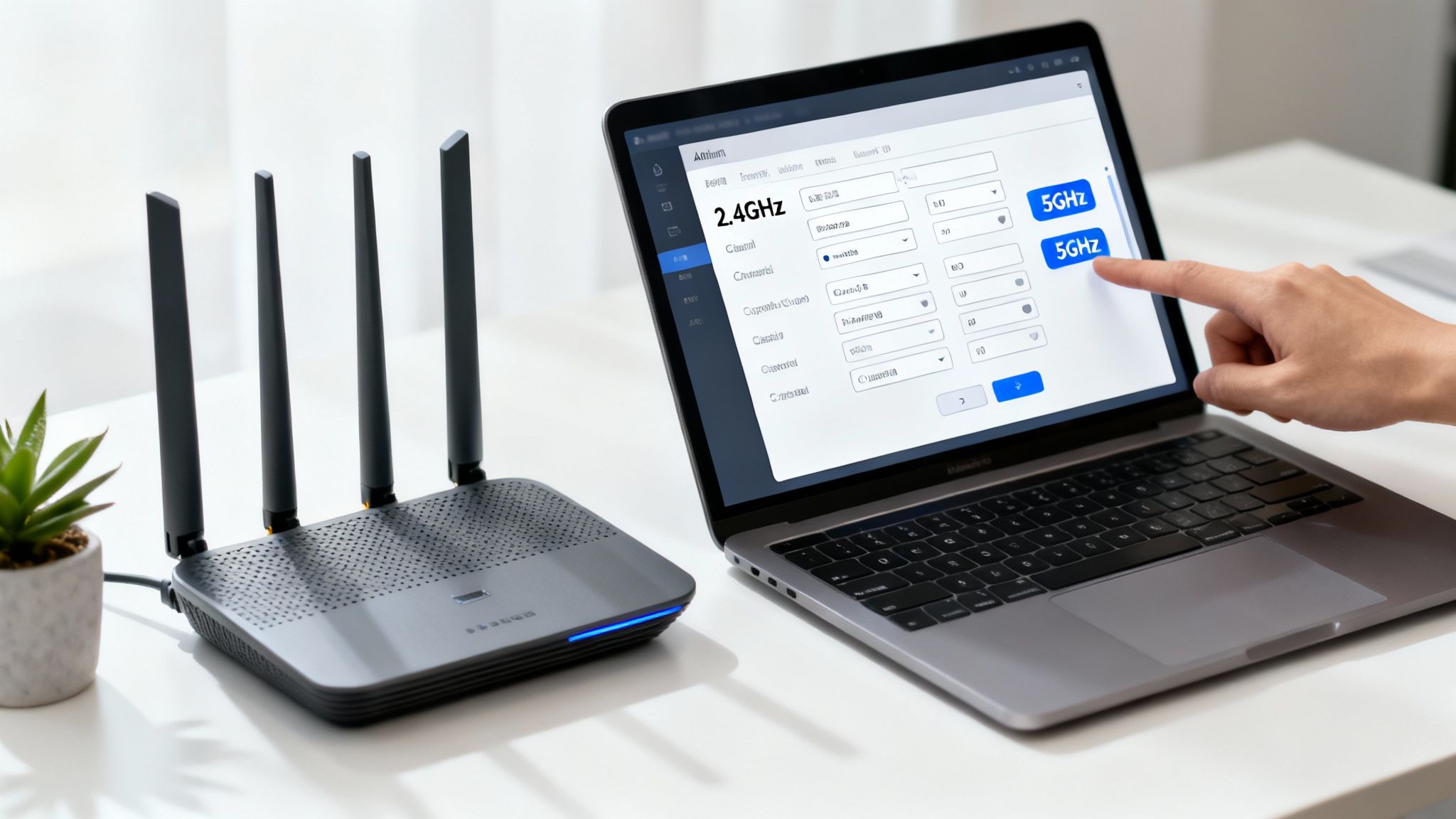
Taking Control of Your WiFi Channels
Think of WiFi channels like lanes on a motorway. If everyone is trying to use the same lane, you get a traffic jam where everything slows down or stops altogether. Most routers are set to automatically select a channel, but let's be honest, they don't always pick the least congested one, leading to interference from neighbouring networks.
Manually changing the channel forces your router onto a clearer, less crowded frequency. A quick and easy way to check this is by using a WiFi analyser app on your phone to see which channels are being used most heavily in your area.
For the 2.4GHz band, the best choices are typically channels 1, 6, or 11 as they are the only ones that don't overlap with each other.
For the 5GHz band, you have many more non-overlapping options, which makes it far easier to find a clear space.
If you're struggling with interference, this single change can often provide an immediate and noticeable improvement in your connection stability.
The Power of Splitting Your Network Bands
Most modern routers are "dual-band," meaning they broadcast on both the 2.4GHz and 5GHz frequencies. By default, many routers combine these into a single network name (SSID) and automatically assign devices to what they think is the best band. This feature, often called "band steering," can be a major cause of connection drops.
What happens is a device might connect to the faster 5GHz band, then drop and switch to the 2.4GHz band as you move further away, causing a momentary but infuriating disconnection. This constant switching can wreak havoc on video calls or large file transfers.
The solution is to log into your router's settings and give the 2.4GHz and 5GHz bands different names—for instance, "OfficeWiFi_2.4" and "OfficeWiFi_5". This stops the automatic switching and gives you full control.
By creating two distinct networks, you can make deliberate choices:
Connect static, high-priority devices (like work laptops and video conferencing units) to the faster, less congested 5GHz network.
Connect older or less critical devices (like printers or smart speakers) that only support 2.4GHz to that specific network.
This separation prevents conflicts and ensures your most important devices have the most stable connection possible. For a deeper dive into this, our guide on choosing the right 5GHz WiFi channel (https://www.constructive-it.co.uk/post/wifi-best-channel-5ghz-choosing-the-right-5ghz-wifi-channel) offers more detailed insights.
Firmware Updates and Quality of Service
Finally, two other powerful tools in your router's arsenal are firmware updates and Quality of Service (QoS) settings. Router firmware is its internal software, and manufacturers regularly release updates to fix bugs, patch security holes, and improve performance. An outdated firmware version could be the very reason your wireless network keeps disconnecting due to a known, but unfixed, software fault.
Quality of Service (QoS) is particularly useful in a business environment. It lets you tell your router which types of internet traffic are most important. For example, you can prioritise video conferencing (like Zoom or Teams) and VoIP calls over less critical activities like software updates or general web browsing.
When the network gets busy, QoS ensures that your real-time applications get the bandwidth they need, preventing stuttering, lag, and disconnections during those important meetings. It’s an essential setting for any business that relies on clear, uninterrupted communication.
How UK Broadband Infrastructure Affects Your WiFi
Sometimes, the real reason your wireless network keeps disconnecting has nothing to do with your router, your laptop, or anything else inside your building. The problem might be the connection coming in from the street. The UK's broadband infrastructure is a real patchwork of old and new, and the type of line running to your property can be the single biggest factor in your connection's stability.
Before you sink hours into troubleshooting your internal setup, it’s worth understanding these external factors. From creaking old copper wires to brand-new fibre optics, not all broadband is created equal. Knowing the difference helps set realistic expectations and shows when an upgrade is the only real long-term fix.
Understanding Your Connection Type
The journey your internet takes from the local exchange to your router plays a huge part in how reliable it is. In the UK, connections generally fall into one of three camps, each with its own pros and cons.
ADSL (Asymmetric Digital Subscriber Line): This is the old-school technology, delivering internet over the same copper telephone lines we’ve used for decades. Its performance drops off dramatically over distance, so the further you are from the exchange, the slower and more flaky your connection will be.
FTTC (Fibre to the Cabinet): A big step up from ADSL. FTTC uses a super-fast fibre optic cable to a green cabinet on your street. The catch? The final leg of the journey, from that cabinet to your building, still relies on the old copper phone line. This "last mile" of copper is often the weak link, prone to interference and signal degradation.
FTTP (Fibre to the Premises): Often called "full fibre," this is the gold standard. A fibre optic cable runs directly into your home or office, cutting out the unreliable copper section entirely. The result is a much faster, more resilient connection that is far less likely to suffer from the random dropouts that plague older technologies.
Put simply, the more copper in your connection, the higher the odds of intermittent disconnections. A proper fibre cable installation gives you a direct, modern link to the internet's backbone.
The Urban-Rural Digital Divide
The type of connection you can get often comes down to your postcode. While superfast broadband (defined as 30 Mbps or more) is technically available to 98% of the UK, the quality and technology behind that figure vary wildly. Gigabit-capable broadband now reaches about 80% of the population, but there's a huge gap between city centres and more remote areas.
This disparity has a massive impact. Recent broadband stats show that 22 million UK residents have suffered broadband outages lasting over three hours, with 25% facing disruptions for nearly a full week. The economic cost of this unreliability is a staggering £11 billion a year.
For businesses, it’s a constant headache. 71% of leaders report that slow or unreliable broadband hurts their operations. This is made even worse in rural spots where average download speeds are 26% slower than in urban areas. You can dig into more UK broadband statistics and their impact here.
An unstable external connection is a frustrating reality for many. If you've tried everything to optimise your internal network and still face dropouts, the issue is almost certainly the line itself. In these cases, no amount of router tweaking will fix the fundamental problem.
The only permanent solution is to upgrade the physical infrastructure. For businesses especially, investing in a certified, tested network delivery makes all the difference. To explore your options, have a look at our guide on how to select and install the right fibre cable. For an office, this not only guarantees stability but also brings benefits like professional cable management and a 25 year equipment warranty, giving you long-term peace of mind.
When to Call in a Professional for Your Wireless Network Issues
You’ve reset, rebooted, reconfigured, and probably even moved every piece of furniture in the room. Yet, your wireless network keeps disconnecting, killing productivity and causing no end of frustration. This is that classic tipping point where continuing to troubleshoot yourself starts costing more in lost time than just calling in an expert.
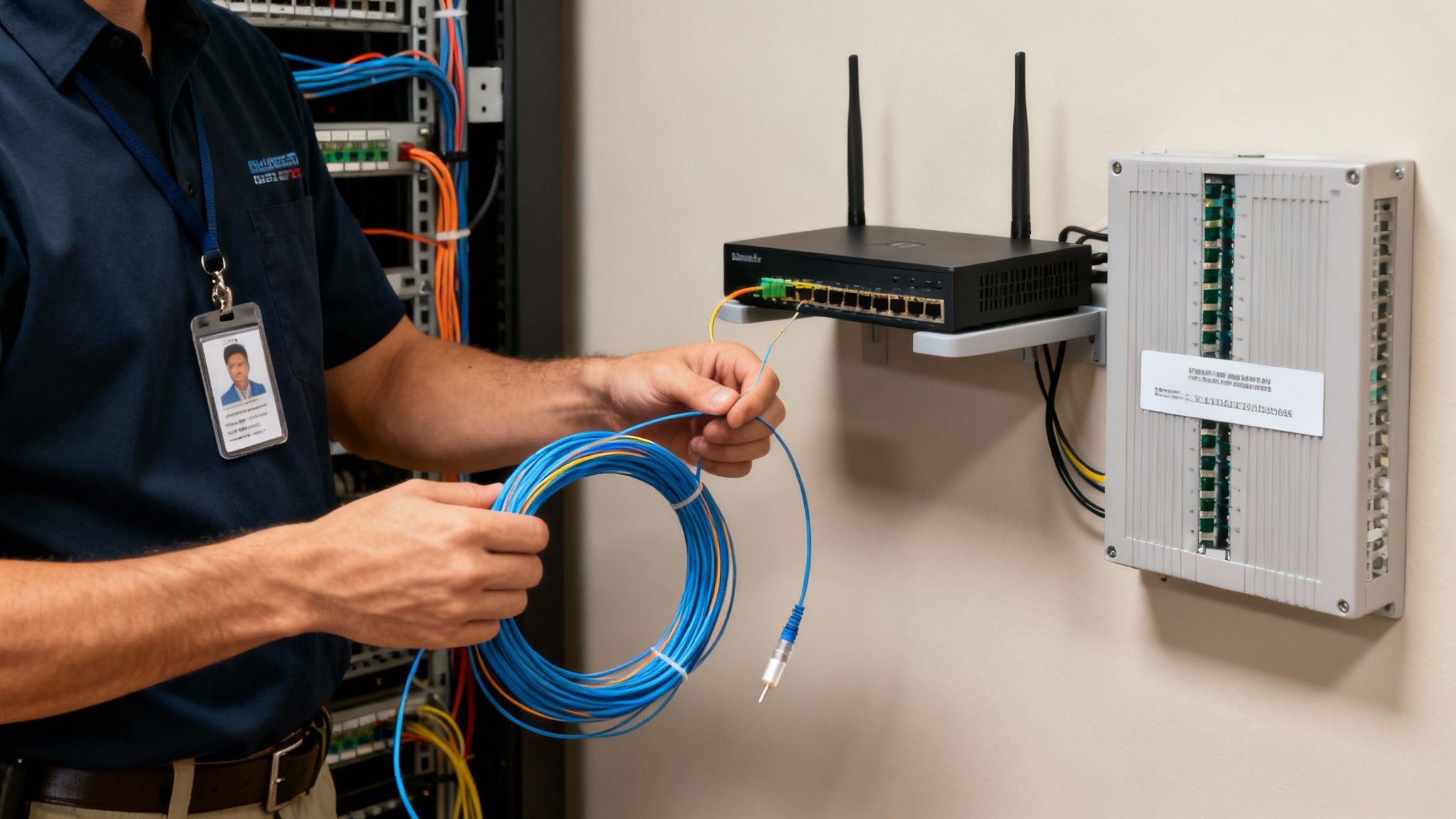
Bringing in a professional isn't admitting defeat; it's a strategic move. When the problem is complex—think faulty structured cabling hidden in the walls or designing a robust network for a high-density office—you need specialised knowledge and tools to find a permanent fix.
The Value of an Accredited Network Partner
When you call a specialist, you're getting more than just an extra pair of hands. You’re tapping into years of experience diagnosing problems that simply aren't visible to the naked eye. An accredited partner, like an Excel network accredited partner, brings a level of precision that off-the-shelf solutions can't hope to match.
Their work is built on industry best practices, making sure every component is installed and configured to exacting standards. For any business where network uptime is directly linked to revenue, this methodical approach is essential.
An expert can rapidly determine if the fault lies with your hardware, the building's infrastructure, or even external interference. They use professional-grade tools to run assessments like Wi-Fi site surveys, which map out signal strength, identify dead zones, and pinpoint interference sources with scientific accuracy. This data-driven diagnosis takes all the guesswork out of the equation.
Upgrading to a Flawless Foundation
Often, persistent dropouts are just a symptom of an outdated or poorly installed physical network. A professional can assess whether your existing cabling is still fit for purpose or if it's creating a bottleneck. This is where services like a professional fibre cable installation can be a complete game-changer.
Upgrading to fibre gives you a robust, high-speed foundation that eliminates many of the issues tied to older copper wiring. A specialist ensures this installation is a certified, tested network delivery, meaning every connection is verified to perform at its peak from day one.
For businesses, the value goes far beyond just a stable connection. A professional installation comes with the security of a 25 year equipment warranty, offering long-term peace of mind and protecting your investment. This guarantee is a hallmark of quality workmanship.
Beyond Connectivity: Office Relocation and Cable Management
A network specialist's role often extends beyond fixing a single issue. For businesses undergoing major changes, like an office relocation, their expertise is invaluable. They can manage the entire process of moving your critical network infrastructure, ensuring everything is set up correctly and performing optimally in the new space.
This service includes comprehensive equipment testing after the move, guaranteeing a smooth transition with minimal downtime. A key part of this is meticulous cable management. A well-organised network isn't just about looks; it simplifies future troubleshooting, improves airflow around sensitive equipment, and helps create a safer, tidy desk environment for everyone.
When you’ve tried everything and the connection still won't stick, professional help is the next logical step. You can learn more about the benefits by exploring guides on IT managed services, which often cover the strategic advantages of bringing in specialised support when you need it most.
Ultimately, if your wireless network keeps disconnecting and you've run out of options, it's time to call in the professionals. They deliver not just a quick fix, but a reliable, high-performance network foundation your business can depend on for years to come.
Still Puzzled by Unstable WiFi? Let's Tackle Some Common Questions
Even after you've gone through all the troubleshooting steps, it's completely normal to have a few questions still buzzing around. When your wireless network keeps disconnecting, it's a shared frustration. In fact, a recent UK survey found that a staggering 53% of adults face broadband disruptions at least twice a month, and on average, people waste 50 hours a year just trying to fix their own internet problems.
From frozen work calls to interrupted workflows, we all know how much a flaky connection can throw a spanner in the works. You can read more about the impact of broadband disruptions in the UK. Let's clear up some of the most common queries we hear.
Could a Single Faulty Device Really Take Down My Whole Network?
Yes, absolutely. It's a classic case of one bad apple spoiling the bunch. A single device with a dodgy network card, an ancient driver, or a bad configuration can start spamming your network with junk data packets.
This digital "noise" can easily overwhelm your router, causing it to slow to a crawl or even reboot itself, knocking everyone else offline in the process.
We've seen it before: an old printer that only supports the 2.4GHz band might get stuck in a loop, constantly trying (and failing) to connect to a modern router that's trying to push it onto the 5GHz band. This endless connect-disconnect cycle creates instability for every other device. A good tactic is to isolate devices one by one to see if you can pinpoint the culprit.
Will Sticking a "WiFi Booster" in the Wall Fix My Connection Drops?
It’s a tempting thought, but WiFi boosters (or extenders) are rarely the magic bullet for connection dropouts. While they're great at stretching your signal's range to cover a dead spot in the far corner of the office, they often do it by sacrificing speed and stability.
Here’s a quick breakdown of your options:
Solution | How It Works | Best For | Potential Drawback |
|---|---|---|---|
WiFi Extender | Catches the existing wireless signal and simply rebroadcasts it. | Extending coverage to one or two specific dead zones. | Can literally halve your bandwidth and add noticeable lag. |
Mesh WiFi System | Uses multiple nodes that talk to each other to create one big, seamless network. | Giving you consistent coverage across a large or complex space. | Higher upfront cost and might be overkill for a small office. |
Fibre Cabling | Provides a direct, hardwired connection from your router to a specific point. | Guaranteeing maximum speed and rock-solid stability for critical devices. | Requires professional physical installation. |
A booster might help if the signal is just weak, but it's useless if the signal is unstable to begin with. If your wireless network keeps disconnecting even when you're standing right next to the router, a booster is just going to amplify the problem.
Our Pro Tip: Before you splash out on extenders, make sure your core network is solid. If interference or router issues are causing the drops, a booster won't help. A professional site survey will get to the root cause and recommend the right solution, whether that's a proper mesh system or strategic fibre cable installation.
How Do I Actually Future-Proof My Office Network?
Future-proofing isn't about buying the most expensive, top-of-the-line gear today. It's about building a scalable and reliable foundation that can grow with you. And that always starts with the physical infrastructure.
Get a professional fibre cable installation sorted first. A structured cabling system is the backbone of any serious network, giving you a reliable foundation that can handle increasing data demands for years. If you work with an Excel network accredited partner, you know the installation will be certified and backed by a 25 year equipment warranty. Now that's long-term peace of mind.
With that backbone in place, you can easily upgrade individual components like wireless access points as technology moves on, without having to rip everything out and start again. It’s the smart way to prepare for growth, whether you're planning an office relocation with full equipment testing or just need a network that you can finally rely on.
When the DIY approach just isn't cutting it, Constructive-IT can deliver a certified, professionally tested network that removes the guesswork and guarantees long-term stability. Explore our professional network infrastructure services today.