
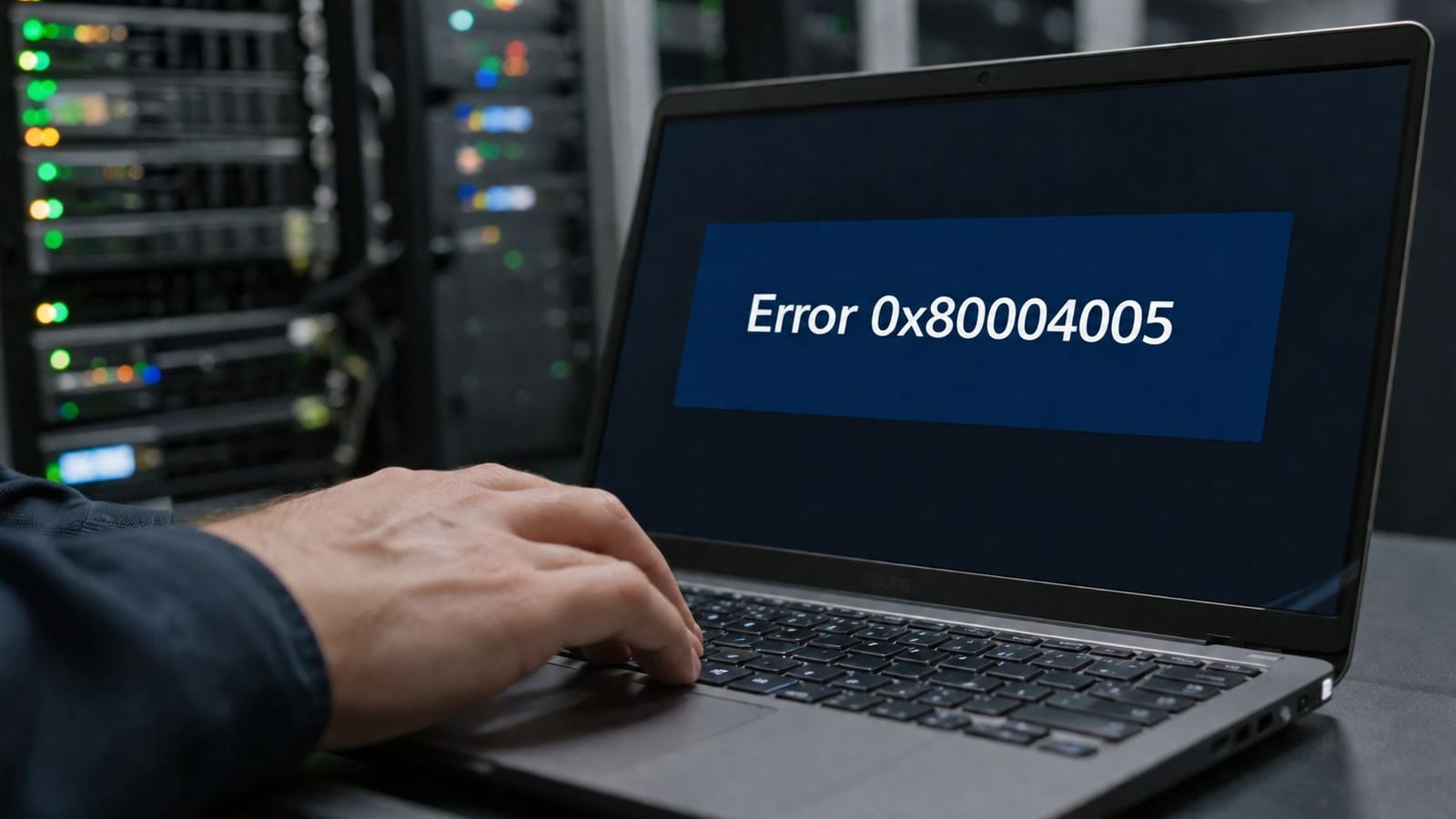
Most guides rush straight to SFC or DISM when error code 0x80004005 appears. That's usually the wrong first move. Microsoft treats 0x80004005 as an “unspecified error”, which means the code is a signal to look at the surrounding context, not a diagnosis by itself, and Microsoft says the cause must be found “in the logs around the time of the failure” in its UK-localised Answers guidance. In practice, that makes this a decision problem, not a repair problem.
That matters in real infrastructure work. The same code can show up during Windows Update, shared-folder access, deployment tasks, archive extraction, or virtual machine operations, and the fastest fix is often to identify the subsystem first, then change the policy, credential, or permission that failed. Treating it as a single Windows corruption issue wastes time and can hide the underlying fault.
Why Error Code 0x80004005 Is Not a Single Problem
The biggest mistake with error code 0x80004005 is assuming it means one thing. It doesn't. Microsoft's definition in its UK Answers content is blunt, “unspecified error”, which is exactly why the code keeps appearing across unrelated workflows, including shared-folder access, Windows Update, and deployment tasks. The code is a marker that something failed, not a label for the failing component. Microsoft's UK Answers guidance on 0x80004005
What the code indicates
If the same code can surface in very different places, the first question is always which subsystem was active when it happened. That could be permissions, corrupted files, networking, update components, or a virtualisation layer. Microsoft's own guidance reinforces the point that engineers need the logs around the failure, because the code itself doesn't isolate a root cause.
Practical rule: if the error is only happening in one workflow, fix that workflow first. Do not start with broad repair tools unless the failure is system-wide.
Why blind repair work backfires
Running SFC or DISM before you know the failing path is a guess, not a diagnosis. On a share-access problem, system-file repair often changes nothing because the issue sits in SMB policy, credentials, or share permissions. On a Windows Update failure, the right target is the update stack, not your archive tool or file system.
A better mental model is simple. 0x80004005 is a generic alert, then the surrounding signs tell you whether you're looking at permissions, network policy, update components, or virtualisation state. That framing stops teams from treating every instance as a broken Windows install. It also helps UK IT teams move faster during migrations and rollouts, where one unclear failure can mask a much larger permission or authentication issue.
Identifying Which Subsystem Is Failing
A useful triage process starts with where the error appears, not how loud it looks. If a user gets 0x80004005 only while opening a network share, the likely issue is in SMB policy, cached credentials, or share permissions. If it appears during Windows Update, the path is different. If it shows up while extracting an archive or launching a VM, you're in another branch entirely. Constructive-IT's related Windows troubleshooting note is a reminder that device-level symptoms often need targeted analysis, not generic repair loops.
Common contexts and the likely fault line
Use the symptom to narrow the subsystem before touching anything else.
| Context | What usually points there | What to check first |
|---|---|---|
| Windows Update | Error appears during install, rollback, or feature update | Update logs and update components |
| Network shares / SMB | Only one folder or one user is affected | Network profile, guest logon policy, credentials |
| File extraction | Archive opens badly or only one file fails | Ownership, path length, security software |
| Virtual machines | Guest operations, snapshots, or VM tools fail | Host permissions, virtual switch state, guest integration |
| Outlook / Exchange | Mail app opens oddly or one mailbox action fails | Profile state, OST behaviour, connector auth |
| Azure VMs | Portal or extension actions fail | Activity logs, NSG rules, provisioning state |
If the failure follows a single share, a single mailbox, or a single VM, the cause is usually local to that subsystem. If it follows every user and every machine, widen the search to policy or infrastructure.
A decision tree that saves hours
Start with the narrowest symptom. A share-only error points you towards credentials and SMB policy, not file corruption. A Windows Update failure points towards update services and servicing components, not archive tools. A VM guest-operation failure points to the host, the guest tools, or a permissions boundary between them.
That distinction matters because the same code can hide different failures. Independent network-focused guidance notes that share cases often involve guest-access policy, mismatched credentials, or the network profile, while Microsoft support also highlights ownership and permission correction when copying files. That's exactly why a one-size-fits-all fix list performs badly in real environments. Network-share troubleshooting notes for 0x80004005
The fastest question to ask
What changed just before the error? A policy refresh, a mapped drive, an update, a new mailbox profile, a hypervisor change, or a cloud extension rollout will usually point you at the right branch immediately. If nothing changed, look at the logs before you assume the OS is damaged. That is still the shortest path to the actual cause.
Step-by-Step Fixes for the Most Common Pathways
Network shares and SMB access
Start with the network layer, because that's where a lot of 0x80004005 share failures live. Confirm the device is on a Private network profile, because Windows can apply stricter sharing behaviour on non-private networks. Then check whether insecure guest logons or SMBv1 are being blocked, and validate cached credentials before you touch repair tools.
A practical sequence is:
- Check the profile
- Open Settings > Network & Internet > Properties and confirm the connection is Private.
- Review guest logon policy
- In gpedit.msc, check the policy for insecure guest access under the SMB client settings.
- Clear stale credentials
- Open Credential Manager and remove old entries for the file server or share.
- Test the mapping
- Use
net use * /deleteto clear drive mappings, then remap with the right account.
- Use
- Verify permissions
- On the share and the folder, confirm the intended user or group has the right access.
If the issue only disappears after changing guest access or credentials, that's a policy fix, not a machine repair. If it doesn't work, roll back the policy change and move on. Do not leave insecure guest settings enabled unless you've validated the security impact in your own environment.
Windows Update failures
Windows Update errors need a different route. Run the Windows Update Troubleshooter first, then clear the SoftwareDistribution folder if the problem persists. After that, re-register update components only if the logs point to servicing failure. When you need DISM, use the correct source parameters rather than hoping the default repair path finds what it needs.
A clean sequence looks like this:
- Run the troubleshooter
- Go to Settings > System > Troubleshoot > Other troubleshooters and run the update troubleshooter.
- Reset update components
- Stop update services, clear the SoftwareDistribution contents, then start the services again.
- Re-register update DLLs
- Only do this when update logs point at component registration problems.
- Run DISM with source
- Use a known-good source if the component store is damaged.
If none of that changes the error, roll back any service changes and inspect the update logs before trying a broader repair. The wrong source path or a half-complete reset can create a second problem that hides the first.
File extraction and archive errors
Archive failures often look like corruption but aren't. First check whether the file is owned by the expected account, then look at path length and the extraction tool itself. 7-Zip is often a better test than the built-in shell handler because it gives you a cleaner read on whether the archive is broken.
Security software can also interfere during extraction. If a file only fails when one endpoint protection product is active, test with a controlled exception rather than assuming the archive is damaged. Constructive-IT's volume shadow copy note is useful here because extraction and backup-related access problems often live close to each other in the storage stack.
Rollback note: if you disable a security product for testing, switch it back on immediately after the test. The point is to isolate the cause, not to create a new exposure.
A side note for teams dealing with connectivity tools: when a VPN or tunnel component breaks, the symptom can look similar to archive or share failures because the access path fails before the application gets useful feedback. The TAP-Windows V9 troubleshooting for China guide is a good reminder that adapter or tunnel issues often need their own branch, not generic Windows repair.
Fixes for Virtual Machines, Outlook, and Azure Environments
Hyper-V and VirtualBox
Virtual machine errors need host awareness. In Hyper-V and VirtualBox, 0x80004005 often comes down to a bad virtual switch, broken file permission inheritance on the VM files, or host antivirus interference with virtual disk access. Check the host event logs first, then validate whether the VM's storage path still inherits the right permissions.
For Hyper-V, review the Hyper-V-VMMS and Hyper-V-Worker event channels in Event Viewer. For VirtualBox, check the VM folder and the .vbox file permissions, then confirm the host security stack isn't locking the disk image during start-up. If you change the virtual switch or storage permissions, document the original state so you can roll back if the guest still won't start.
Outlook and Exchange
Outlook failures are usually profile or mailbox-path problems, not generic Windows corruption. If 0x80004005 appears in Outlook, check whether the OST is unhealthy, then test with a new profile before you touch the Office installation. If the failure follows send and receive actions, the issue can sit in connector authentication rather than the client.
Use the Outlook diagnostics path you already trust in your environment, and look at the mailbox behaviour rather than the desktop shell. This Outlook receiving-mail troubleshooting note is a useful companion when the symptom is delivery-related rather than launch-related. If a new profile fixes the issue, the old profile is the likely fault line. If it doesn't, move back to connector or authentication checks.
Azure VMs
Azure adds another layer of abstraction. 0x80004005 in Azure VM work usually means an issue in NSG rules, extension provisioning, or a disk encryption state mismatch. Start with the Activity log and the VM's Extensions + applications blade, then check whether the portal action failed because access was blocked upstream of the guest.
If a VM extension won't provision, review the extension status and the related activity entry before re-running the deployment. If a disk encryption mismatch is involved, the VM may be healthy enough to boot but still fail attached actions. Treat the Azure control plane and the guest OS as separate troubleshooting zones, because the error code alone won't tell you which one broke.
Logs to Capture and Preventative Measures
The fastest way to stop treating 0x80004005 like a generic corruption alert is to capture the right evidence from the subsystem that failed. Start in Event Viewer with System and Application, then move to Microsoft-Windows-SMBClient for share failures and Microsoft-Windows-WindowsUpdateClient for update failures. If the problem sits in SMB, collect the client-side trace and look for authentication failures, policy rejection, or name-resolution issues before you assume the OS itself is broken. The code is only a marker, so the log trail matters more than the number on screen.
What to capture before escalation
- Event Viewer entries with the exact timestamp of the failure.
- The failing workflow, such as a share path, update action, or VM operation.
- The user context, because a working admin account and a failing standard user account point to different causes.
- The change history, including policy updates, new credentials, and recent rollouts.
- The surrounding events, not just the red error line. The entry immediately before the failure often shows the policy check, transport break, or authentication step that failed.
Preventive controls that reduce repeat failures
For SMB-heavy environments, set policy deliberately so guest-access blocking, signing requirements, or permission drift does not look like a random workstation fault. For updates, watch the servicing path and the related client logs instead of waiting for users to report a broken laptop. For shared resources, review permissions on a schedule so ownership changes and inheritance drift do not surface later as unexplained application errors.
Access, power, and data need to be designed together. The common triggers called out in technical guidance include permissions and ownership, network configuration and SMB guest-access restrictions, and device or service connectivity. In lightly supervised buildings, that means access control, network transport, and the powered endpoints behind them have to be treated as one operating system problem, not separate checkboxes. ManageEngine's 0x80004005 technical note reflects that cross-layer reality clearly.
When the logs point beyond software
If the same failure appears across multiple devices after a switch change, a cabling change, or a firewall rule update, stop treating it as an endpoint issue. That points to infrastructure. Logs will not repair a bad port, a VLAN boundary problem, or a security rule that blocks the service before it starts.
When to Escalate and How to Get the Right Support
Escalate when the same 0x80004005 survives the subsystem-specific fixes, when it appears on several devices at once, or when it lines up with a network or infrastructure change. At that point, the issue is bigger than a desktop repair. It may be a policy problem, a DNS or routing boundary, or a physical layer fault that no amount of client-side troubleshooting will solve.
Gather the evidence before you open a Microsoft case. That means the exact error time, the affected subsystem, the relevant event log entries, and the steps already tried. If the pattern points to cabling, switch configuration, server-room layout, or office relocation work, bring in infrastructure engineers who can assess the physical and network layers together.
For UK businesses planning fit-outs or moves, recurring unspecified errors are often a sign that the environment was not designed for stable access, power, and data delivery as one system. That's where structured cabling, switch design, and server-room planning matter just as much as workstation builds. If the failure is everywhere, don't keep polishing the symptom on one machine.
If you're dealing with repeated error code 0x80004005 across shares, updates, VMs, or mail workflows, Constructive-IT can help you separate the software symptom from the infrastructure cause. Visit Constructive-IT to discuss office relocations, network fixes, and fit-out support that keeps access, power, and data working together.