
The call usually comes in halfway through a rollout. Desks are being signed off, docks are going in, and a batch of PCs suddenly starts showing Unknown USB Device (Device Descriptor Request Failed) in Device Manager. At that point, it is no longer a minor desktop fault. It is a deployment issue that can hold up user logons, peripheral setup, room commissioning, and handover for an entire floor.
In office fit-outs, relocations, and NHS-style estates, USB faults rarely stay isolated for long. A bad cable batch, unstable dock firmware, weak bus power, or a motherboard issue can surface across dozens of endpoints before anyone realises the pattern is shared. That changes the job. The goal is not just to get one machine working again. The goal is to identify whether you are dealing with a Windows configuration problem, a platform-wide firmware issue, or a repeatable hardware and power integrity fault affecting the estate.
I see one mistake repeatedly. Teams jump straight to drivers and stay there too long. Drivers do cause some cases, but this error often sits lower than that. A disciplined triage process saves time. Start with the quick Windows checks, then validate BIOS and chipset state, then move to isolation testing on ports, cables, docks, and known-good peripherals. If the same failure follows the hardware, or appears in clusters on the same model, stop treating it as a software cleanup job and start tracking it as a hardware support issue.
Understanding the Descriptor Request Failed Error
A rollout can stall on this error before the user even reaches their desktop. Windows throws Unknown USB Device (Device Descriptor Request Failed) when it cannot read the basic identity information a USB device presents during enumeration. That exchange happens right at the start, before the device is properly loaded and before any normal driver stack can do much to help.
That detail matters in estate work. If ten machines show the same warning on the same day, the problem may sit in the image, BIOS state, dock firmware, cabling batch, front-panel wiring, or bus power quality. Treating it as a simple driver fault too early can waste hours across a floor.
What the error actually tells you
The message is narrow, and that is useful. Windows is not confirming that a specific driver is broken. It is reporting that the first USB handshake did not complete cleanly enough to identify the device.
In practice, that points you toward a short list of fault domains:
| Layer | What can fail | What you usually see |
|---|---|---|
| Physical path | damaged port, poor cable, loose internal header, bad dock lead | device works on another port or another cable |
| Power integrity | underpowered hub, unstable dock PSU, selective suspend side effects | device drops in and out, often after sleep or during first boot |
| Platform firmware | BIOS bugs, chipset initialisation problems, USB controller state issues | several ports or several identical PCs show the same pattern |
| Peripheral hardware | failing controller inside the device | the fault follows the same device to a known-good machine |
That is why a disciplined sequence matters. On a single laptop, you can afford a bit of trial and error. On an office fit-out or NHS deployment, you need to decide quickly whether the issue belongs to desktop support, build engineering, or hardware warranty.
What this looks like across an estate
The pattern is usually more informative than the individual ticket. A keyboard that fails once is a nuisance. Twenty desks with intermittent dock USB, failed room peripherals, or scanners that only enumerate on rear ports points to a shared cause.
Common deployment symptoms include:
- Keyboards and mice missing at first sign-in
- Docks passing video but not USB accessories
- Conference-room devices appearing inconsistently
- Clinical, print, or scanning peripherals failing on one PC model but not another
If you need to separate a Windows issue from a lower-level fault, testing in Safe Mode for hardware isolation checks can help because it strips back a lot of third-party interference. It will not fix a bad cable or a weak dock power supply, but it can tell you whether the problem survives a minimal software state.
Why teams lose time on this fault
The usual mistake is repeating the same software reset on every affected machine without proving where the failure sits. Reinstalling USB controllers can clear a bad controller state. It does nothing for a damaged cable loom or a dock model that is unstable under load.
For field teams, the practical question is simple. Does the failure stay with the PC, the port group, the dock, the cable set, or the peripheral? Once you can answer that, the next action becomes obvious.
For general troubleshooting habits outside USB, this guide on how to fix common computer problems is a useful reference. For this specific error, stay disciplined. Start by identifying whether the fault is local, model-specific, or batch-wide. That prevents a hardware problem from being mislabelled as a Windows cleanup job.
Initial Software Fixes in Windows Device Manager
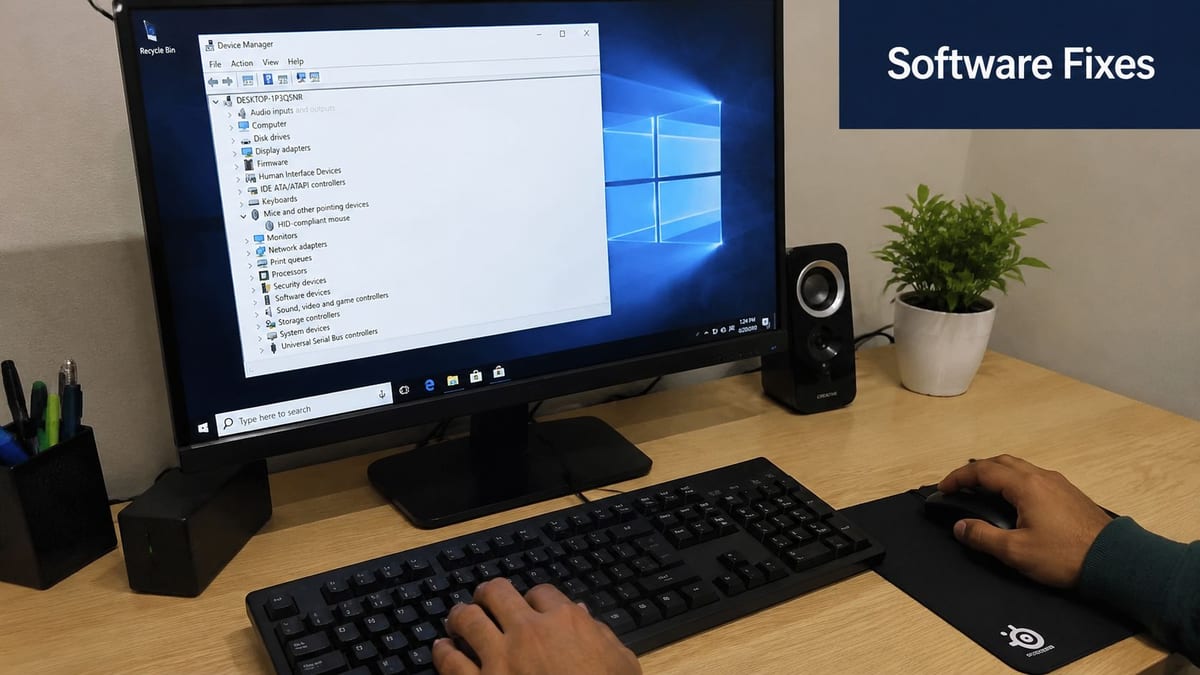
Start with Windows, but do it in the right order. The most reliable software path is to remove USB power-saving interference first, then refresh the USB controller stack. Guidance from Microsoft community responses and technical walkthroughs recommends turning off Fast Startup, disabling USB selective suspend, and clearing Allow the computer to turn off this device to save power on each USB Root Hub before updating the controllers one by one, as described in this technical walkthrough of descriptor-request remediation steps.
The first Windows changes worth making
For isolated failures on an otherwise healthy machine, I'd work through this order:
Turn off Fast Startup Fast Startup can preserve a problematic hardware state between shutdowns. A clean boot gives the USB stack a proper reinitialisation.
Disable USB selective suspend This setting can interfere with the reset-and-descriptor exchange during enumeration, especially on systems already showing flaky peripheral behaviour.
Edit power management on every USB Root Hub In Device Manager, open each Root Hub entry and clear the setting that lets Windows turn it off to save power. Don't stop at the first one you see. Incomplete coverage is a common reason a “fix” doesn't stick.
Refresh the full USB controller set Update or reinstall every USB controller and Root Hub entry, not just the unknown device entry.
What works better than repeated reinstalls
A lot of desktop support scripts jump straight to “uninstall the unknown device and scan for hardware changes”. That can help, but it's often too narrow. If the controller stack or hub policy is the underlying issue, reinstalling one problem entry doesn't correct the path underneath it.
A more useful sequence is:
- Power policy first
- Controller and Root Hub refresh second
- Reboot and retest
- Safe Mode check if behaviour is inconsistent
If you need a broader Windows troubleshooting reference point for junior staff, this guide on how to fix common computer problems is a decent companion read because it helps frame when to keep troubleshooting locally and when to stop.
For stubborn cases, it's also worth testing whether the machine behaves differently in Windows Safe Mode boot troubleshooting. If the device enumerates there, something loaded in the normal boot path is interfering with USB initialisation.
Device Manager steps that are actually worth doing
Use Device Manager with intent:
- Expand Universal Serial Bus controllers: inspect all Root Hubs, host controllers, and any visible warning icons
- Check power settings per hub: every Root Hub needs reviewing individually
- Remove stale entries carefully: if you uninstall USB items, do it methodically so you know what changed
- Reboot before judging the result: USB stack repairs often need a full restart, not just a rescan
A quick visual walkthrough can help if you're handing this off to another technician on site:
Practical rule: If software changes don't improve the symptom quickly, stop piling on more Windows tweaks. Move to firmware or hardware isolation before you lose half a day on a dead-end machine.
Updating BIOS and Chipset Drivers
When the Windows-level fixes don't hold, the next suspect is the platform itself. USB doesn't live in isolation. The controller behaviour you see in Device Manager depends on motherboard firmware, chipset drivers, and the vendor's implementation of power management.
That's why a normal Windows Update isn't enough here. You need the official BIOS or UEFI update and the correct chipset package for the exact motherboard or system model.
What to verify before you update
The common mistakes are avoidable:
- Wrong model identification: don't assume the board revision from memory
- Using generic driver tools: vendor packages are safer for chipset and controller components
- Skipping release notes: some BIOS updates specifically address USB compatibility or stability
- Updating one layer only: BIOS without chipset, or chipset without BIOS, leaves gaps
If you need a quick way to identify platform details before pulling firmware, this note on checking BIOS serial information with WMIC is useful for asset validation and matching the right support files.
A sensible estate-level process
For a business rollout, treat BIOS and chipset updates as a controlled change, not an improvisation at the desk. Build a tested package for each hardware model in the estate, validate it on pilot systems, then roll it through the deployment workflow.
That discipline overlaps with broader endpoint maintenance. If your desktop standards need a reset, it helps to understand patch management strategies so firmware, drivers, and OS changes aren't handled as separate, untracked events.
A USB fault that survives Windows power-policy changes but disappears after a BIOS and chipset refresh wasn't really a “USB device problem”. It was a platform stability problem that happened to surface at the USB layer.
When firmware points to a deeper issue
If you update BIOS and chipset drivers correctly and the same machine still fails across multiple peripherals, don't keep circling firmware forever. At that point the value of more software work drops sharply.
That's especially true on desktops with add-in adapters, front-panel USB-C, or bundled dock-heavy workstations. Those systems can expose marginal power or signal behaviour that no driver package can fix.
Hardware Fault Finding and Isolation
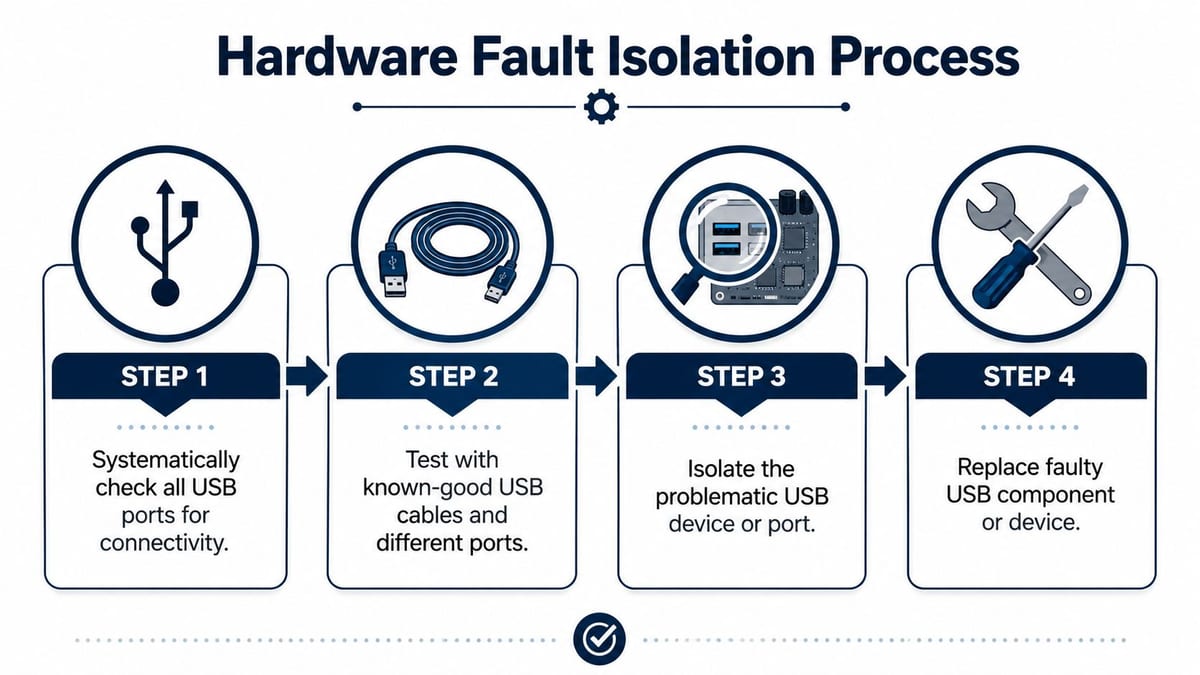
Good field engineering saves time. You're no longer trying random remedies. You're answering one question: does the fault follow the device, or stay with the host?
The fastest triage method is exactly that. Technical guidance aligned with Microsoft support recommends testing the device in another port, preferably a rear motherboard port, and then on another PC. If the error follows the device, the peripheral is likely faulty. If it stays with the host, the machine is the stronger suspect, as summarised in this USB descriptor fault isolation guidance.
The physical checks that answer the question fast
Run these in order. Don't mix them up.
Move the device to a rear motherboard port Front-panel ports add extra cabling and header connections. Rear ports remove that variable.
Swap the cable If the peripheral uses a detachable cable, replace it with a known-good equivalent. A bad cable can still pass enough power to mislead you while failing data integrity.
Test on a second known-good PC This is the cleanest divider in the whole process. If the peripheral fails there too, stop blaming the original machine.
Test a known-good USB device on the suspect PC Use something simple and trusted. A basic keyboard or mouse is often better than another dock or adapter chain.
Front ports, adapters, and hubs cause more trouble than people admit
Public advice often stops at restart, uninstall, and update. That misses a whole class of deployment faults caused by the path between the motherboard and the device. Community reports on MSI's forum describe descriptor failures linked to motherboard-to-case USB connections, older card readers, USB-C adapters, and BIOS or overclock-related instability, with one user reporting the issue disappearing after disabling EXPO, as discussed in this MSI community thread on hardware and signal-stability causes.
That matches what turns up on live projects. The issue isn't always the endpoint. It can be:
- Front-panel USB header runs that are poorly seated or marginal
- Passive adapters that work fine for power but not for stable enumeration
- Unpowered hubs feeding too many accessories from one path
- Older peripherals that behave badly on newer chipsets or mixed USB modes
- Aggressive BIOS settings that make signal timing less forgiving
A simple interpretation matrix
| Test result | Most likely direction |
|---|---|
| Device fails on multiple PCs | peripheral or cable |
| Multiple devices fail on one PC | host controller, BIOS, board, or power path |
| Works on rear port but not front port | case port, header, or front-panel wiring |
| Works directly, fails through hub or adapter | hub power or adapter integrity |
If the machine is also showing wider instability, don't analyse the USB fault in isolation. Reboots, lockups, or POST oddities can point to a broader hardware issue. This article on resolving blue screen errors is relevant because it frames the same decision IT managers often face: when a local fault is really a deeper platform problem.
If your suspect machine is also dropping into restart loops during testing, that shifts the diagnosis again. It's worth checking against broader PC restarting fault symptoms and causes before you keep swapping USB parts around a machine that may be unstable at board level.
If rear ports are solid and front ports are not, you haven't fixed anything by reinstalling drivers. You've simply worked around a physical defect.
Preventing USB Issues in Large Scale Deployments
Reactive troubleshooting is expensive because it happens when desks are occupied and the clock is running. The better approach is to design USB reliability into the rollout before users arrive.
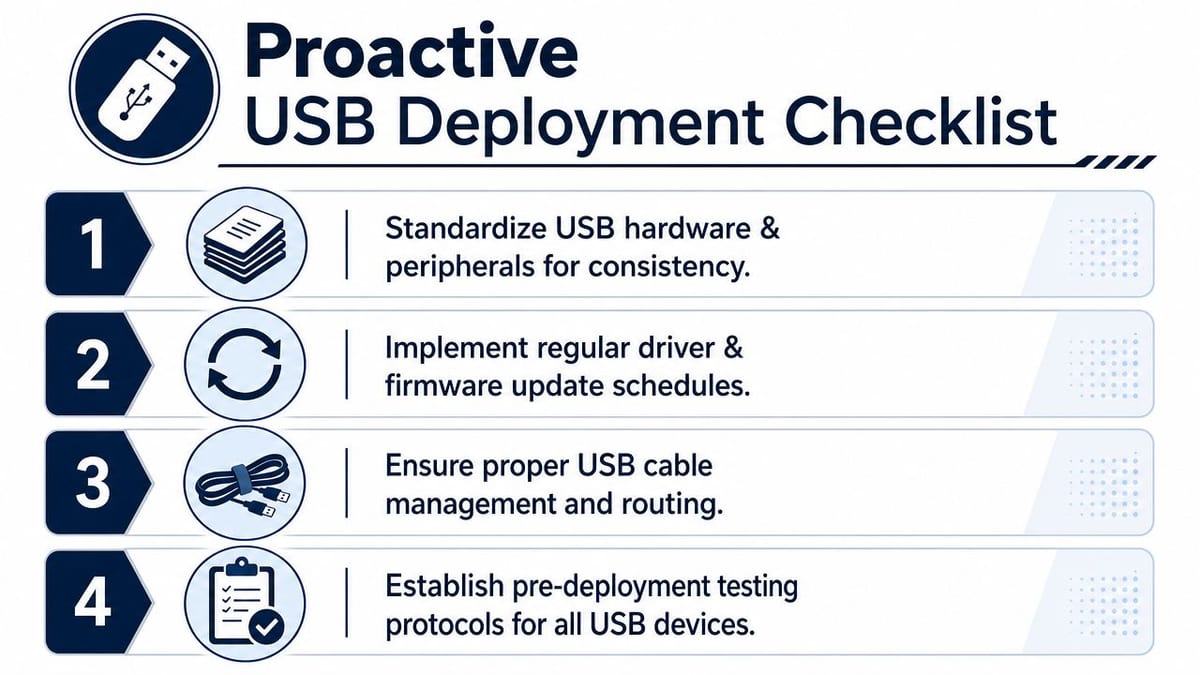
That means standardising not just the image, but the whole peripheral chain. In office fit-outs and clinical environments, the failure point is often the combination of dock, cable, adapter, front-panel route, and power policy rather than any one component on its own.
What good deployment preparation looks like
A stable rollout usually includes:
- A golden build per hardware model: include vetted chipset, firmware, and dock packages rather than trusting whatever Windows pulls down first
- Pilot testing with real accessories: test the exact keyboards, scanners, headsets, conference peripherals, and docks that will be installed on day one
- Known-good cabling standards: don't mix random bundled leads from different vendors if you want repeatable results
- Direct-connect checks: verify every device works without adapters or hubs before introducing extra layers
- Spare swap stock on site: keep approved cables, hubs, keyboards, and mice available so engineers can isolate faults quickly
Design matters more than most teams think
On larger projects, USB reliability isn't only a desktop support issue. It intersects with the physical environment.
For example:
- CCTV and AV installations often add USB-connected control or conferencing hardware into meeting rooms and reception areas
- Commercial electrical installation and certification affects whether desk power, floor boxes, and room equipment are being deployed into a clean and supportable environment
- Building out fully autonomous unmanned building units creates even tighter dependency on reliable access hardware, local power, data connectivity, and remote management because there may be no onsite staff to intervene when a peripheral path fails
That last point matters beyond endpoint support. In practice, unmanned building management means a site is expected to run day to day with little or no permanent staff presence. Entry systems, cameras, sensors, network equipment, room controls, and alarm pathways all need to work together without someone constantly resetting devices. Many unmanned building projects fail because teams treat access control, power, and data as separate workstreams. They aren't. If door hardware, controllers, switches, and uplinks aren't designed together, you end up with fragile operations and expensive maintenance visits.
Access, power, and data have to be designed as one system
A reliable unmanned site usually depends on:
- Access design: readers, door hardware, lock choice, and fallback methods
- Power design: clean local supply, battery strategy where needed, and supportable fault recovery
- Data design: resilient cabling, switching, wireless coverage, and remote monitoring
Battery-less, NFC proximity locks make sense in many of these environments because they remove a common maintenance burden. Teams choose them to avoid battery replacement cycles, reduce site visits, simplify ongoing upkeep, and limit the number of small failures that can leave a space inaccessible. They're often well suited to plant rooms, managed offices, shared workspaces, remote utility areas, and other locations where regular manual intervention isn't desirable.
Maintenance still matters. Someone needs ownership of firmware baselines, controller logs, device lifecycle, spare stock, and inspection routines. “Unmanned” never means “maintenance-free”. It means the system has to be designed so support is predictable instead of constant.
When to Escalate for Professional Support
A rollout can stall fast when ten, twenty, or fifty machines start showing the same USB descriptor error and the usual desk-side fixes change nothing. At that point, the goal is no longer to keep trying options. The goal is to protect deployment time, separate endpoint faults from infrastructure faults, and decide which cases need vendor involvement.
Escalate once you have enough evidence to show the fault is outside normal Windows remediation. If one machine fails with multiple known-good USB devices on multiple ports after BIOS and chipset updates, treat it as a likely host-side hardware issue. Microsoft's guidance for USB-C and USB4 troubleshooting also points to manufacturer service when failures persist after software and firmware checks, especially where the port or platform may be defective: Microsoft USB-C troubleshooting guidance.
Signs it's time to stop local troubleshooting
Use a simple escalation threshold:
- One PC fails with several known-good USB devices
- The same devices work normally on other hosts
- Multiple ports on the same machine show the same error
- BIOS, chipset, and Windows remediation steps have already been completed
- You're also seeing unstable charging, dock dropouts, or intermittent peripheral disconnects
- Several affected machines share the same model, dock, power setup, or fit-out area
That last point matters in large deployments.
If the same symptom clusters around one desk bank, one floor, one dock model, or one batch of devices, stop treating it as a series of isolated tickets. Review the shared conditions. Check power distribution, dock firmware, cable standards, front-panel wiring on desktops, and any recent procurement substitutions. In office fit-outs and NHS-style deployments, I've seen what looked like a driver problem turn out to be poor power integrity, marginal hubs, or damaged front-port assemblies repeated across a whole batch.
The recovery path depends on what your triage shows. A desktop with a failed onboard controller may be worth recovering with a PCIe USB card. A laptop showing repeated port-level faults usually needs warranty support or board replacement. If technician time is already overtaking the value of the device, replace the unit and keep the rollout moving.
External support helps when the problem crosses team boundaries. Use it when you need coordinated testing across endpoint build, electrical supply, structured cabling, docks, room AV, and hardware vendors, or when your in-house team needs to stay focused on user impact and cutover dates.
If you're planning an office move, a new fit-out, or a wider endpoint and infrastructure refresh, Constructive-IT can help you diagnose stubborn USB and peripheral faults in the context that matters most: the full building, the full estate, and the go-live deadline.