
Understanding why your computer keeps crashing means you're likely already past the obvious fixes. The machine has rebooted in the middle of a Teams call, an engineering app has frozen again, or a bank of office PCs keeps falling over for no clear reason. Somebody has updated drivers, somebody has blamed Windows, and somebody has suggested replacing the hardware.
Sometimes that works.
In business environments, though, repeated crashes often aren't isolated desktop problems. They're symptoms of a shared dependency failing under load. Power, cooling, rack layout, structured cabling, patch discipline, graphics driver changes, docking changes, and room conditions can all produce faults that users describe as “random” even when the pattern is highly structured.
That matters most in offices, comms rooms, server spaces, relocations, and fit-outs, where a crash report is often the first visible sign that the infrastructure underneath the endpoint wasn't designed as a complete system.
That Familiar Frustration When Your Computer Crashes Again
A user says their PC crashed. Another says theirs did the same after lunch. A meeting room machine drops out during video calls. A finance workstation only fails on month-end processing. The first instinct is to treat each one as a separate support ticket.
That approach makes sense for a single faulty device. It breaks down when the same complaint appears across a floor, a room, or a recently changed environment.
What users mean by crashing
In modern workplaces, “crashing computer” doesn't always mean a full machine failure. Some incidents are browser failures, app exceptions, video-conferencing instability, or session drops under load. That distinction matters because the fix changes completely. In those cases, driver tuning, browser policy and VDI compatibility may matter more than replacing the endpoint, especially in hybrid environments with AV-heavy meeting rooms, as noted in this guide to Windows PC crash symptoms.
If the whole machine reboots, you're dealing with one class of failure. If only Teams, Zoom, Chrome, Edge, a CAD package or a remote desktop session falls over, you're dealing with another.
Practical rule: First separate full system crashes from application crashes. If you don't, you'll waste time replacing hardware for what is actually a policy, driver or integration problem.
Why “random” usually isn't random
In office estates, the phrase “it crashes at random” often means nobody has correlated the incidents yet. Crashes that seem unrelated can line up neatly with a new dock rollout, a graphics driver push, a room with poor airflow, a cabinet that runs hot in the afternoon, or a circuit that's now carrying more equipment than it was designed to support comfortably.
Users see one device. IT managers need to see the pattern across devices, rooms and recent changes.
That's where the answer to why does my computer keep crashing starts to get more useful. The machine may be the thing failing, but the fault domain is often larger than the machine.
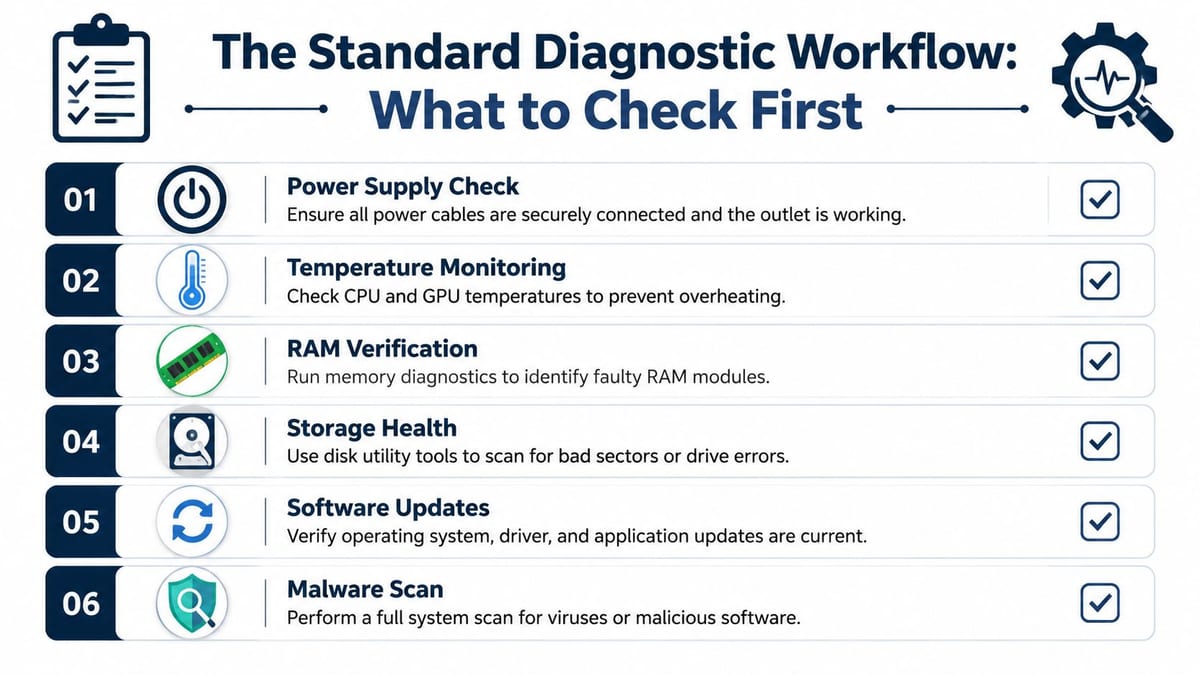
The Standard Diagnostic Workflow What to Check First
Before blaming the building, check the endpoint properly. A disciplined workflow still matters because single-device crashes are often caused by local faults, and you need to rule those out cleanly.
Start with the event history
On Windows, Reliability Monitor is one of the most useful first checks because it gives you a time-based view of failures rather than a single error box. That helps you line up crashes with driver installs, application changes, Windows updates, firmware changes, and newly attached devices.
If a user says the machine “just started doing it”, Reliability Monitor often tells you what changed around the same time.
Driver faults deserve priority
Driver management sits near the top of the list for a reason. Microsoft research, cited by Avast, indicates that about 70% of Windows blue screen crashes are caused by third-party driver problems in Avast's summary of computer crash causes. In practical terms, that means graphics, chipset, network, storage and docking-related drivers deserve immediate attention after any hardware refresh, desk move or update cycle.
Don't just check whether a driver exists. Check whether it's the correct version for the exact hardware model, BIOS revision and OS build.
A few patterns come up repeatedly:
- Docking station changes: USB-C and Thunderbolt docks often expose graphics, network and power quirks that look like random instability.
- Graphics stack updates: Multi-monitor users, design teams and meeting room PCs often fail first when GPU drivers drift out of alignment.
- Network adapter issues: Bad NIC drivers can present as session drops, freezes or application errors before they show up as obvious network faults.
For related symptoms where the machine repeatedly cycles rather than freezing, this breakdown on why a computer keeps restarting is worth reviewing alongside your crash analysis.
Check heat before you chase ghosts
Thermal issues waste a lot of support time because users report them inconsistently. A machine that crashes during a long call, a render, a backup, or a heavy browser session may not be “software unstable” at all. It may be running hot.
Use a straightforward sequence:
- Confirm airflow. Check vents, dust build-up, fan operation, and whether the device is shoved into enclosed furniture or mounted behind a display.
- Observe load conditions. Ask what the user was doing when the crash happened. Video calls, browser tabs, GPU acceleration and virtual desktops all change heat behaviour.
- Compare environment. The same model failing in one room but not another is a clue.
If the fault appears after twenty minutes of load and disappears on a cool bench, the software stack is probably not your first suspect.
A lot of support teams skip this because thermal faults can feel old-fashioned. They aren't. They still cause very modern outages.
Here's a useful refresher before deeper hardware checks:
Test memory and storage properly
Intermittent crashes that resist obvious fixes often come back to RAM or storage integrity. Bad memory, marginal seating, and disk corruption can all mimic software problems. On Windows systems, MemTest86 and disk checks such as CHKDSK are standard ways to test the subsystems most likely to fail under load.
A short triage table helps:
| Symptom | More likely area to inspect |
|---|---|
| BSOD during graphics or multi-monitor use | GPU or display drivers |
| App exceptions under heavy workloads | RAM integrity or storage faults |
| Reboots during high load | Power delivery, RAM, drivers |
| Failures after recent hardware changes | Driver, firmware or compatibility mismatch |
This workflow matters because it keeps the diagnosis honest. But if you keep proving that the endpoint is “fine” and the crashes continue in the same area, it's time to stop treating the device as the whole problem.
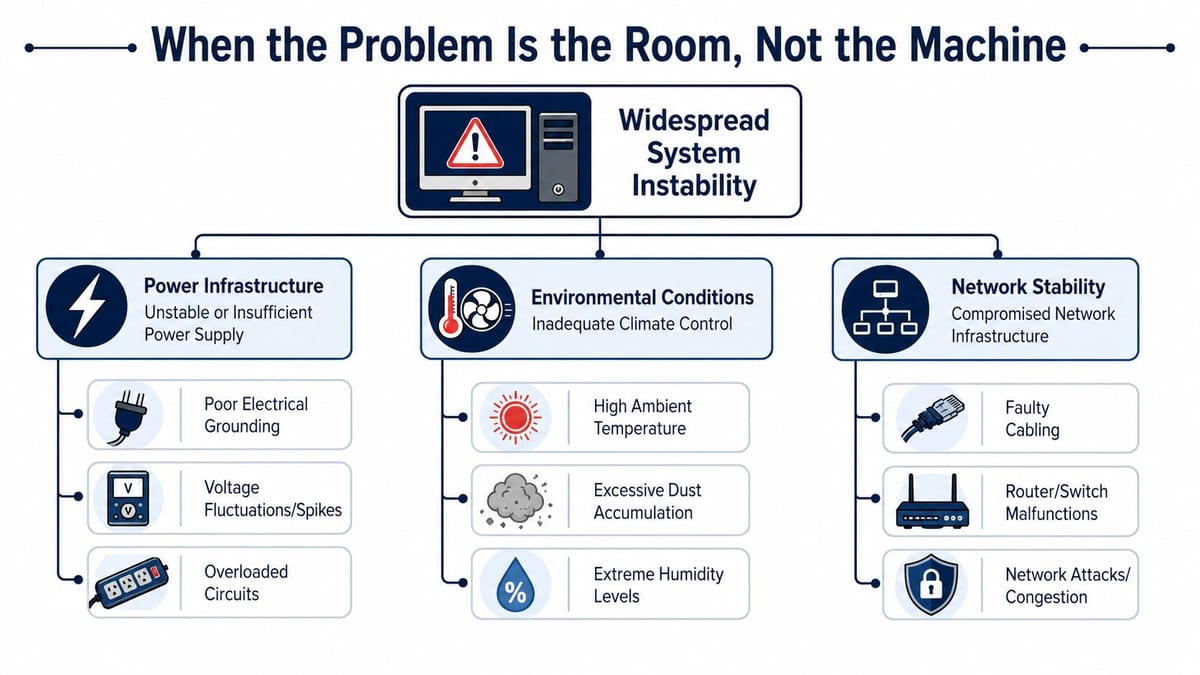
When the Problem Is the Room Not the Machine
When several systems in the same part of a building become unstable, the shared dependencies matter more than the individual PC build. That's where many crash investigations go wrong. Teams keep rebuilding endpoints while ignoring the fact that all those endpoints sit on the same power, in the same thermal envelope, and on the same physical infrastructure.
Shared faults create shared symptoms
Many guides overlook building-side causes. In UK office environments, where national grid supply is generally stable, repeated crashes in one area are more likely to point to local issues such as failing UPS units, overloaded circuits, or poor cabinet ventilation, as discussed in this business-focused look at local crash causes.
That changes the investigation immediately.
If multiple devices in one office wing crash, start by asking:
- What power do they share
- What cooling do they share
- What cabling routes and cabinets do they share
- What changed in that area
Endpoint support and facilities management must collaborate. If they don't, each team sees only half the fault.
Access power and data have to be planned together
A reliable office or server space isn't built from isolated workstreams. Access control, electrical installation, structured cabling, network equipment placement, and environmental control affect one another.
A common failure pattern looks like this:
| Infrastructure decision | Hidden consequence |
|---|---|
| More devices added to a room | More heat and more power draw |
| Small cabinet with poor ventilation | Thermal rise and intermittent instability |
| AV kit and network kit sharing poor layouts | Service drops during meetings and peak use |
| Desk moves without power review | Local overloads and fragile user experience |
A workstation crash may be the visible symptom of an overloaded local environment. The same goes for meeting room PCs, thin clients, access control servers and small edge cabinets.
The right question isn't “which computer is broken?” It's “what dependency do these failures have in common?”
Cooling isn't just a facilities issue
Server rooms and comms spaces fail gradually before they fail dramatically. Fans clog. Air paths get blocked. New switches and AV components get added without revisiting cooling assumptions. Temporary changes become permanent.
Facilities teams often already have a maintenance process for this, but IT managers should still understand what good looks like. A practical reference is this commercial HVAC maintenance checklist from Covenant Aire Solutions, especially when you're trying to connect room conditions to device stability rather than treating them as separate issues.
Power protection deserves the same scrutiny. A UPS can protect a room well, or introduce a new point of fragility if it's ageing, undersized or badly maintained. This overview of UPS review considerations is useful when repeated endpoint crashes point back to power quality and battery condition rather than the endpoints themselves.
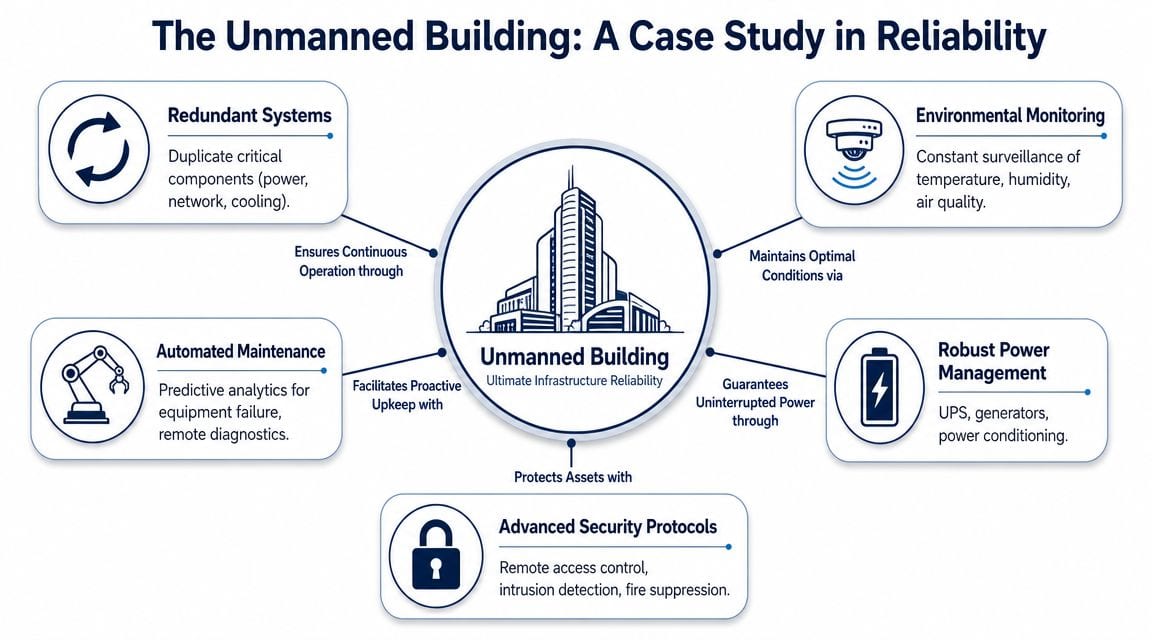
The Unmanned Building A Case Study in Reliability
The easiest way to understand why computers “randomly” crash in business settings is to look at an environment where random failure isn't acceptable. That's the unmanned building.
In practice, unmanned building management means a site, floor, comms room, plant area, edge facility or standalone unit operates without routine on-site staff presence. People may visit for planned maintenance, but day-to-day operation depends on remote visibility, stable infrastructure, controlled access, and systems that keep working without somebody physically intervening every time an alert appears.
What that means in the real world
An unmanned building isn't just a locked room with Wi-Fi. It usually depends on a coordinated stack:
- Controlled entry: authorised access has to work every time, even when the site isn't staffed.
- Reliable power: distribution, backup power and protection need to support the actual operating load.
- Data connectivity: switches, WAN links, wireless coverage and monitoring paths need to be stable and documented.
- Environmental management: cooling, airflow and alerting must be engineered into the space.
- Operational visibility: CCTV, alarms, remote monitoring and audit trails have to tell the truth when nobody is physically present.
Examples are common. Small satellite offices, plant rooms, rooftop comms enclosures, smart storage units, server rooms in multi-tenant sites, utility spaces, remote operational hubs and access-controlled equipment rooms all fit this model.
Why so many unmanned projects fail
Most failures aren't dramatic design blunders. They're coordination failures.
One contractor handles electrical work. Another installs access control. A separate supplier drops in CCTV. Network equipment gets specified later. Cooling gets treated as a facilities matter rather than an IT reliability issue. The site goes live with every subsystem technically present, but no one has designed them as one operating environment.
That creates brittle outcomes:
- Access control depends on network paths that weren't tested under fault conditions.
- CCTV records security events but doesn't give operations enough visibility to diagnose environmental or access issues.
- Cabinet cooling is assumed rather than measured.
- Power is available, but not conditioned or segregated sensibly for the equipment load.
- There is certification for individual trades, but no joined-up operational acceptance.
Commercial electrical installation and certification matter here because they set the baseline for safe, compliant, supportable power. Without that foundation, every higher-layer system inherits avoidable risk. If the local electrical environment is weak, you don't just get outages. You get the sort of intermittent instability people later report as “the server locks up sometimes” or “that control PC keeps crashing”.
Environmental design is not optional
Overheating remains a primary cause of random crashes, often due to blocked airflow or failing fans, as covered in Ask Leo's troubleshooting guidance on random computer crashes. In dense server rooms or unmanned spaces, that isn't a desktop support footnote. It's a core design constraint.
A good unmanned unit assumes that heat, dust, and airflow restrictions will eventually test the installation. The design has to account for them from day one.
Consider the difference:
| Poorly planned unmanned unit | Properly engineered unmanned unit |
|---|---|
| Power, access and data added in stages | Power, access and data designed together |
| Cooling treated as background building service | Cooling treated as operational infrastructure |
| CCTV used only for security review | CCTV used for security and operational visibility |
| Maintenance reacts to failure | Maintenance is scheduled around known weak points |
In unmanned environments, every manual workaround becomes a future outage. If a system needs regular human intervention to stay stable, it wasn't designed for autonomous operation in the first place.
CCTV does more than record incidents
CCTV is usually framed as security, but in unmanned buildings it also supports operations. It helps verify whether a cabinet door was left open, whether a contractor disturbed cabling, whether airflow paths were obstructed, and whether a room condition changed before systems became unstable.
That matters because troubleshooting remote instability without visibility turns every incident into guesswork.
Building out fully autonomous unmanned building units means designing for that reality. Access, power, data, environmental control, CCTV, certification, remote support and maintenance need to be treated as one reliability system, not a bundle of separate installations.
Smart Access and Operational Integrity
Access control choices often look minor during design. In operation, they can define whether the site is dependable or annoying. That's why battery-less, NFC proximity locks are attractive in unmanned and semi-unmanned environments.
The case for them isn't fashion. It's operational discipline.
Why battery-less NFC locks make sense
A battery-powered lock can work well, but it creates a maintenance estate. Someone has to track battery age, plan replacement cycles, respond to low-battery alerts, and handle the failures that happen when that process slips. In a busy staffed building that may be acceptable. In unmanned or lightly visited spaces, it adds a predictable point of failure.
Battery-less, NFC proximity locks reduce that overhead. They suit environments where you want:
- Less routine intervention: no battery replacement round to organise
- Simpler maintenance planning: fewer consumables and fewer access components with their own lifecycle
- Cleaner auditability: access remains part of a controlled system rather than a collection of isolated door devices
- Better fit for remote sites: fewer reasons to send someone on-site for avoidable door faults
That doesn't mean they're right for every door. It means they're often right where operational simplicity is a design goal.
Where the wrong access choice hurts reliability
In critical rooms, the lock is part of the uptime model. If the door hardware is unreliable, engineers delay maintenance, site visits become more disruptive, and incident response gets slower. If the lock requires frequent manual attention, it competes with every other maintenance task.
The same principle applies to the supporting hardware behind the scenes. Intermittent crashes in access control or server management systems can be caused by hardware-induced data integrity failures from faulty RAM or storage. Microsoft Q&A guidance points to memory faults, PSU issues and outdated or faulty drivers as leading causes of random crashes under load in this discussion of crash causes during high-load activity. In access systems, that means validated hardware and solid power design aren't optional.
Maintenance has to be designed, not improvised
A fully autonomous unit still needs maintenance. It just needs the right kind of maintenance.
Good operational planning usually includes:
Environmental checks
Filters, airflow paths, cabinet cleanliness and fan condition need a schedule, not a crisis.Power review
UPS health, power supply condition, circuit loading and cable security need regular inspection.Access validation
Credentials, remote access paths, lock behaviour and fail-safe modes should be tested before they're needed urgently.CCTV and monitoring review
Camera views, alerting logic and retained footage need to support operations, not just compliance.Change control
New switches, displays, sensors, AV devices or edge compute units all affect the thermal and power profile.
A stable autonomous site isn't maintenance-free. It's maintenance that has been reduced, documented and engineered into the operating model.
Where these systems are commonly used
This approach is common in spaces where reliability matters more than daily footfall. That includes comms rooms, small server rooms, plant and utility spaces, managed storage facilities, satellite offices, smart building service areas, and remote operational units.
In all of them, the same lesson applies. If the room is expected to run without constant human attention, every component choice should reduce manual dependency rather than increase it.
Building Resilient Infrastructure from the Ground Up
A crashing computer can be a bad driver, failing RAM or a heat problem. It can also be the first visible sign that the surrounding environment was never designed for the equipment now depending on it.
That's the core shift in perspective. The question why does my computer keep crashing often starts at the desktop but ends in the room, the rack, the circuit, the cooling path, the lockset, the cabling route, or the way a fit-out was phased.
What works and what usually doesn't
What works is disciplined diagnosis, followed by infrastructure thinking.
What doesn't work is endlessly rebuilding endpoints when the symptoms cluster by location, by time of day, by cabinet, by desk bank, or by recent site change.
A practical way to frame it is this:
| If you see this | Think about this |
|---|---|
| One device crashes repeatedly | Endpoint workflow and local hardware checks |
| Similar devices in one area fail | Shared power, heat, cabling and room conditions |
| Meeting room and AV-heavy systems struggle | Driver stack, graphics load, room design and integration |
| Remote or lightly attended rooms behave unpredictably | Autonomous infrastructure design and maintenance model |
Even performance upgrades can expose the weakness underneath. Faster endpoints, denser storage, more displays and heavier collaboration workloads all raise the stakes. Hardware can only perform as well as the environment supporting it. That's why storage improvements such as fast SSD drives in business systems help most when the wider platform is stable as well.
The long-term fix is rarely “replace the problem PC and move on”. It's to design offices, server rooms, relocations and fit-outs so that power, data, access, cooling and monitoring support one another from the start.
If your “computer crash” problem keeps coming back, it may not be a repair issue at all. It may be an infrastructure issue wearing a desktop support label. Constructive-IT works with in-house IT and facilities teams on office relocations, fit-outs, server room upgrades, structured cabling, electrical works, CCTV, AV, Wi-Fi and autonomous building infrastructure, so the underlying causes get engineered out rather than patched around.